Can You Add Your Own Team as Portal Users in Airtable?
Airtable's pricing is per-seat, and every Editor or Commenter on a workspace adds to the bill. A natural question when you are looking to reduce costs: can internal team members use Airtable Portals instead of regular collaborator seats?
The short answer is no. Portals have a domain restriction that makes this impossible by design.
Why Internal Team Members Cannot Use Portals
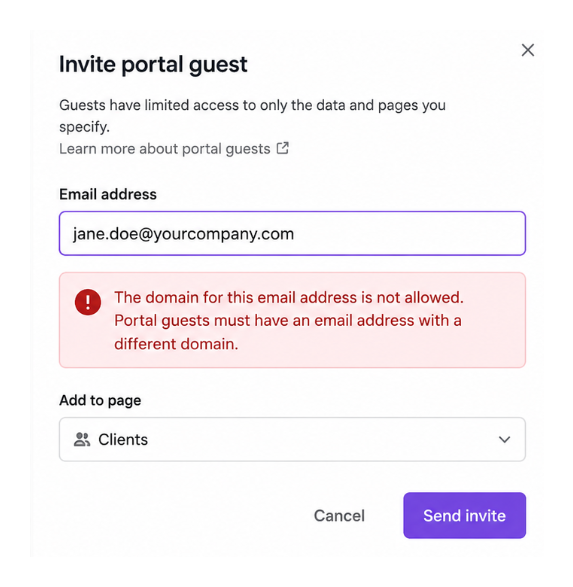
Airtable Portals are built for external collaborators, specifically people outside your organisation. To enforce this, Airtable requires that portal users have an email domain different from the workspace owner's domain.
If your workspace is owned by someone at your company (using a company email domain), anyone else at the company using the same domain cannot be added as a portal guest. Airtable blocks it.
For example, if your Airtable workspace owner uses @company.com, another user with an @company.com email cannot join as a portal guest.
Using personal email addresses (Gmail, etc.) to work around this technically functions but creates real problems: account management becomes inconsistent, there is no way to centrally offboard someone when they leave, and you lose the audit trail of who made changes under what identity. It is not worth the operational mess.
What to Use Instead
Depending on what your team actually needs to do, there are several approaches that work better than trying to force portals for internal use.
Interfaces with Appropriate Permission Levels
If your team only needs to view data or update a limited set of fields, Airtable Interfaces give you a clean solution within the same platform.
Users accessing Airtable through an Interface only see what the Interface exposes to them. You can leave sensitive fields out of the Interface layout entirely. Combined with base-level field permissions on paid plans, you can restrict which fields specific users can edit even while giving them Editor access.
For example, warehouse staff could use an Interface that only shows inventory status fields, while hiding pricing, supplier details, and internal notes entirely.
This is the cleanest solution for most internal teams because it uses native Airtable tools, requires no third-party connection, and keeps all activity logged under proper user accounts.
Forms for Specific Update Tasks
If your team only needs to update a specific set of fields on existing records rather than browse the full dataset, a form is often a better fit than an Interface.
Create a button field in your base that opens a pre-filled update form. The team member clicks the button, sees only the fields they should update, submits, and the record is updated. No base access required, no Interface seat, and no portal workaround needed.
Fillout handles this particularly well. It connects to your existing Airtable base, supports pre-filling form fields with existing record values, and writes updates back to the same record rather than creating new ones. The free Fillout plan covers basic update forms.
For the native Airtable approach to record-update forms, see how to update existing Airtable records with forms without paid tools.
Third-Party Portal Tools for Controlled Internal Access
If your team needs a proper browseable interface with controlled editing but you want to avoid paying per Airtable seat, tools like Softr and Noloco do not have the same domain restriction as Airtable Portals.
These tools connect to your Airtable base and let you build a fully controlled interface where you define exactly which records each user sees and which fields they can edit. Anyone can be invited regardless of their email domain, including internal team members.
Pricing is typically flat-rate or per-portal-user rather than Airtable's per-seat model, which can work out cheaper for teams where most members only need limited access rather than full Airtable Editor functionality.
Commenter Access as a Lower-Cost Option
If your team members need to view all records and leave notes but do not need to edit data, Commenter access is worth considering.
On the Business plan, Commenters are free. They are only billable on the Team plan. If you are on Business, adding people as Commenters costs nothing additional. See the full breakdown of which permission levels are billable to understand exactly what each role costs on your plan.
Choosing the Right Approach
| What the team needs | Best approach |
|---|---|
| View data only | Interface with read-only access, or shared view link |
| Update specific fields on known records | Pre-filled update form via Fillout or native Airtable form |
| Browse and edit a subset of records | Interface with field permissions |
| Full controlled access without Airtable seats | Softr or Noloco |
| Leave comments and notes | Commenter access (free on Business plan) |
The portal workaround is not worth pursuing for internal teams. One of the above approaches will fit your situation more cleanly and without the account management headaches.
Airtable Portals work best for clients, vendors, partners, or customers outside your organisation who need limited access to specific records without becoming full Airtable collaborators.