Why Your Airtable Attachment Links Stop Working (and How to Fix Them)
You upload a file to an Airtable attachment field, copy the link, and share it with a client. A few hours later they message you saying it is broken. You check Airtable and the file is still there. The attachment did not disappear. The link just stopped working.
This is one of the most common frustrations with Airtable's attachment system, and it happens to everyone eventually.
Why Attachment Links Expire
Airtable does not host your files the way Google Drive or Dropbox does. When you upload a file to an attachment field, Airtable stores it on Amazon S3 and generates a temporary signed URL to access it. That URL includes an expiry timestamp, usually around two hours from when it was generated.
This is a deliberate design decision, not a bug. Airtable's file hosting is built for internal use inside the app, not for sharing stable public links. The moment you copy that URL out of Airtable and send it somewhere else, the clock is already ticking.
What this means in practice:
-
URLs copied from the attachment field and pasted into emails, documents, or other tools will break within hours
-
Any integration or automation that stores Airtable attachment URLs to reference later will get broken links over time
-
Embeds of Airtable images in external pages will eventually stop loading
The file is always still in Airtable. The URL to reach it is not.
The Fix: Store Files in a Permanent Location
The solution is to not rely on Airtable's attachment URLs for anything external. Instead, host your files somewhere that provides stable, non-expiring links (Google Drive, Dropbox, S3, Cloudflare R2) and store those permanent links in Airtable rather than the files themselves.
Your Airtable base still tracks the records and metadata. The files live in external storage. The links in your base always work.
There are three ways to set this up depending on your tools and technical comfort.
Option 1: Automate with Make and Google Drive
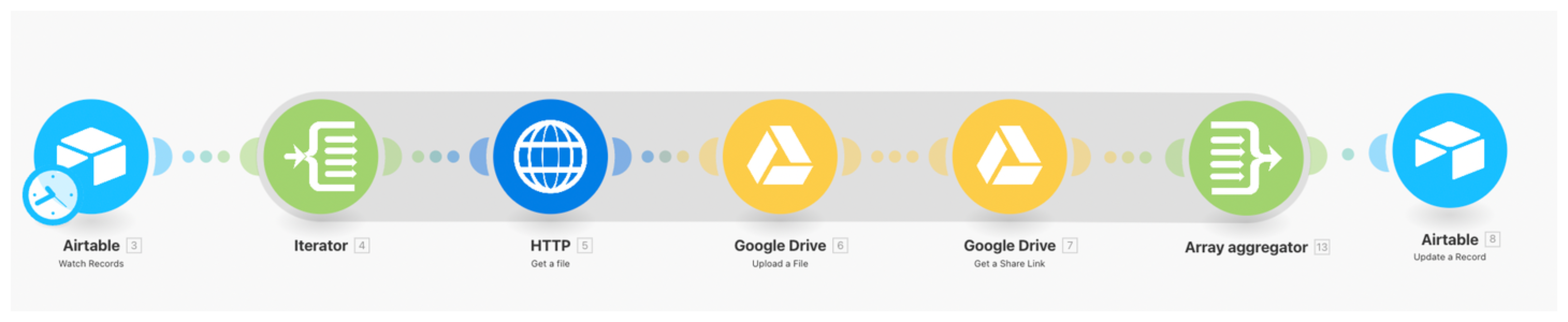
This is the most robust solution. You set it up once and every new attachment added to Airtable is automatically moved to Google Drive and replaced with a permanent shareable link.
Before you start
You need a Make account (free tier is sufficient for low-volume use) and a Google Drive account. Your Airtable table should have an attachment field where files are uploaded and a separate URL or text field where you will store the permanent Google Drive links.
Step 1: Watch for new records in Airtable
Create a new scenario in Make. Add an Airtable: Watch Records module as the trigger.
Connect your Airtable account, select your base and table. Set the trigger to watch for new records. If you want to process records that already exist, use Search Records instead to batch-process existing data first.
Step 2: Iterate over the attachments
Records can have multiple attachments. Add an Iterator module after the trigger. Set it to iterate over the attachments array from the Airtable module.
This means if a record has three attachments, the following steps will run three times, once per file.
Step 3: Download the file from Airtable
Add an HTTP: Get a File module. Set the URL to the attachment URL from the iterator output.
This step fetches the file from Airtable's temporary URL before that URL expires. The file is now in Make's pipeline as binary data.
Step 4: Upload to Google Drive
Add a Google Drive: Upload a File module. Connect your Google Drive account, choose the destination folder, and set the file content from the previous HTTP step. Set the file name using the attachment filename from the iterator.
Google Drive will confirm the upload and return a file ID.
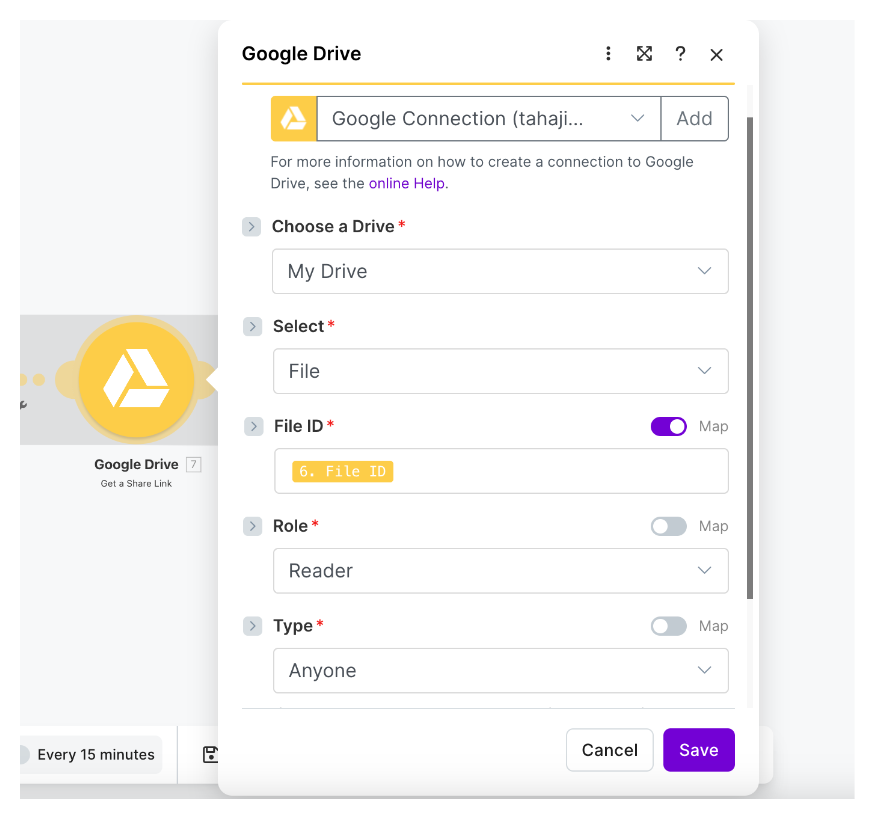
Step 5: Create a permanent shareable link
Add a Google Drive: Get a Share Link module. Use the file ID from the previous step. Set sharing to "Anyone with the link can view."
This generates a permanent link that does not expire.
Step 6: Aggregate multiple links
Add an Array Aggregator module. Set the source module to the Iterator. This collects all the permanent links generated across multiple attachments back into a single array before writing to Airtable.
Step 7: Update the Airtable record
Add an Airtable: Update a Record module. Use the record ID from the Watch Records trigger to target the right record. Map the aggregated links array to your permanent links field.
Once this is running, every new attachment added to Airtable gets automatically moved to Google Drive and the permanent link written back to the record within minutes.
Option 2: Use Dropbox Instead of Google Drive
The Make scenario above works identically with Dropbox. Replace the Google Drive modules with Dropbox: Upload a File and Dropbox: Create a Shared Link.
Dropbox shared links do not expire by default on any paid plan. On the free Dropbox plan, shared links also do not expire but the account has storage limits.
One advantage of Dropbox for this use case is that the shared link URL is slightly simpler to work with in Airtable formula fields if you need to display or process the link later.
Option 3: Store Files Externally From the Start
If you have not yet built your attachment workflow and are starting fresh, the simplest approach is to skip Airtable's attachment field entirely.
Instead of uploading files to Airtable, upload them directly to Google Drive, Dropbox, or any other file storage service. Then copy the shareable link and paste it into a URL field in Airtable.
This avoids the expiry problem completely because the file never goes through Airtable's hosting. The Airtable record just stores a reference link to where the file actually lives.
The tradeoff is that you cannot preview files inline in Airtable the way you can with native attachments. You also lose the ability to view thumbnails of images in gallery view. If those things matter for your workflow, the automation approach in Option 1 gives you both: files in Google Drive with permanent links, plus the original files still visible in the Airtable attachment field.
Which Option to Use
| Make + Google Drive | Make + Dropbox | Store externally | |
|---|---|---|---|
| Setup effort | Medium | Medium | Low |
| Fully automated | Yes | Yes | No (manual upload) |
| Files visible in Airtable | Yes (originals stay) | Yes (originals stay) | No |
| Permanent links | Yes | Yes | Yes |
| Cost | Make free tier + Google Drive | Make free tier + Dropbox | Free |
For most people, Option 1 is worth the setup time. You do it once and never think about broken links again.
Option 3 is fine for simple use cases where you are the only person uploading files and you do not need thumbnail previews.
A Note on Existing Records
If you already have records with Airtable attachment URLs stored elsewhere (in a text field, in another tool, in documents), those links are all expired. You will need to either re-upload the files and run the automation, or go back to the source and re-download then re-upload to an external storage service.
There is no way to regenerate an expired Airtable attachment URL retroactively.
For related reading on storing and managing files alongside your Airtable records, see Should You Store Documents in Airtable or Google Drive?. For how to automatically link Google Drive files to the right Airtable records, see How to Automatically Link Google Drive Files to Records in Airtable.