How to Automatically Generate Employee Attendance Records for Workshops in Airtable
Every time a new workshop is scheduled, someone has to create an attendance record for each employee. In a team of 30, that means 30 manual record creations before the session even starts. The process is tedious and easy to forget.
Airtable automations can handle this entirely. When a new workshop is added, the automation finds every employee and creates one attendance record per person automatically.
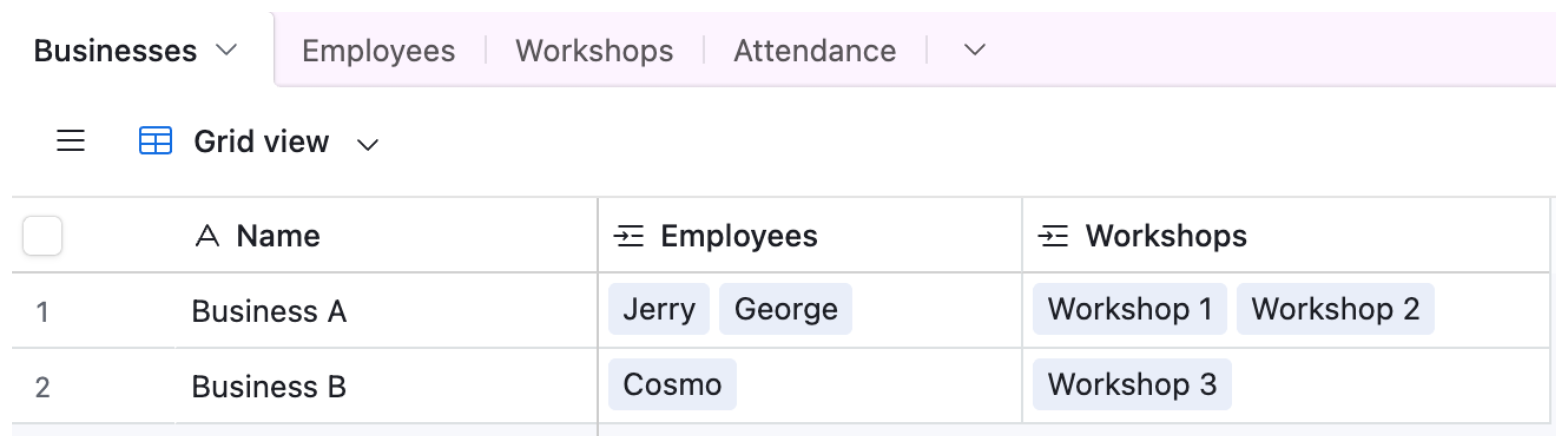
The table structure
You need three tables:
Workshops stores each session with fields like Name, Date, and Status.
Employees stores each team member with fields like Name, Department, Active (checkbox), and any other relevant details.
Attendance links both. Each record in this table represents one employee at one workshop. It has a linked field to Workshops, a linked field to Employees, and a Status field (Present, Absent, Excused). Set the primary field to a formula like {Workshop} & " - " & {Employee} so each record is identifiable on sight instead of showing a generic autonumber, which matters once you have hundreds of these records across multiple sessions.
Setting up the automation
Go to the Automations tab and create a new automation.
Trigger: When a record is created in the Workshops table. This fires every time a new workshop is added.
Action 1: Find records in the Employees table. Filter to Active is checked, rather than leaving it unfiltered, so former employees don't end up with attendance records for workshops they'll never attend. The Find records action returns up to 1,000 records per run by default, which covers nearly any team size, but if your employee count is unusually large you can raise or lower that limit in the step's settings.
Action 2: Repeat for each record returned by Action 1. Inside the repeating group, add a Create Record action targeting the Attendance table. Map the Workshop linked field to the triggering workshop record, and the Employee linked field to the current employee in the loop. Set the default Status to Absent or leave it blank until attendance is marked.
If there's any chance the trigger could fire twice for the same workshop, for example if someone duplicates a workshop record by mistake, add a condition before the Create Record step that checks whether an Attendance record already exists for that Workshop and Employee pair, and skip the create if it does. Otherwise a duplicate trigger creates a full second set of attendance records for the same session.
Save and turn on the automation. The next time a workshop record is created, Airtable creates an attendance record for every active employee without any manual work.
Marking attendance
Once the records exist, use a grid view filtered to a specific workshop to see all attendees, or build an Interface with a list or record review layout pointed at that same filtered view. Interfaces tend to work better than a grid view for facilitators who aren't regular Airtable users, since there's no risk of them editing the wrong field or view by accident.
If you want to give facilitators access to mark attendance without giving them editor access to the entire base, see how to let approvers update status without editor access. The same approach works for attendance marking.
For tracking team capacity and availability alongside workshops, tracking contractor or team availability for events and projects in Airtable covers a complementary setup.
Handling existing employees when a workshop is added
The automation runs when a record is created, so it captures your employee list at that exact moment. If you add employees later, they will not automatically get attendance records for past workshops. A few ways to handle that: run a one-time script to backfill the missing records, temporarily widen the Find records filter and manually re-trigger the automation for the affected workshops, or import the missing rows directly with a CSV if it's a small, one-off gap. None of these are required if you're fine with new employees only appearing in future workshops going forward.