A standard Airtable form creates one record in the table connected to the form. A linked record field lets the person filling out the form select an existing record, but the form cannot create a new linked record in another table.
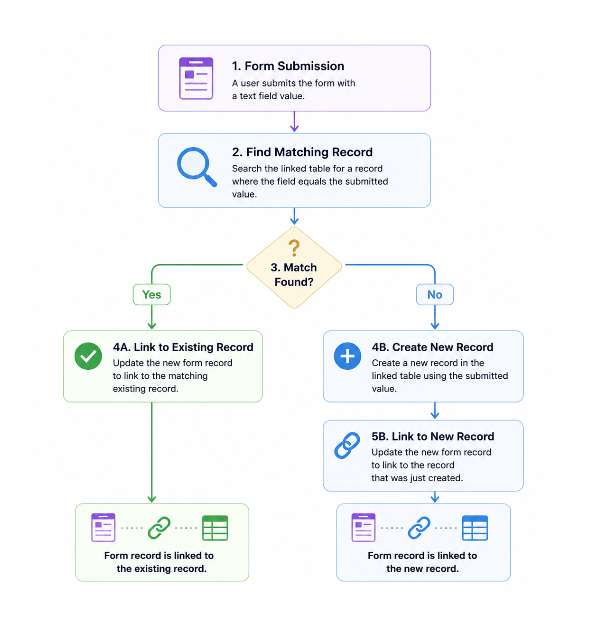
If you want the link to happen in the background, collect a value such as an email address or customer ID in a text field. Then use an automation to find the matching record, link it when it exists, or create a new record when it does not.
If the form needs to create records in several tables, first set up a submissions table and use linked fields to connect the related tables. See How to Set Up a Form That Adds Data to Multiple Tables in Airtable for that structure.
Set up the tables
Use a Submissions table for the form and another table for the records you want to link, such as Customers.
The Submissions table needs:
- A text field that the form submitter fills in, such as Email or Customer ID.
- A linked record field that points to the Customers table.
The Customers table needs the same value in a field that the automation can search. Use a value that should be unique, such as a customer ID or email address.
Find the matching record
Create an automation with the When record is created trigger and select the Submissions table. A form submission creates the record that starts the automation.
Add a Find records action and select the Customers table. Set the condition to match the Customers field against the value from the triggering submission.
Use a dynamic value from the trigger, not a fixed value. For example, set Customers → Email to equal the Email value from the new Submission record.
If you are matching email addresses or names, create a matching formula in both tables, such as LOWER(TRIM({Email})), and search those formula fields instead. This helps with capitalisation and extra spaces, but the value still needs to identify the right record.
Link an existing record
Add a Conditional logic action after Find records.
Create a branch for when the number of records found is exactly 1. Inside that branch, add an Update record action for the Submission record created by the form.
In the linked record field, insert the Airtable record ID from the Find records action. Linking with the record ID is more reliable than passing the record's name, especially when names are not unique.
Do not automatically choose the first result when more than one record matches. Send those submissions for review or fix the duplicate values first.
Create a new record when there is no match
Add a second branch for when the number of records found is 0.
Inside that branch, add a Create record action for the Customers table. Copy the matching value from the Submission record into the new Customer record, along with any other details you collected.
After the new Customer record is created, add an Update record action for the original Submission record. Set its linked record field to the Airtable record ID returned by the Create record action.
The result is:
Form submission
  ├── existing Customer record, when one exact match is found
  └── new Customer record, when no match is found
Avoid accidental duplicate records
The automation can only match what you give it. If two Customer records have the same email address or customer ID, the automation cannot safely decide which one to use.
Use a unique match field and check the Find records count before linking. For more ways to find and clean up duplicate records, see How to Prevent and Remove Duplicate Records in Airtable.
When another form tool makes sense
Use the native automation when the form can collect the information in one submission and the link can happen afterward.
If people need to create a new linked record themselves while filling out the form, Fillout can handle that flow directly. Keep the Airtable automation when you want the matching to happen quietly in the background.