How to Link Google Drive Files to the Right Airtable Records
I’ll use a construction team as the example. They keep their drawing records in Airtable, while the matching PDFs are stored in Google Drive.
Each Airtable record has a drawing number such as DRG-001, and the matching file uses the same number in its name, such as DRG-001.pdf. The goal is to connect each PDF to the right Airtable record automatically.
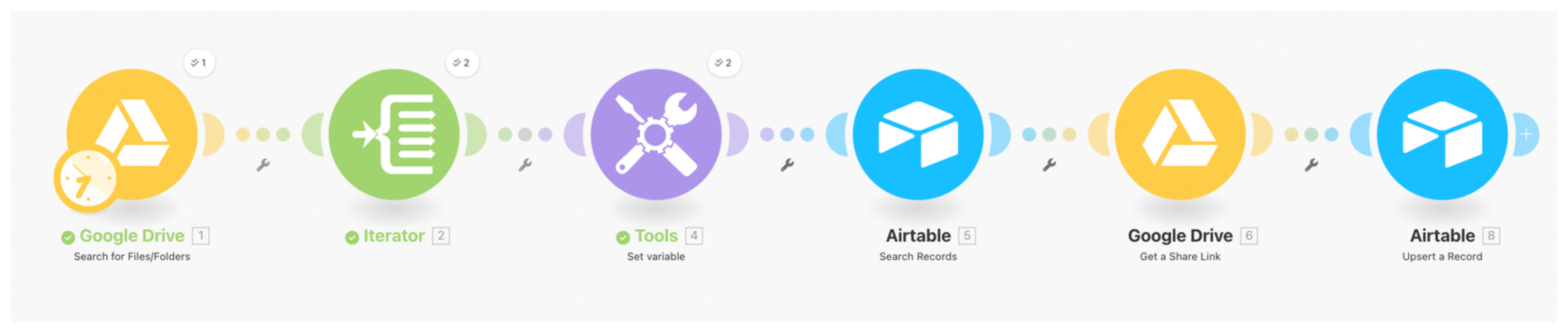
Set up the Make scenario
Use Make to build the workflow. Before you start, add a URL field called Drawing File to the Drawings table.
Start with Google Drive > Search for Files/Folders and choose the folder that contains the drawings. This gives Make the files that need to be matched. If you want the workflow to run whenever a new drawing is added, use Google Drive > Watch Files in a Folder instead.
Next, add Tools > Set variable and call the variable Drawing Number. In the Value field, insert the Google Drive Name token and use Make's replace function to remove the file extension. A file called DRG-001.pdf should produce DRG-001.
Now add Airtable > Search Records. Choose the base and the Drawings table, then compare the Drawing Number field with the variable from the previous step. Make will use that value to find the record for the file.
Once the record is found, add Airtable > Update a Record. Choose the Drawings table, map the Record ID from Search Records, and map the file's Google Drive link to Drawing File.
Only update the file when Make finds one matching record. Send files with no match or multiple matches for review first.