How to Change the Button Text for Selecting Linked Records in Your Airtable Form
Your Airtable form looks great. You have all the questions set up just the way you want. But then you preview it and notice something odd.
You see a button for selecting a linked record item from another table. It says "Add Record" or "Add Show", which has nothing to do with the actual options.
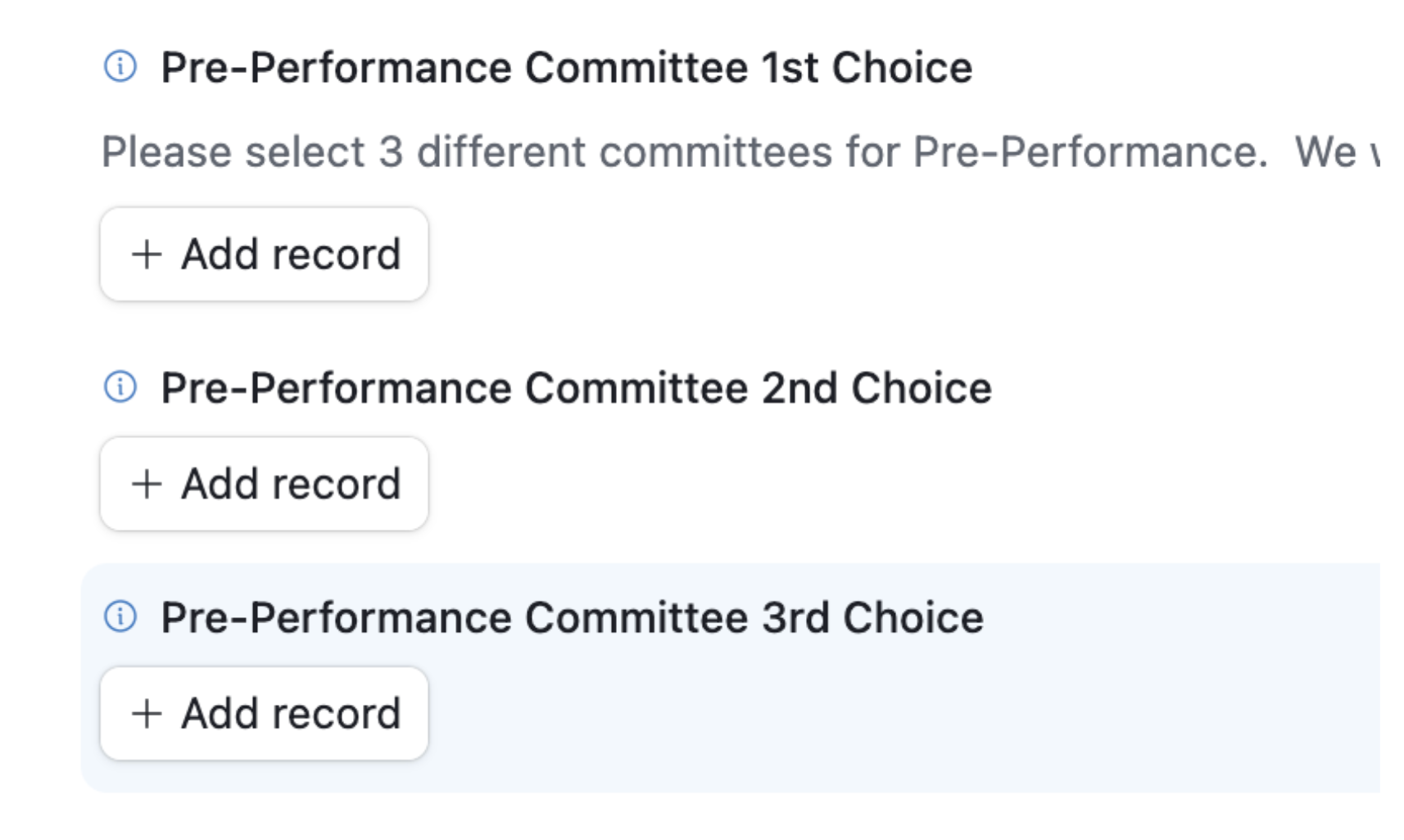
You never named it that. It just appeared on its own.
What you actually want is for the button to say something that matches your form. For example, "Add Preference" or "Add Product" instead of the generic label Airtable chose.
But there is no obvious way to change it.
This feels frustrating because you want the form to look professional and make sense to the people filling it out.
So how do you fix this?
Airtable automatically chooses the button text based on the table’s record term.
When you create a table, Airtable lets you set both the table name and the term used for individual records. This record term is what appears in phrases like Add Record or Add Show.
To change this, you will need to update the record term. Airtable does not let you type in any word you want. Instead, it gives you a dropdown list of predefined record terms to choose from. You will have to pick one from this list.
Try to select something that closely matches what your table is about.
To update the record term, open your base and look at the top of the table. Click the small arrow next to the table name and choose Rename table.
Here you can change both the table name and the singular record term. For example, you might set the table name to "Product Details" and choose "Product" as the record term.
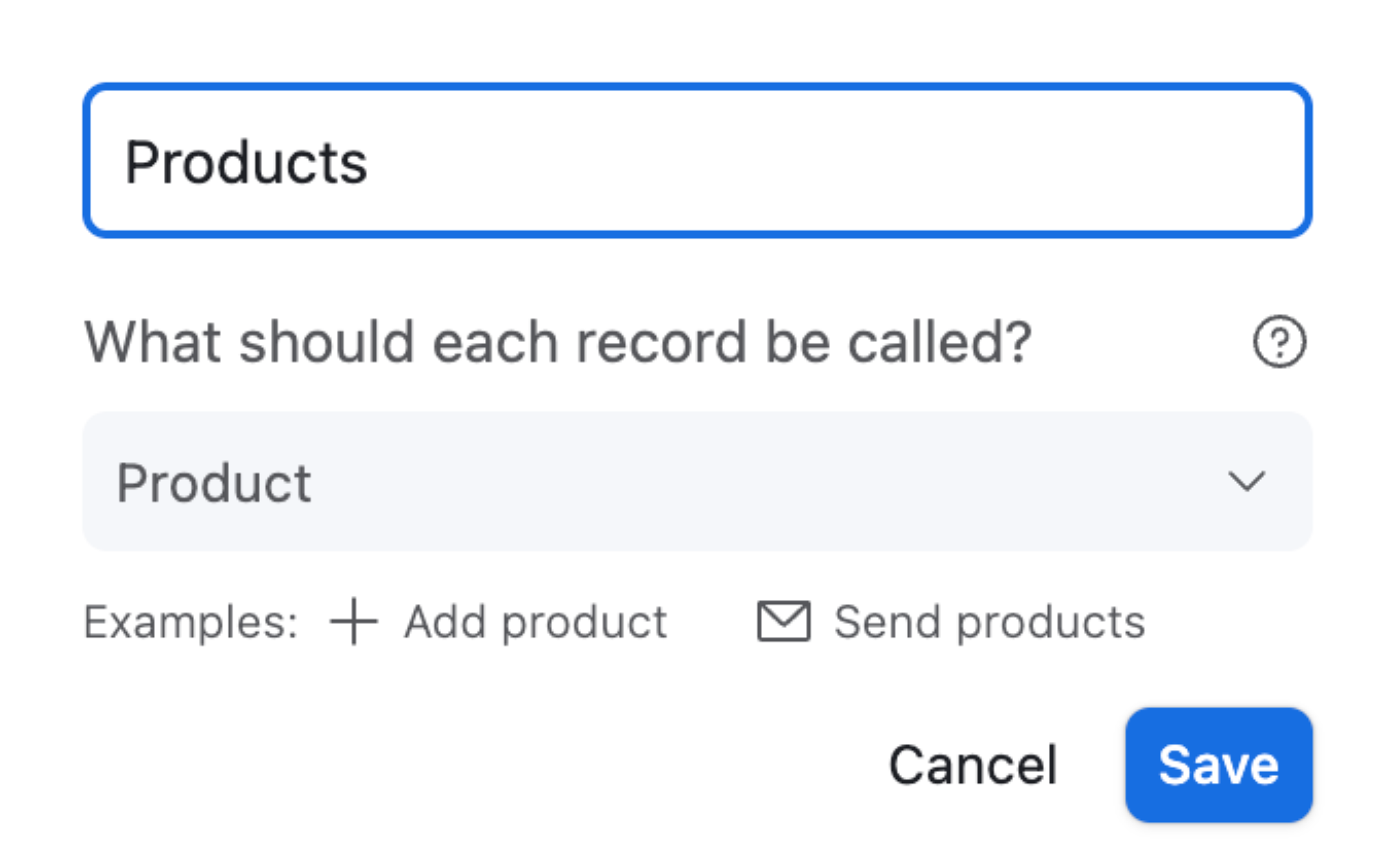
Airtable will then use your new record term automatically in the form button.
While it is not completely free to name it however you want, you can usually find an option that is closer to what you need.
Once you save your changes, check your form again. You will see the button now says "Add Product" or another term you chose instead of the generic "Add Record".
This small adjustment helps make your form clearer and more user-friendly for anyone filling it out.
If you are not finding a suitable option for your record name in the predefined list, consider using Fillout. It integrates well with Airtable and offers many more features than the standard Airtable forms.
With Fillout, you can completely customize your form, including editing the button text exactly as you want. Take a look and see if it would be a better option for your needs.