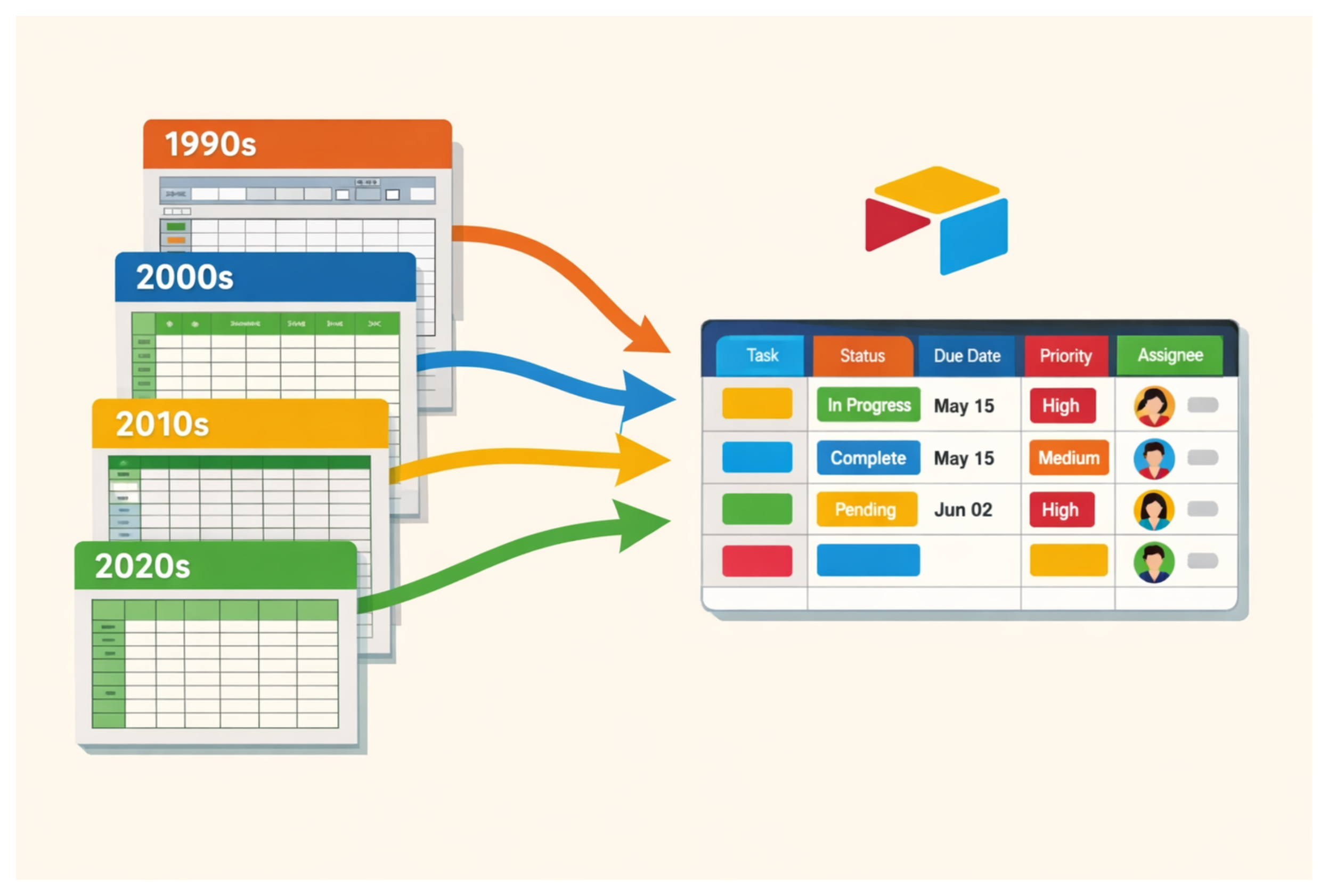
You have ten, twenty, maybe thirty years of spreadsheets.
Each year has its own file. The newer ones have columns that did not exist in the older ones. The same information might be called "Customer" in one file, "Client" in another, and "Customer Name" somewhere else.
Now you want to bring everything into one Airtable table.
The tempting approach is to start importing files and sort out the differences as you go. With thousands of records, that can create a much bigger cleanup job later.
A better approach is to decide what the final table should look like first, clean the source data around that structure, and only then start importing.
Start with the columns, not Airtable
Before creating fields in Airtable, open your spreadsheets and make a list of all the columns that have been used over the years.
You will probably find several variations of the same thing:
- Customer
- Customer Name
- Client
- Client Name
You may also find fields that only existed for a few years, fields that were replaced by something better, and fields nobody uses anymore.
For each one, decide what happens to it in the new system. Keep it, rename it, combine it with another field, or leave it behind.
By the end of this exercise, you should have a list of the fields you actually want in Airtable rather than a collection of every column anyone has ever added to a spreadsheet.
Build the table you want to end up with
Now create your Airtable table using that field list.
Set up the correct field types from the beginning. Dates should be date fields, amounts should be numbers or currency, statuses should use consistent options, and relationships that belong in another table should use linked records.
It is fine if older records do not have values for newer fields. An empty field is much easier to deal with than creating a different structure for every year.
This is also a good time to check your Airtable plan's record limit, especially if you are importing tens of thousands of records. The limit applies to the entire base, not separately to each table.
If your historical data is already close to your plan's limit, solve that problem before importing rather than discovering it halfway through the migration.
Clean each spreadsheet before importing it
You do not need to make every old spreadsheet beautiful. You just need to fix the things that will cause problems when the data reaches Airtable.
Start with the obvious differences. If one file says "Active" and another says "active," standardize them. Check for duplicate records, numbers stored as text, inconsistent blanks, and columns you already decided not to keep.
Pay particular attention to dates.
A value such as 20240116 might make sense to a person as January 16, 2024, but it may arrive in Airtable as a number rather than a date. Convert values like this to a recognized format such as 2024-01-16 before importing.
A little cleanup in the source files saves a lot of cleanup after tens of thousands of records have been combined.
Test one file first
Do not make file number one the beginning of a thirty-file import marathon.
Pick one spreadsheet, preferably a newer one with most of the fields you expect to use, and treat it as a test.
Import it and inspect the result. Check a handful of records against the original spreadsheet. Make sure dates are dates, numbers are numbers, select values look right, links still work, and linked records behave as expected.
If something is wrong, fix the table structure or source data now.
Once the first file imports cleanly, you have a process you can repeat for the rest.
If you are adding this historical data to an existing Airtable base, take a snapshot before starting the full import as an extra safety net.
Import the remaining spreadsheets
For the actual migration, you can use Spreadsheet Import, a tool we built for bringing spreadsheet data into existing Airtable tables.
One of the useful parts of importing historical data is field mapping. Your spreadsheet column does not need to have exactly the same name as the Airtable field.
For example, an old spreadsheet might contain:
Customer Name
while your new Airtable table uses:
Client
You can map one to the other during the import instead of renaming every source file to match Airtable.
Spreadsheet Import also preserves hyperlinks stored behind text. If an Excel cell displays "View supplier" but contains a URL underneath, the display text and link can be carried across together. That is useful when years of spreadsheets contain links to supplier pages, PDFs, specifications, or other reference material.
It can also handle larger spreadsheet files without Airtable's native Excel import file-size restriction, which means you do not have to split a large workbook into smaller files simply to get it into Airtable.
From here, work through the files one at a time:
- Select the spreadsheet.
- Map its columns to your Airtable fields.
- Import the data.
- Check a sample of records.
- Move on to the next file.
It is not the fastest-looking approach, but it is much easier to fix one bad import than discover the same mapping mistake across years of historical data.
Once the final file is imported, you have what you were aiming for from the beginning: one consistent Airtable structure containing historical data that used to be scattered across years of spreadsheets.
If some of those spreadsheets contain newer versions of records that already exist in Airtable, see how to import updated data without duplicating records.
And if the amount of historical data makes you question whether everything should live in the same base, see when to use one base versus multiple bases in Airtable.