How to Find Which Airtable Account Owns a Public View Link
You have a public Airtable view link but nobody remembers who created it or which base it belongs to. The view is still live and potentially exposing data. You want to locate it and either revoke access or transfer ownership.
The URL itself contains everything you need.
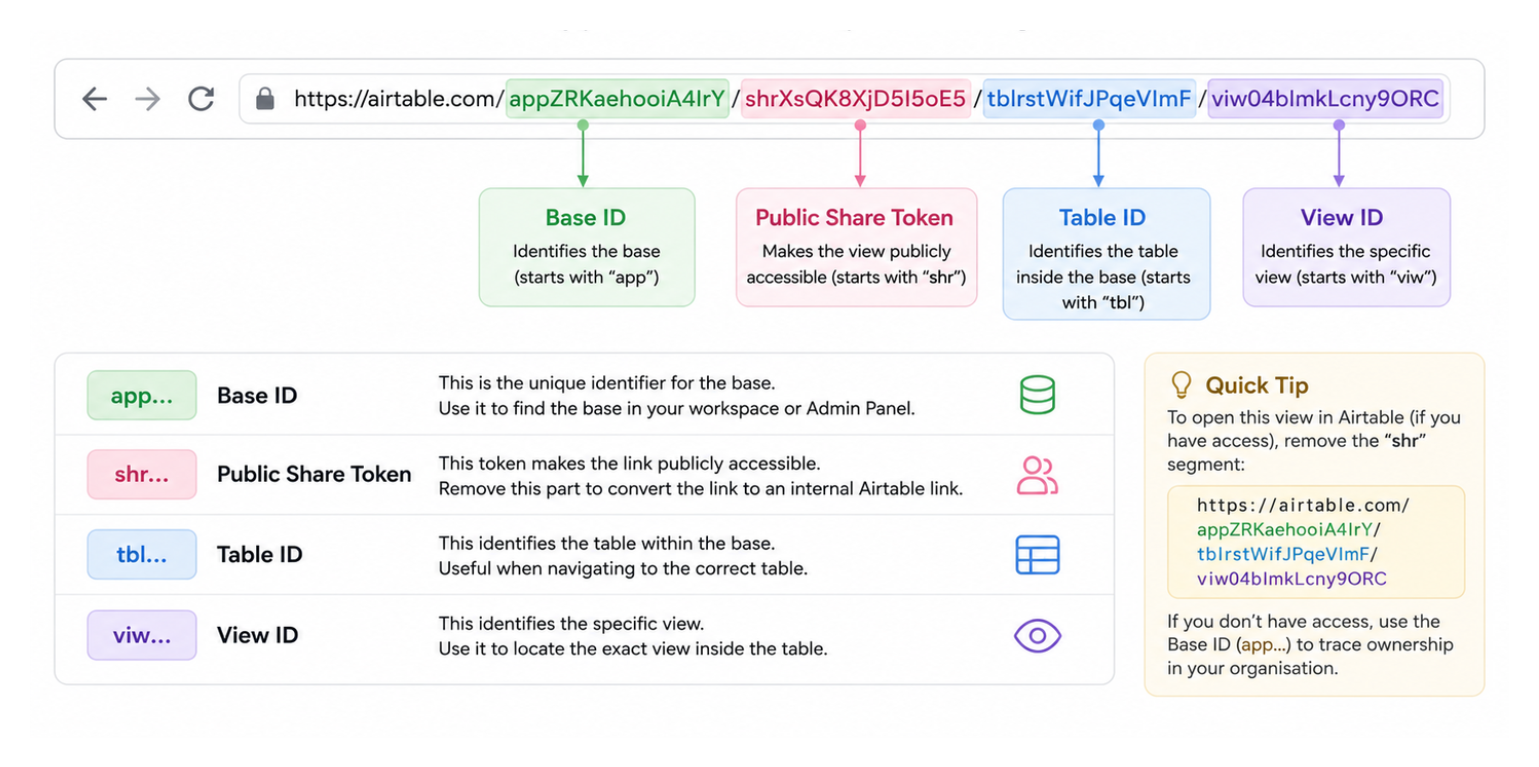
Decoding the Public View URL
A public Airtable shared view URL looks like this:
https://airtable.com/appZRKaehooiA4IrY/shrXsQK8XjD5I5oE5/tblrstWifJPqeVImF/viw04bImkLcny9ORC
Each segment has a specific meaning:
| Segment | Prefix | What it is |
|---|---|---|
appZRKaehooiA4IrY | app | Base ID |
shrXsQK8XjD5I5oE5 | shr | Public share token |
tblrstWifJPqeVImF | tbl | Table ID |
viw04bImkLcny9ORC | viw | View ID |
The shr segment is the public share token that makes the link work publicly. The app, tbl, and viw segments are the actual identifiers for the base, table, and view inside Airtable.
Step 1: Convert It to an Internal Link
Remove the shr segment from the URL to create an internal Airtable link:
https://airtable.com/appZRKaehooiA4IrY/tblrstWifJPqeVImF/viw04bImkLcny9ORC
Paste this into your browser while logged into Airtable.
- If the base is in a workspace your account has access to, it opens directly in the Airtable editor. You can see the base name, the table, and the view.
- If you do not have access, Airtable shows a permission error. This tells you the base exists but belongs to a different account or workspace.
Step 2: If You Have Access: Locate and Revoke the Shared View
Once you are in the base and can see the table, navigate to the view identified in the URL. Look for a Share icon or indicator on the view - views that have active public share links show a share icon next to the view name in the view list.
To revoke the public link:
-
Click the Share view button for that view
-
In the share panel, find the active public link
-
Click Disable public sharing or the toggle to turn it off
-
Confirm when prompted
Once disabled, anyone who visits the old URL sees an error rather than the data.
Step 3: If You Do Not Have Access: Trace via the Base ID
If the internal link returns a permission error, your Airtable account does not have collaborator access to that base. This can happen if:
-
You are logged into the wrong Airtable account
-
The base belongs to another workspace
-
The base was created in a former employee's personal workspace
-
You are an Airtable admin but have not been added as a collaborator to the base
On Airtable Business and Enterprise plans, admins can still use the Admin Panel to search for the Base ID and identify:
-
the workspace containing the base
-
the base name
-
the collaborators associated with it
However, admins still cannot open the base itself unless they are added as collaborators.
Why Public View Links Stay Live After Someone Leaves
When someone creates a public shared view link in Airtable, the link remains active as long as the base exists and the share has not been disabled. There is no automatic expiry. If the person who created it leaves the organisation and their account is deactivated, the link can remain live indefinitely if no one disables it.
This is worth auditing periodically. If your team regularly shares Airtable views externally, consider a policy of disabling public links when a project ends rather than leaving them active indefinitely.
For more on managing what is shared externally from your Airtable bases, see How to Best Share Airtable Interfaces with Clients and Best Practices for Sharing Complex Airtable Bases Securely.