How to Make Airtable AI Link Matching Records Automatically
You have a Support Tickets table.
Every ticket has a description like: I was charged twice for my order.
You also have a separate Tags table with records such as:
- Billing Issue
- Bug Report
- Feature Request
- Account Issue
You want Airtable AI to read the ticket, decide which tag fits best, and then link the ticket to that Tag record automatically.
The important part is the last one.
You don't just want AI to write Billing Issue into a text field. You want the ticket to actually link to the existing Billing Issue record in your Tags table.
You can do this with one Airtable automation.
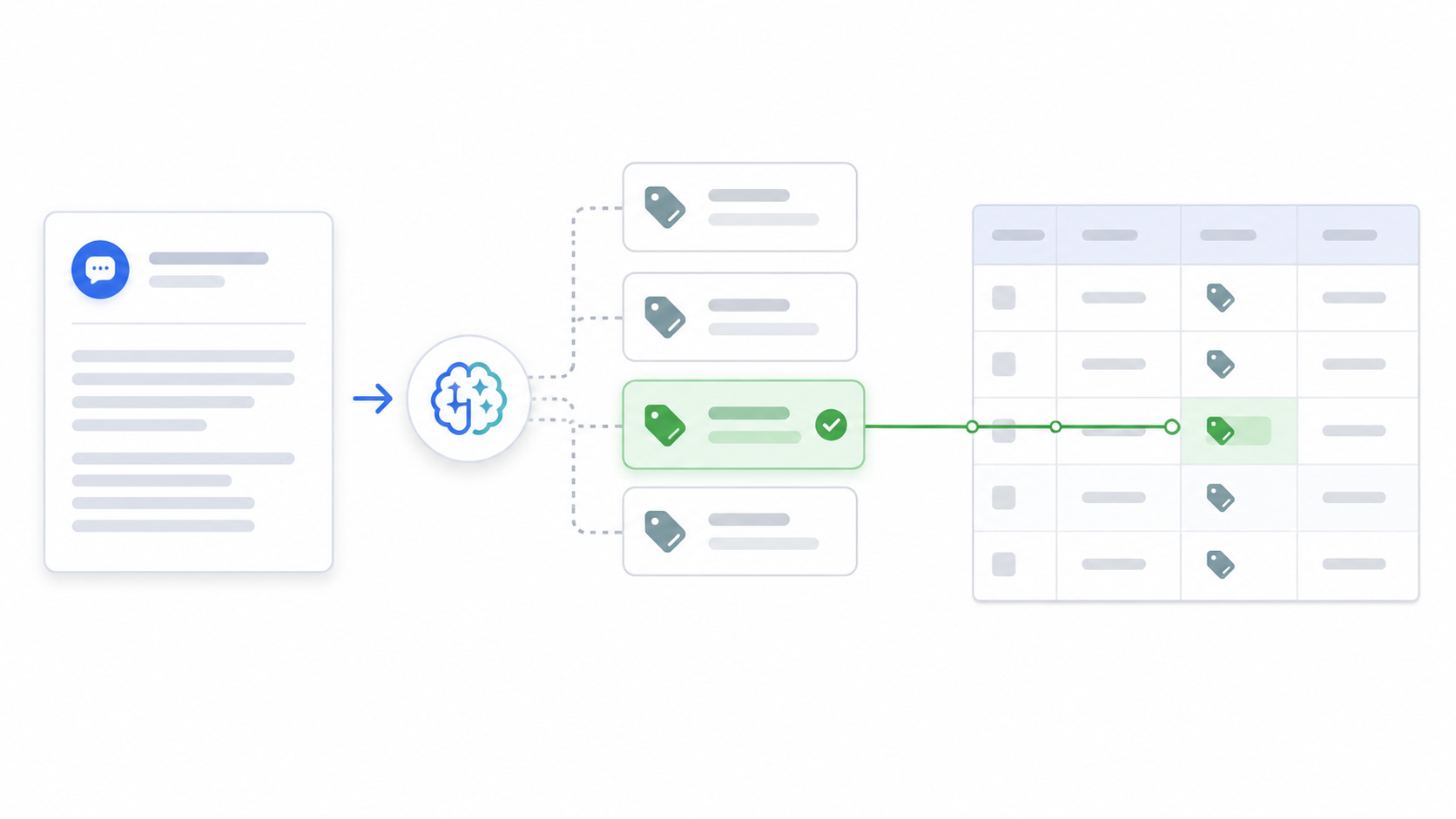
The automation will work like this:
Support ticket → Find the available tags → AI chooses one → Link that Tag record to the ticket
Let's set it up.
1. Create your Tags table
Start with a separate Tags table.
Each tag should be its own record:
| Tag |
|---|
| Billing Issue |
| Bug Report |
| Feature Request |
| Account Issue |
Then, in your Support Tickets table, create a linked record field called Tag and link it to the Tags table.
At this point, you can manually choose a tag for any ticket.
Now we are going to automate that part.
2. Trigger the automation when a ticket is ready
Create a new Airtable automation.
You can trigger it when a new support ticket is created, or when the Description field is filled in.
The automation now has the ticket that needs to be categorized.
For example: I was charged twice for my order.
The next step is to give AI the tags it is allowed to choose from.
3. Find the available Tags
Add a Find records action and select the Tags table.
You want this step to return your available Tag records.
For each Tag, Airtable has both the name and its record ID.
For example:
Billing Issue → recABC123
Bug Report → recDEF456
Feature Request → recGHI789
Why do we need the record ID?
Because Billing Issue is only text.
recABC123 identifies the actual Billing Issue record in Airtable.
If AI gives us that record ID, we can use it to create the linked record in the final step.
4. Ask AI to choose the right Tag
Next, add a Generate text with AI action.
Give AI two things:
- The support ticket description
- The Tags returned by the Find records step
Then tell it to choose the best matching Tag and return only its record ID.
For example, your prompt can say:
Read the support ticket and choose the most relevant Tag from the list below.
Return only the record ID of the matching Tag. Do not return the Tag name or any other text.
Then include the ticket description and the available Tags with their record IDs.
For this ticket:
I was charged twice for my order.
AI might choose:
Billing Issue → recABC123
But instead of returning Billing Issue, it returns:
recABC123
That is exactly what we need.
5. Link the Tag to the support ticket
Now add an Update record action.
Update the same support ticket that triggered the automation.
For the Tag linked record field, use the record ID returned by the AI step.
That's it.
The ticket that started as:
I was charged twice for my order.
is now linked to:
Billing Issue
And because it is a real linked record, it connects back to the existing Billing Issue record in your Tags table.
Why return the record ID instead of the Tag name?
You could ask AI to return Billing Issue and then add another Find records step to search for a Tag with that name.
But you already found all the Tag records before the AI step.
So I prefer passing the names and record IDs to AI together and asking it to return the correct record ID.
It removes an unnecessary matching step.
Your automation stays:
Trigger → Find Tags → AI → Update Ticket
instead of:
Trigger → AI → Find matching Tag → Update Ticket
What happens when you add new Tags?
This is another reason I like this setup.
Let's say you later add a new Tag:
Refund Request
You don't have to create another automation condition for it.
The next time the automation runs, the Find records step includes Refund Request in the list of available Tags.
AI can then choose it when it is the best match.
Your Tags table controls the available options, while AI decides which one fits each ticket.
That gives you AI categorization without losing the structure and consistency of linked records.