How to Manage Bookings and Prevent Double Bookings in Airtable
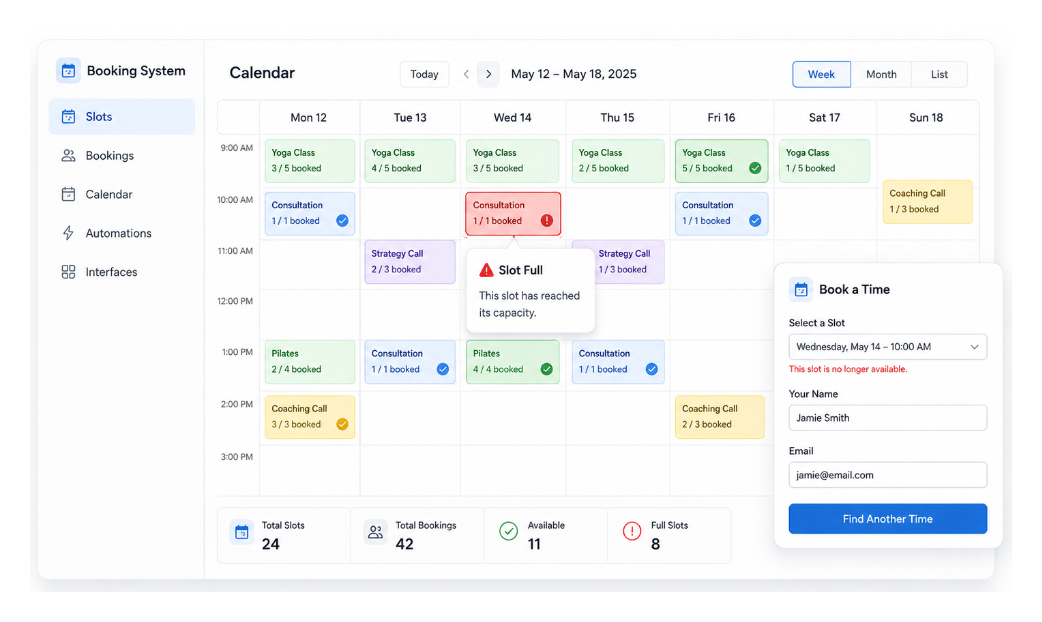
Let's use a consulting business that offers 30-minute appointments. Each appointment time will be a record in Slots, and each customer booking will be a record in Bookings linked to that slot.
Airtable can count the bookings for each time and remove full slots from the form.
Create the slots and bookings tables
In Slots, create one record for each consultation time. Add these fields:
- Start time - a date field that includes the time
- Capacity - the number of people who can book the time
- Bookings - a linked record field connected to Bookings
- Bookings count - a count field for the linked bookings
- Available - a formula field with:
{Bookings count} < {Capacity}
In Bookings, add Slot as a linked record field connected to Slots. Add Name, Email, and Status fields for the person making the booking and the status of the appointment.
Now each slot shows how many people have booked it. The Available field changes to false when the number of bookings reaches the capacity.
Show available slots in the form
Create a view in Slots called Available slots. Filter it so it only shows records where Available is true.
Create a form that saves submissions to Bookings. Open the Slot linked record field, then go to Rules, Selection, and Specific records. Choose the Available slots view.
People filling out the form will see the slots that still have space when they open it. For the same setup with screenshots, see how to create a registration form with limited slots in Airtable.
Handle two people booking the last place
The form shows the available slots when it loads. It does not reserve a slot while someone is filling out the form.
For example, if one place remains, two people can open the form at the same time and choose it. Both submissions can reach Airtable before the booking count changes, so both records are created.
Add an automation for new records in Bookings. Have it check whether the linked slot's Bookings count is greater than its Capacity. If it is, change that booking's Status to Needs review or Declined, then email the person and ask them to choose another time.
For internal bookings or lower-volume forms, this gives your team a way to catch the occasional conflict.
When a slot must be reserved immediately
If two customers must never be able to book the same time, use a scheduling tool that reserves the appointment during booking. Fillout Scheduling can manage availability, calendar connections, bookings, rescheduling, and cancellations. You can send the confirmed booking to Airtable for notes and follow-up work.
Send the confirmation email
Once a booking has been checked and marked Confirmed, send the person an email with the appointment time.
Create an automation that sends the email to the Email field and includes the linked slot's Start time. For the email setup, see how to send a copy of a completed Airtable form to the submitter.