How to Move Specific Records to Another Table in Airtable
Sometimes, you just don’t need certain records cluttering up your main workspace. Maybe they’re outdated, irrelevant, or just in the way.
Instead of keeping them in the same table and constantly filtering them out, it’s often easier to move them elsewhere.
For instance, say you purchase a list of prospects from a related company—customers who opted in to receive third-party offers. Even with a well-crafted campaign, only a small percentage will convert. Once the campaign is over, keeping the entire list serves little purpose.
Some other common examples:
-
Archive disqualified sales leads so they don’t mix with active ones.
-
Move completed tasks or old projects to another table to keep things organized.
-
Store past event registrations separately so your current list stays relevant.
-
Keep outdated inventory records in a separate table without deleting them.
Airtable doesn’t have a built-in “move” button, but there are a few easy workarounds to get the job done.
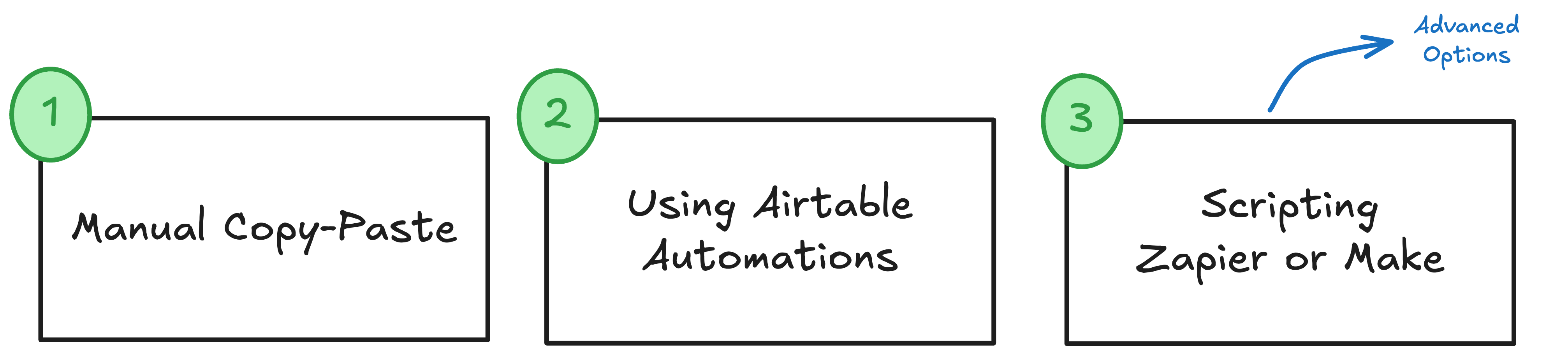
1. Manual Copy-Paste
If you only need to move records every now and then, the simplest approach is good old-fashioned copy and paste. Just make sure the destination table has the same field structure as your current one—otherwise, things might not line up correctly.
Once everything is set up, select the records you want to move, copy them, and paste them into the new table. After that, you can delete them from the original table if you no longer need them there.
2. Using Airtable Automations
If you find yourself moving records often, setting up an automation can save you a lot of time.
Instead of manually copying and pasting, you can create a simple workflow that moves records for you whenever they meet certain conditions.
For example, you can set up an automation that triggers when you check a “Move” box or change a status field to “Archived”.
-
Trigger: A record’s status changes to "Archived" or the Move checkbox is checked.
-
Action: A new record is created in the destination table with the same data.
Since Airtable doesn’t allow automations to delete records, you can create a filtered view that only shows archived or moved records. Then, you can bulk delete them whenever needed.
This way, you don’t have to worry about manually shifting records around—they’ll move automatically based on the rules you set.
3. More Advanced Options
If you want a fully automated solution with no manual cleanup, there are more advanced ways to move and delete records.
Scripting (For More Control)
Airtable’s Scripting Extension lets you write a JavaScript script to copy a record to another table and delete the original automatically. This gives you full control over the process but requires some coding knowledge.
Third-Party Automation Tools (For No-Code Users)
If you prefer a no-code solution, automation services can handle everything for you: