You want to create one central calendar for your entire organization.
Some teams already use Airtable and have their own calendar tables. You want their events to automatically appear in the central calendar.
Other teams do not have their own Airtable tables. They need somewhere to add events too.
This is where you run into a limitation with Airtable's one-way sync.
With a one-way sync, the destination table can display records coming from your source tables, but you cannot add new records directly to that synced table or edit the synced fields.
So how do you have one central calendar while still allowing people to add events?
There are two ways I would approach it.
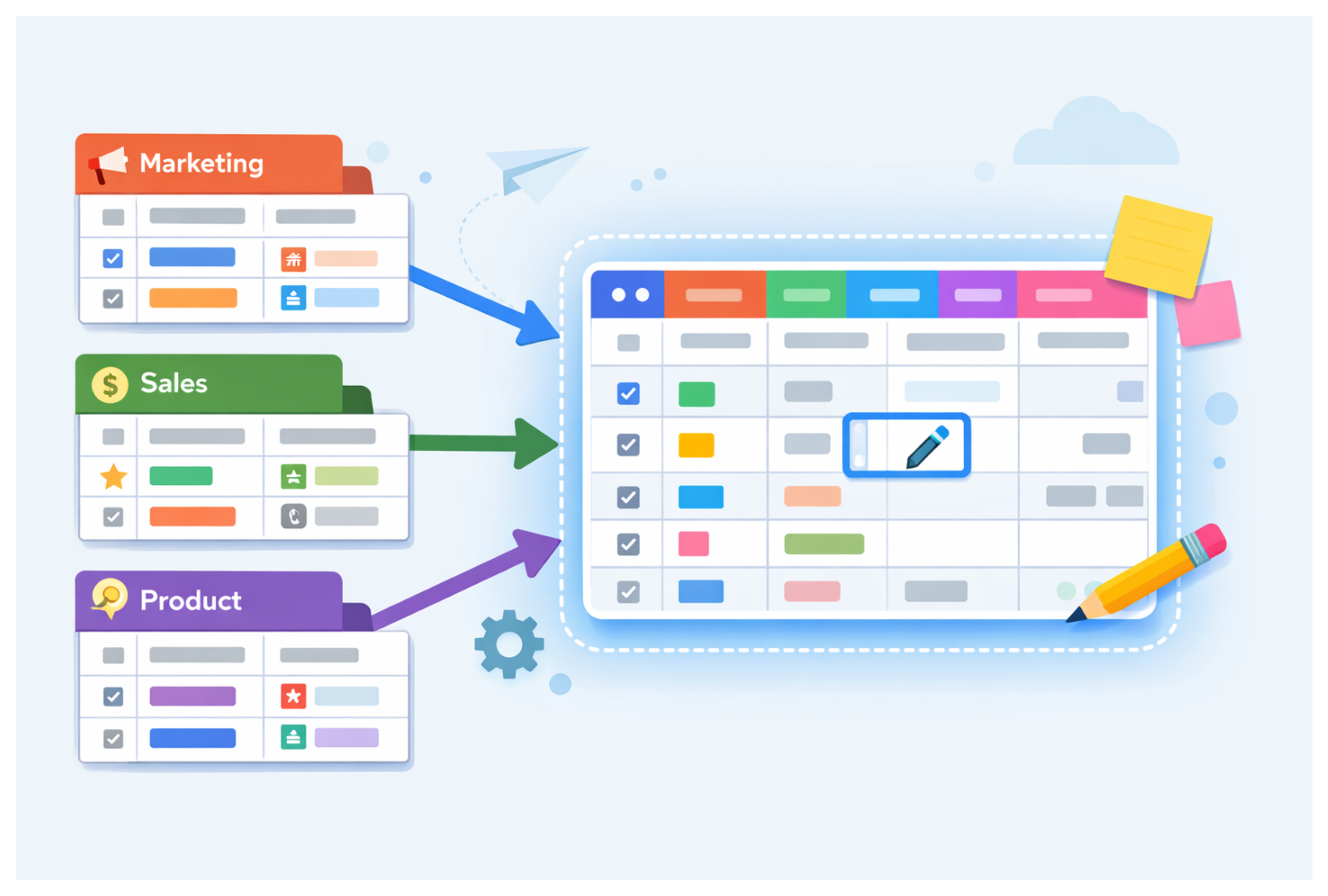
Option 1: Create a separate table for new events
This is the simplest option if the central calendar is mainly for viewing everything in one place.
Keep the existing team calendar tables as they are.
For teams that do not have their own calendar, create another table such as General Events.
Your setup could look like this:
Marketing Calendar → Central Calendar
Operations Calendar → Central Calendar
General Events → Central Calendar
Teams with their own tables continue adding events there.
Everyone else adds their events to General Events. You could also create a form for this so they do not need to work directly inside Airtable.
The central calendar then brings all of these sources together.
The important part is that the central calendar is for viewing. If someone needs to add or change an event, they do it in the appropriate source table.
If that works for your organization, I would keep it this simple.
Option 2: Use automations instead of one-way sync
The second option is for situations where people really need to work directly from the central table.
Instead of syncing records into it, use automations to create normal Airtable records there.
For example:
Team Calendar → Automation → Central Calendar
When someone creates an event in a team's calendar, an automation creates a corresponding record in the Central Calendar.
Because that new record is a normal Airtable record rather than a one-way synced record, you can edit it directly.
Teams without their own Airtable calendar can also create events directly in the Central Calendar.
Now everything can live in the same editable table.
The downside is that you are no longer using Airtable Sync.
If someone changes an event in the original team calendar, you need your automation to find the corresponding Central Calendar record and update it.
For that reason, I would add a unique ID or store the source record ID on the Central Calendar record. This gives the automation a reliable way to find the correct record when something changes.
If your source tables are in different bases, you may also need a tool such as Make to handle the copying and updating between bases.
What about two-way sync?
There is another option if you are on Airtable's Business or Enterprise Scale plan.
Airtable supports two-way sync, which can allow records in a synced destination to be edited and changes to sync back to the source.
Depending on how the sync is configured, you can also allow new records to be created from a synced destination.
This can remove the need for some of the automation workarounds above.
But I would only use this if you actually need people working from both sides of the sync. It also requires the source and destination permissions to be configured correctly.
For a simple central calendar where teams continue managing their own events, a one-way multi-source sync with a separate General Events source is easier to maintain.
Which setup should you use?
If the central calendar is mainly there so everyone can see all events in one place, use one-way sync and create a separate source table for teams that need somewhere to enter events.
If people need to edit everything directly from the Central Calendar, use automations to create normal editable records there.
And if you are on Business or Enterprise Scale and need changes to move between the source and destination, look at Airtable's two-way sync before building a custom automation setup.
The main thing is not to force one-way sync to do something it was not designed to do. Decide where people should actually enter and edit the data first, then build the central calendar around that.