If Airtable is sending one email for each record, use Find records and Send email to combine them into one email.
Here is an example with a table of events.
Each record contains details such as the event name, date, organiser, country, and ticket link.
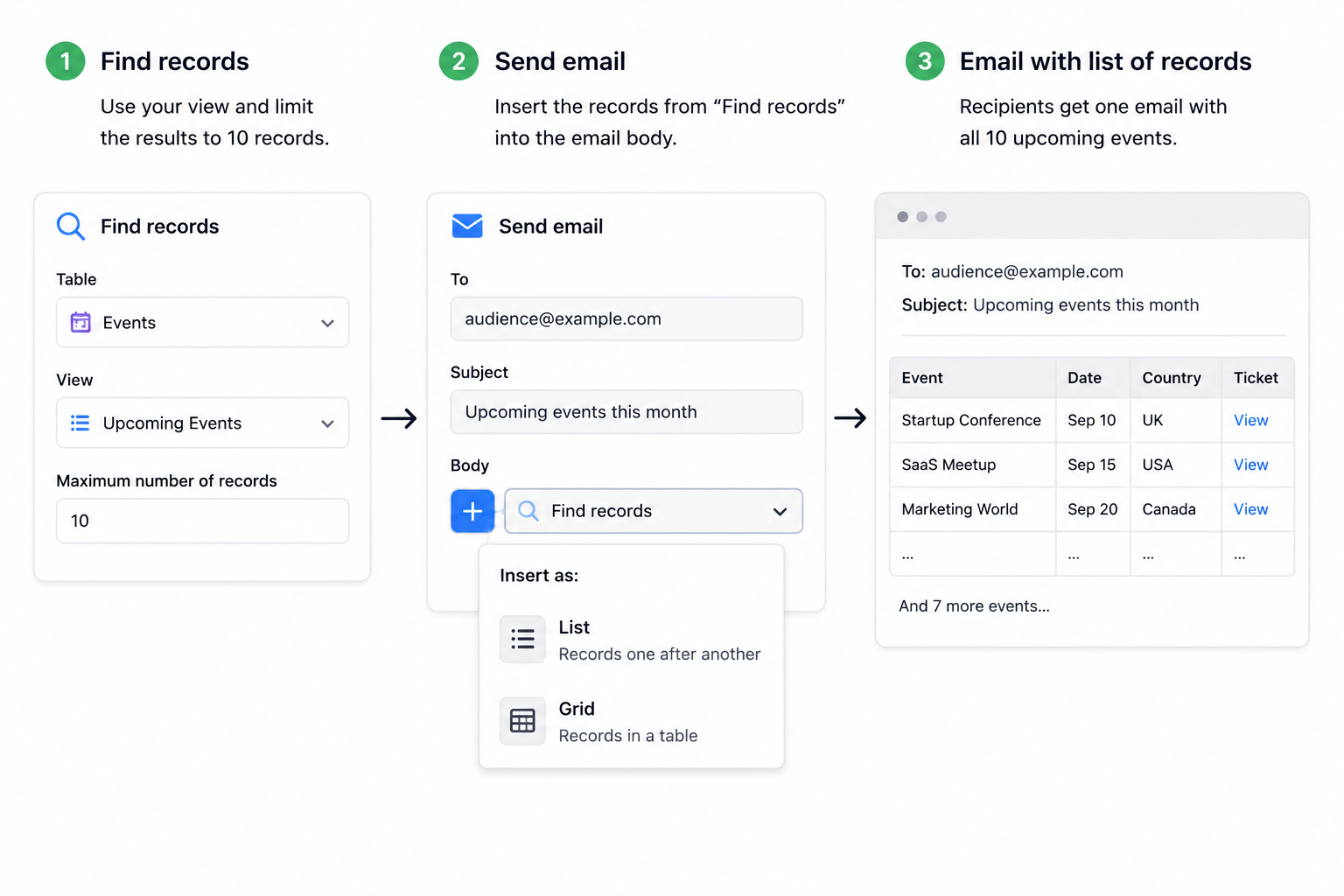
You want to send your audience one email every month containing the next ten upcoming events. Airtable can collect those records and insert them into one email as either a list or a grid.
Choose the records to include
Create a view called Upcoming Events.
Filter it so it only shows events on or after today.
Then sort the records by date from earliest to latest.
Using a view also lets Airtable keep the record and field order when it inserts the records into the email. Do not group the view if the order matters, because grouped views are not rendered in their group order.
Schedule the email
Create an automation and choose the At a scheduled time trigger.
For example, you could run it on the first day of every month.
The automation will use the current view each time it runs, so the email contains the latest upcoming events.
Find the records
Add a Find records action and choose the Events table and Upcoming Events view.
Set Maximum record limit to 10 if you only want the next ten events.
If Airtable shows only ten records while you test the action, that is the preview limit. See why Airtable Find records only shows 10 records in tests for the difference between the test preview and a live automation.
Because the view is already filtered and sorted by date, Airtable will find the next upcoming events in the order you want.
Add the records to one email
Add a Send email action.
Set your recipients and subject as usual.
In the message body, click the + button and choose the records returned by the Find records step. Airtable lets you insert them as a list or a grid.
List format
The records appear one after another.
For example:
Event Name: Startup Conference
Date: September 10
Country: UK
Ticket: View tickets
Event Name: SaaS Meetup
Date: September 15
Country: USA
Ticket: View tickets
You can choose which fields you want included.
Grid format
You can also insert the records as a table.
For example:
| Event | Date | Country | Ticket |
|---|---|---|---|
| Startup Conference | Sep 10 | UK | View tickets |
| SaaS Meetup | Sep 15 | USA | View tickets |
This works well when you want recipients to quickly scan several records.
Use a list when each record needs more detail. Use a grid when people need to scan several records quickly.
When to use a repeating group
Keep Send email outside a repeating group when everyone should receive the same list.
Use a repeating group when each person should receive a different list. For example, to send one email per manager with that manager's goals:
- Find the manager records.
- Add a repeating group that loops through those managers.
- Inside the repeating group, use Find records to find goals for the current manager.
- Add Send email inside the repeating group and use the current manager's email address as the recipient.
The result is one email for each manager, with only that manager's records in the list.
The same setup works for clients. Find the active records in the Clients table, loop through those clients, then find the projects linked to the current client. Put Send email inside the repeating group and use the current client's email address as the recipient.
For example, one client might receive an email with their three ongoing projects, while another client receives an email with only their two projects. Each client gets one email containing only the records linked to them.
The email limit
Airtable can include up to 100 records in one rendered list or grid. If Find records returns more than 100, the email is truncated, so split the records across multiple emails or reduce the number included in each run.