How to Show Only Matching Records When Searching in Airtable
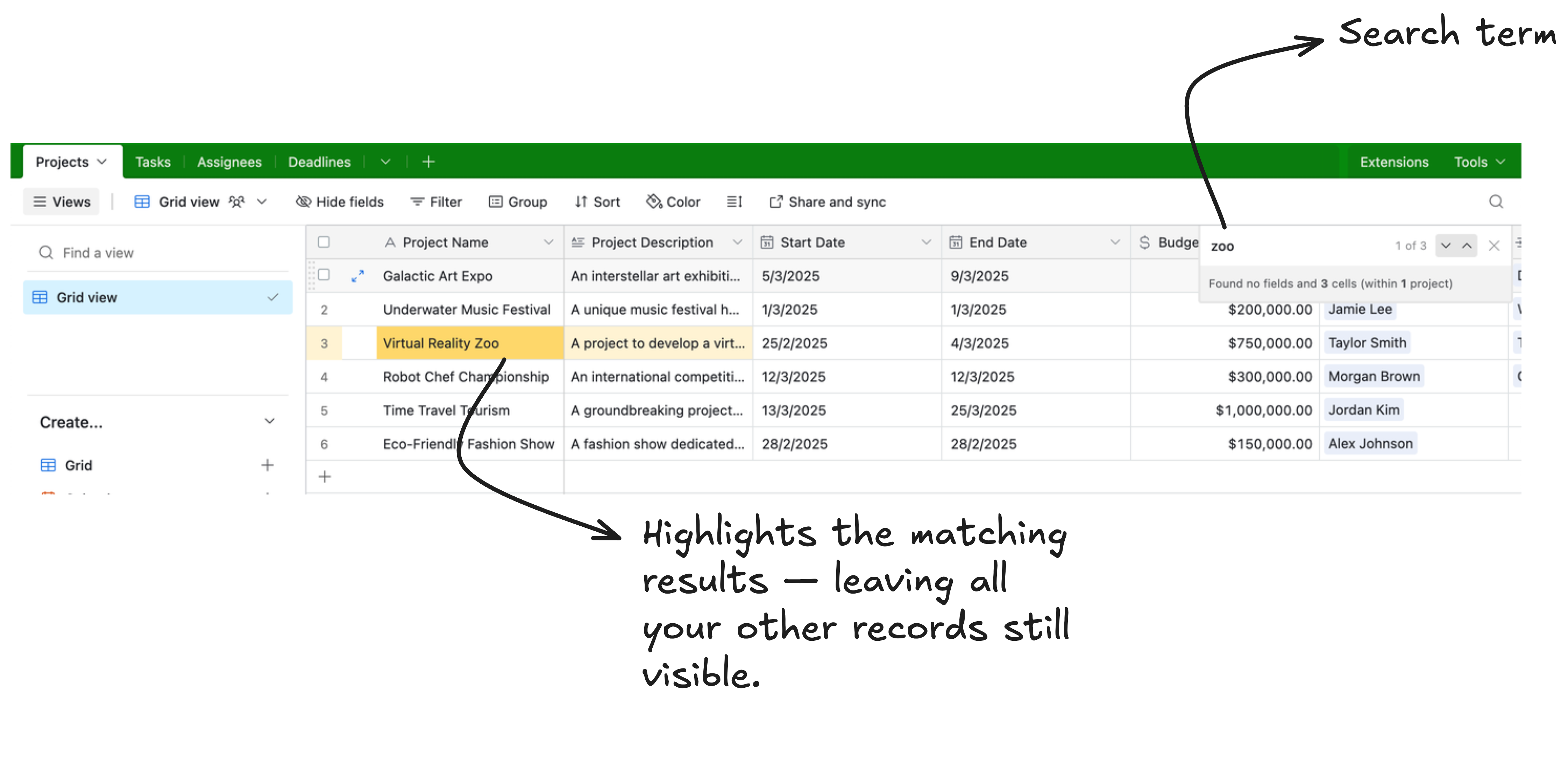
Airtable's built-in search bar works differently from what most people expect. When you type in the search bar, it highlights matching values across visible records but does not hide non-matching records. Everything stays visible, with matching cells highlighted in orange.

For a large dataset, this is not useful. You want to see only the records that match what you typed, with everything else hidden.
There are three ways to achieve this, depending on how your team works with the data.
Method 1: Use a Filter With "Contains" in Grid View
The quickest solution that works without any setup is to use a filter condition instead of the search bar.
-
Open your base in a Grid view
-
Click Filter in the toolbar
-
Click Add condition
-
Select the field you want to search (for example, Name or Company)
-
Set the operator to contains
-
Type the value you are searching for
Only records where that field contains your typed value remain visible. Everything else is hidden.
The limitation: this is a static filter. If you update the filter value frequently, this gets tedious. It also only filters on one field at a time unless you add multiple conditions with OR logic.
For a search that you run repeatedly with the same value, save it as a personal view so you can return to it without reconfiguring.
Method 2: Add a Search Element to an Airtable Interface
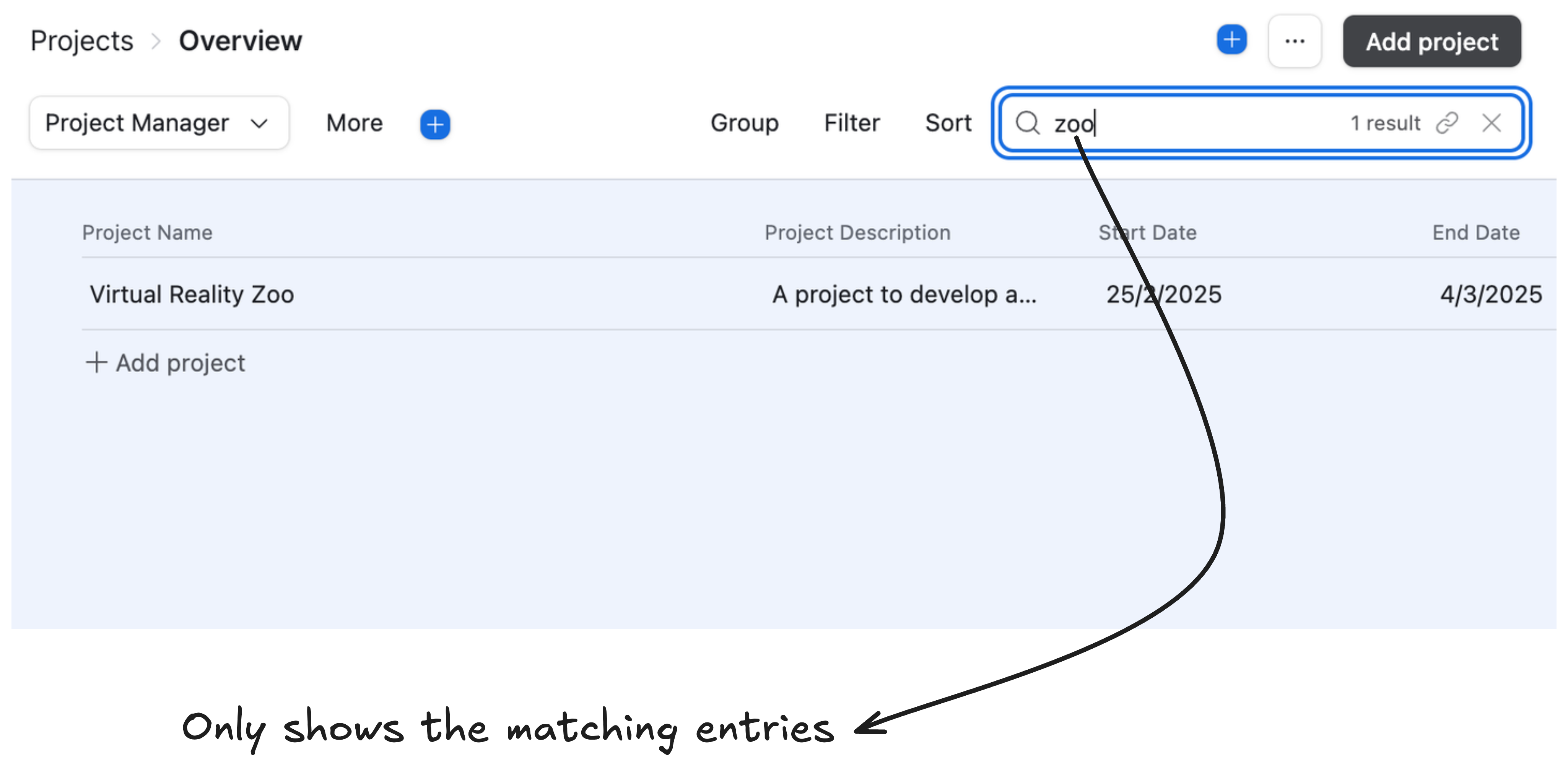
Interfaces have a built-in search element that works the way most people expect search to work: type something and the list filters down to only matching records.
How to set it up:
-
Open your base and click Interfaces in the top toolbar
-
Click the + button to create a new Interface page, or open an existing one
-
Choose a layout that includes a record list. The List layout and Grid layout both support the search element
-
In the Interface editor, click + Add element from the left panel
-
Add a Search element and place it above or beside your record list
-
In the search element settings, configure which fields it searches across. By default it searches the primary field, but you can expand this to include any text-based fields in your table

When someone types in the search bar, the record list below it updates in real time to show only matching records. Non-matching records are hidden completely, not just highlighted.
Configuring which fields are searched:
Click the search element in the editor to open its settings panel. Under "Search in fields," select the fields you want the search to check against. Selecting multiple fields means a record appears in results if any of the selected fields match the search term.
This is particularly useful when you want users to be able to search by name, company, or email from a single search bar without needing separate filters for each.
Method 3: Use a Filter Element in an Interface
If you are using an element-based Interface layout, you can add a Filter element and connect it to a Grid or other record elements.
-
In the Interface editor, click + Add element
-
Add a Filter element
-
Choose the same data source as your grid
-
Connect the filter to the grid element
-
Configure a condition (such as "Name contains ..." or "Company contains ...")
Users can then adjust the filter values directly from the Interface to narrow the visible records in real time.
The advantage over the Search element is that Filter elements support more structured filtering logic and can be combined with dropdowns, conditions, and multiple connected elements.
Note: Filter elements are mainly available in legacy element-based Interface layouts.
Searching When You Only Know Part of the Information
Sometimes you need to find a record but you only remember a fragment a partial email address, part of a company name, or a phone number prefix.
Airtable's search bar checks all visible fields in the current view simultaneously. Type any fragment and Airtable highlights matching cells across every column. This is faster than setting up a filter when you genuinely do not know which field the information is in.
For more targeted partial searches across specific fields, the filter with "contains" approach described above is more reliable. Set multiple OR conditions on different fields Name contains "smith", Email contains "smith" to cast a wider net.
If you find yourself doing this kind of search regularly on a specific set of fields, save the filter configuration as a personal view so it is ready to use without rebuilding each time.
Which Method to Use
| Situation | Best approach |
|---|---|
| Quick one off search in a base | Airtable search bar (highlights matches but keeps all records visible) |
| Frequent filtering of the same field | Grid view filter with "contains" saved as a personal view |
| Team facing interface for browsing data | Interface with Search element |
| Advanced Interface filtering | Interface with Filter element |
The Interface search element is the best experience for teams who need to find records regularly. It requires a few minutes of setup but gives a clean, intuitive search-as-you-type experience.
For more on building Interfaces that help teams find and work with records efficiently, see How to Filter an Airtable Interface Using User Groups for role-based filtering, or How to Add Instructions or Text Blocks in Airtable Interfaces for guiding users within an Interface.