How to Use a Formula Field as a Dropdown Filter in an Airtable Interface
You have a formula field that returns values like "Jan", "Feb", "Mar" from a date field. When you go to add a dropdown filter to your Interface dashboard and look for that field, it does not appear as an option.
This is a known Airtable limitation. Interface dropdown filters only work with single select, multi-select, and linked record fields. Plain text, formula, and number fields are not available as dropdown filter options.
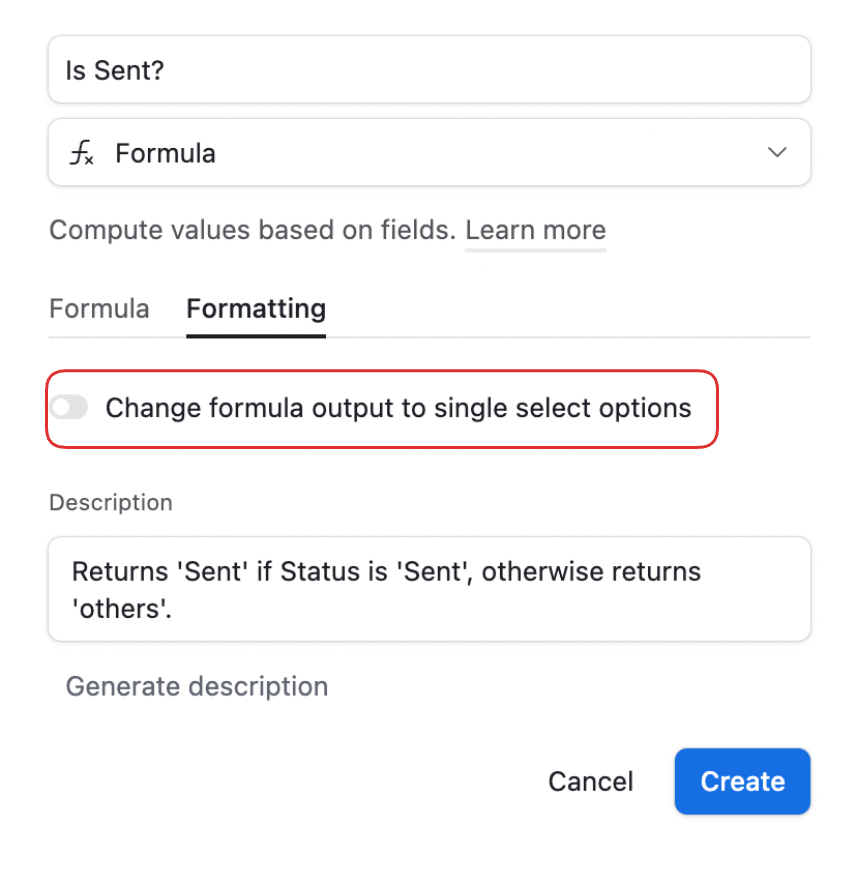
The fix is not to replace the formula with a single select field. It is to change how the formula field outputs its value by enabling Single select output formatting on the formula field itself.
Why This Happens
Airtable's Interface dropdown filters rely on a predefined set of selectable values to populate the dropdown menu. Formula fields that output text do not have a predefined option set, so Airtable cannot build a dropdown from them.
Single select fields have a finite list of predefined options, which is what populates the dropdown. By formatting your formula field to output as a single select, you give it that same defined option set, making it available as a dropdown filter.
The Fix: Enable Single Select Output on the Formula Field
This works for any formula that outputs text values you want to filter by, such as month names, quarter labels, status categories derived from logic, or any other calculated string.
-
Open your base and click the formula field name to open its settings
-
Click the Formatting tab within the field settings
-
Look for Output to single select and toggle it on
-
A section appears where you can add the expected output values as options. Add every value your formula can produce. For a month field: Jan, Feb, Mar, Apr, May, Jun, Jul, Aug, Sep, Oct, Nov, Dec
-
Save the field settings

Once this is saved, go back to your Interface dashboard. When you add a dropdown filter element, your formula field now appears in the available fields list and works as a proper dropdown.
Important: the formula itself does not change. You are only telling Airtable what values to expect as output so it can build the dropdown option set. The formula still calculates values dynamically from your data.
What to Add as Options
You need to add every possible value your formula can output. If you miss a value, records with that value will be filtered out or handled inconsistently.
For common use cases:
- Month names: Jan, Feb, Mar, Apr, May, Jun, Jul, Aug, Sep, Oct, Nov, Dec
- Quarter labels: Q1, Q2, Q3, Q4
- Year: Add each year your data covers (2023, 2024, 2025, etc.)
- Week numbers: 1 through 52 (tedious but necessary)
- Custom status outputs: whatever values your IF/SWITCH formula produces
If your formula can produce an empty value (when the source field is blank), consider whether to include an empty option or use a filter condition to handle blank records separately.
Alternative: Use a Text Filter Instead of a Dropdown
If you do not want to pre-define all possible values, there is another approach. Instead of a dropdown filter element, use a text filter element connected to your formula field with the "contains" operator.
The viewer types part of the value they want to filter by, and the Interface shows matching records. This works without any output formatting changes on the formula field. The tradeoff is that it requires the viewer to type rather than select from a list, which is less user-friendly for a defined set of known values.
Alternative: Use an Automation to Write to a Single Select Field
For scenarios where the formula-to-single-select formatting does not work cleanly (complex formulas, formulas that concatenate multiple values), a more robust approach is to use a separate single select field alongside the formula field.
Set up an automation triggered when a record is created or the source date field changes. The automation reads the formula field value and updates the single select field to match.
This is more setup work but produces a true single select field with proper values that will always work as a dropdown filter. It also works for values that exceed what the output formatting approach can handle.
Which Fields Work as Dropdown Filters in Interfaces
For reference, the field types that Airtable supports as dropdown filter elements in Interfaces:
- Single select
- Multi-select
- Linked record
- Formula fields with single select output formatting enabled (this article)
- User fields
Fields that do not work as dropdown filters: single line text, long text, formula fields without single select output, number, currency, date, and most others. For these, the text filter element with a "contains" operator is the fallback.
For more on building Interface filters for different scenarios, see How to Filter an Airtable Interface Using User Groups for row-level filtering by team or department, and Using Base-Level Field Permissions to Control Editing in Interfaces for controlling what different users can edit through the same Interface.