How to Add Instructions or Text Blocks in Airtable Interfaces
You have built your Airtable interface, the layout is clean, everything is in place — and then you realise you need to add a note. Maybe a reminder at the top of a form telling people how to fill it in. Maybe a link to a related document between two sections. Maybe a short explanation of what a field is actually for.
In Airtable's older blank interface layout, this was straightforward. You could drop in a text element anywhere you wanted and type whatever you needed.
In the newer interface page types — Record Review, Record Grid, Gallery, and most of the modern layouts — that text element is gone. Airtable removed it when they redesigned the interface builder, and there is no direct replacement.
There are two ways to work around this. Which one to use depends on what kind of interface page you are working with.
Method 1: Use a Formula Field with Help Text (Modern Interface Pages)
This is the main workaround for modern interface types where the native text element is not available. It uses a formula field as a silent placeholder and puts your actual instructions inside the field's help text.
It sounds roundabout, but the end result is clean — the field takes up minimal space and shows only your text, with no label and no value displayed.
Step 1: Create a blank formula field in your table
Go to your table and add a new Formula field. Name it something descriptive that makes sense to you, like "Instructions — Section 1" or "Help Text Placeholder."
For the formula, paste in this special blank character: "ㅤ"
This is not a regular space. It is a Hangul filler character that renders as invisible, which prevents Airtable from showing the default dash placeholder that appears when a field has no value. Without it, Airtable shows a grey dash in the field, which looks odd next to your instructions.
Step 2: Add the field to your interface
Open the interface editor and add this formula field to your layout in the position where you want your text to appear. You can place it anywhere — at the top, between sections, or at the bottom.
Step 3: Hide the field label
Hover over the field in the editor to reveal the options. Click the ... menu in the top-right corner of the field element and choose Hide labels for this row.
This removes the field name from view so only your help text appears. If you skip this step, the field name shows above your instructions, which looks messy.
Step 4: Enable and write your Help Text
In the right-hand settings panel, find the Help Text toggle and switch it on. A text editor will appear below it.
Write whatever you want here. The help text editor supports full rich text formatting — bold, italics, bullet points, numbered lists, checklists, code blocks, and links. You can write short notes, detailed instructions, or anything in between.
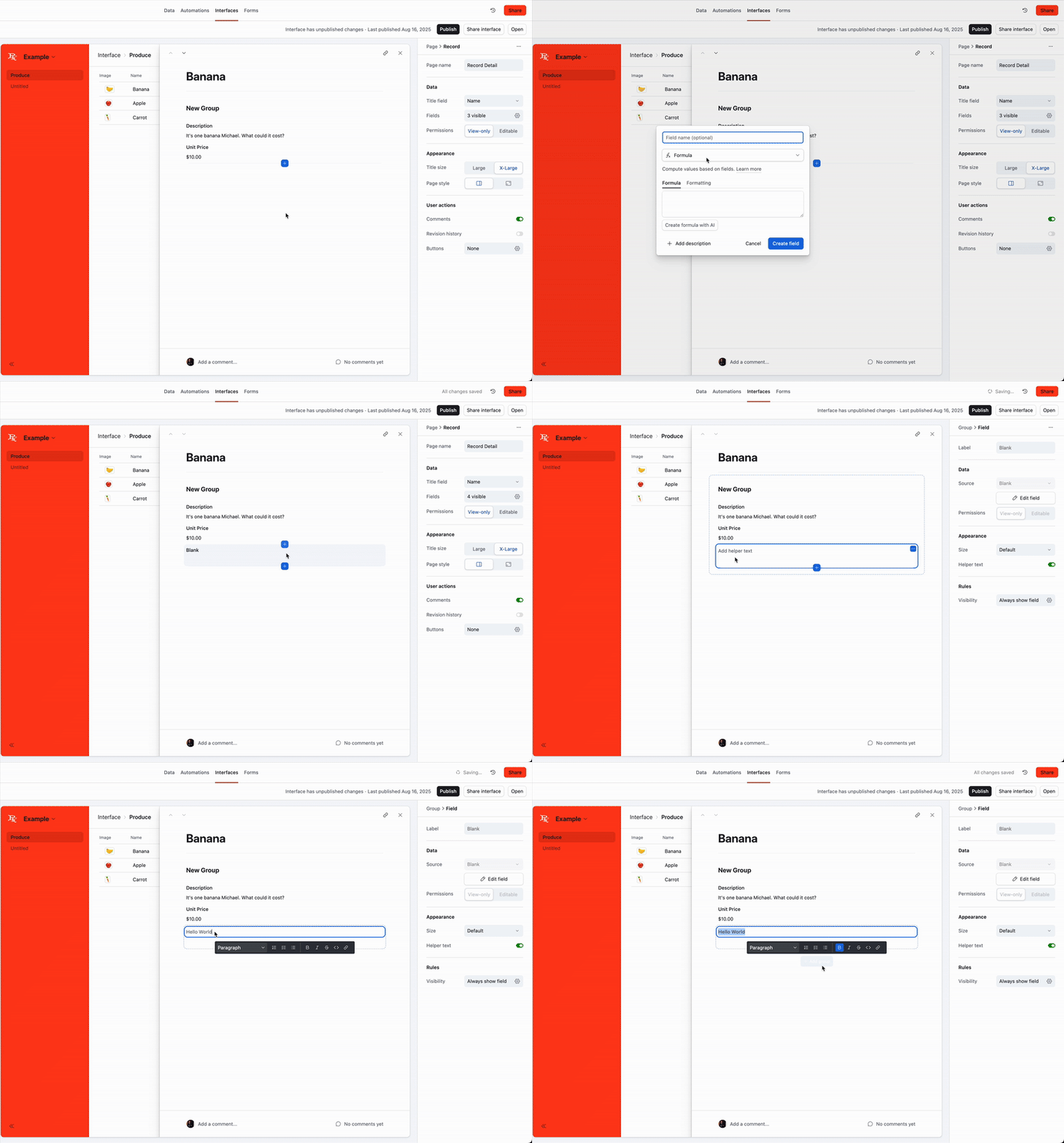
The result is a block of text that sits cleanly in your interface layout with no distracting field chrome around it.
Repeating this for multiple text blocks
If you need several text blocks throughout your interface — say, a heading at the top, a note between sections, and a link at the bottom — just create a separate formula field for each one. Name them clearly in your table so you can tell them apart (they will only be visible to base editors, not to interface users).
Method 2: Use the Native Text Element (Blank and Overview Interfaces)
If you are working with a Blank interface page or an Overview interface page, Airtable still includes a native text element in the element sidebar. In this case you do not need the workaround above.
To add a text block:
-
Open the interface editor
-
In the left sidebar, look for the Text element under Elements
-
Drag it onto your canvas wherever you want it
-
Click into it and type your content directly
The native text element supports the same rich text formatting as the help text approach — headings, bullet points, bold, links, and so on. It is more flexible in terms of where you can place it on the canvas because blank interfaces use a freeform drag-and-drop layout rather than the structured row-based layout of record review pages.
What You Can Include in Your Instructions
Whether you are using help text or the native text element, you have access to the full Airtable rich text editor. Here are some things that work well:
Short instructions above a form section
Fill in all fields marked with an asterisk. If you are unsure about the budget field, leave it blank and your manager will complete it.
Links to external documents
For the approval process, refer to the Standard Operating Procedure. All submissions must match the criteria outlined there.
Checklists for multi-step processes
Before submitting, confirm:
- All required fields are filled
- The date is in DD/MM/YYYY format
- You have attached the supporting document
Dividers between sections
A text block with just a horizontal rule or a short heading like "— Project Details —" works well to visually separate different parts of a long record layout.
Limitations to Know About
The help text workaround is effective but not perfect. A few things to keep in mind:
-
You cannot add images inside help text. If you need an image in your instructions, you will need to host it externally and link to it.
-
The formula field still exists in your table. Base editors can see it. Give it a clear name so it is obvious what it is for and does not confuse anyone managing the base.
-
You cannot style the container itself, so it may not visually stand out like a true text block or section header..
What to Do Next
Once you have instructions in place, you might want to review who can actually see and interact with your interface. If you are building something for clients or external users, see 6 Ways to Share Airtable Interfaces with Clients for a breakdown of the sharing options and what each one costs.
If you want to control which users can edit specific fields within the interface — rather than just view them — see How to Restrict User Access by Table, Field, or Row in Airtable.