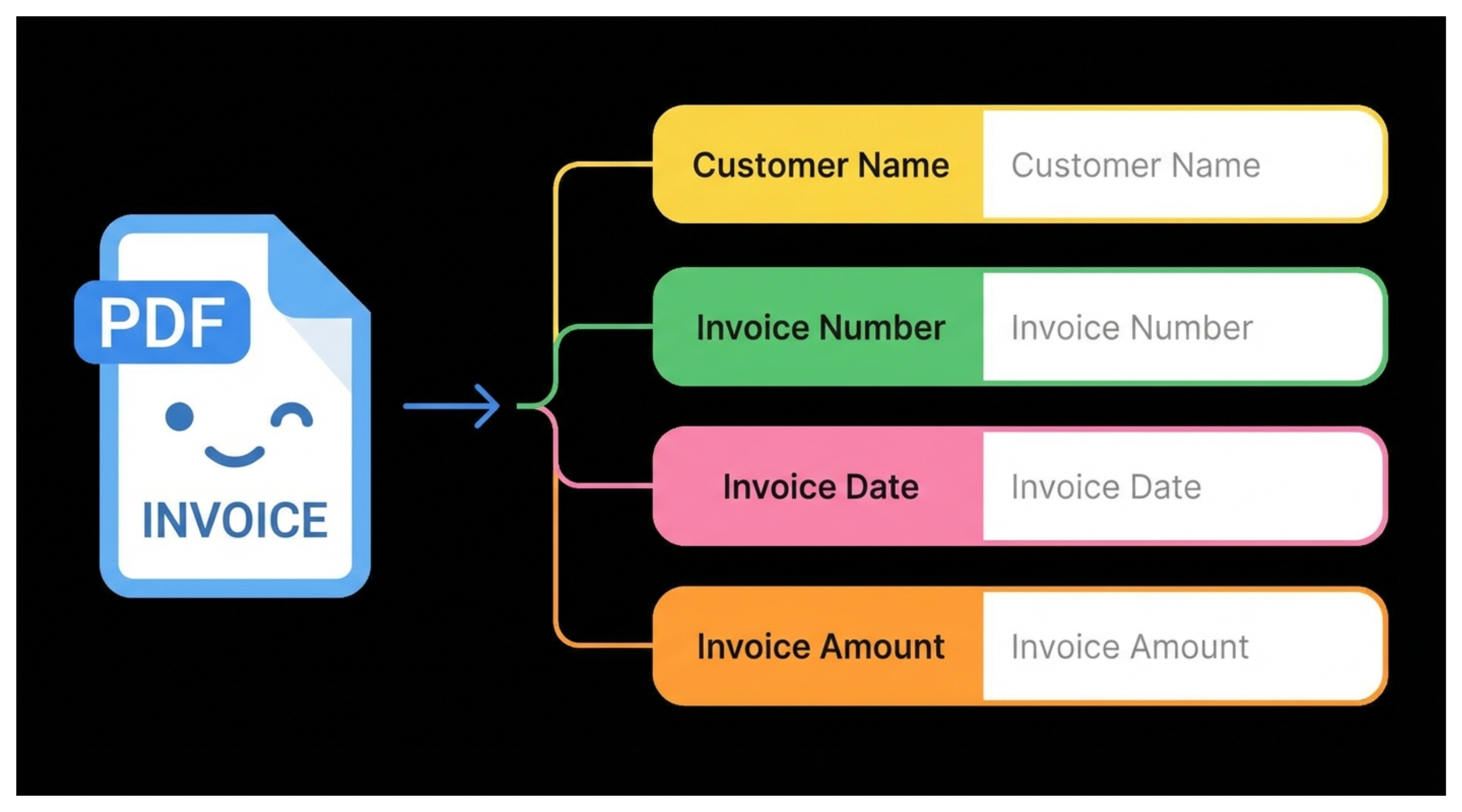
I’ll use an invoice as the example. Each record has an invoice PDF in an attachment field, and you want Airtable to fill in the customer name, invoice number, invoice date, and amount.
Airtable can read the attachment with its Analyze attachment field agent. Then an automation can take the result and write each value into the correct Airtable field.
Create one field to read the invoice
In the Invoices table, keep the uploaded file in an attachment field called Invoice PDF. Add another field called Extracted Data, then choose Analyze attachment under Field agents.
In the prompt, ask Airtable for the four values you need:
Read the attached invoice and return the customer name, invoice number, invoice date, and invoice amount. Return one clearly labelled value for each item. If a value is not visible, return blank instead of guessing.
Select Invoice PDF when Airtable asks which attachment field to analyze. Turn on automatic runs if you want the field to process new invoices as they are added.
This field gives you one result containing the information from the invoice. It does not yet place each value into the final fields.
Write the values into the right fields
Now create an automation that runs when Extracted Data is not empty. Add Generate with AI and choose Generate structured data.
Use the value from Extracted Data as the input. In the output schema, add these properties:
- Customer Name as text
- Invoice Number as text
- Invoice Date as a date
- Invoice Amount as a number
The schema tells Airtable what each extracted value should look like. You do not need to ask the AI to return JSON in the prompt when you define the fields here.
After the structured data step, add Update record. Use the record ID from the automation trigger, then map each output to its matching field in the Invoices table.
The result is one invoice record with the PDF still attached and the customer name, invoice number, date, and amount stored in their own fields.
If you only need one value, such as the invoice number, you can create a separate AI field for that value instead. The structured-data setup is more useful when one attachment needs to fill several fields.
What attachments can Airtable analyze?
You need a paid Airtable plan with AI credits to use AI fields. Airtable can analyze PDF, DOCX, PPTX, JPG, PNG, TIFF, BMP, XLSX, and WEBP attachments.
PDF analysis is available by default. On Business and Enterprise Scale, an admin must enable Airtable Labs before field agents can analyze JPG, PNG, or WEBP files. Images embedded inside documents are not supported, so information that exists only inside an embedded image may be missed.
Check the extracted values before using them for payments, accounting, or customer communication. If the invoice is scanned or difficult to read, correct the Airtable fields before the next automation uses them.
If you are still deciding whether to keep the files in Airtable or Google Drive, see Should You Store Documents in Airtable or Google Drive?.