You may have one table that needs to collect information from different groups of people.
For example, you could have an Employees table used for onboarding. Developers need to provide certification information, while other employees need to answer questions about equipment or access.
You don't need a separate table for each type of employee.
Airtable lets you create multiple forms that all submit records to the same table.
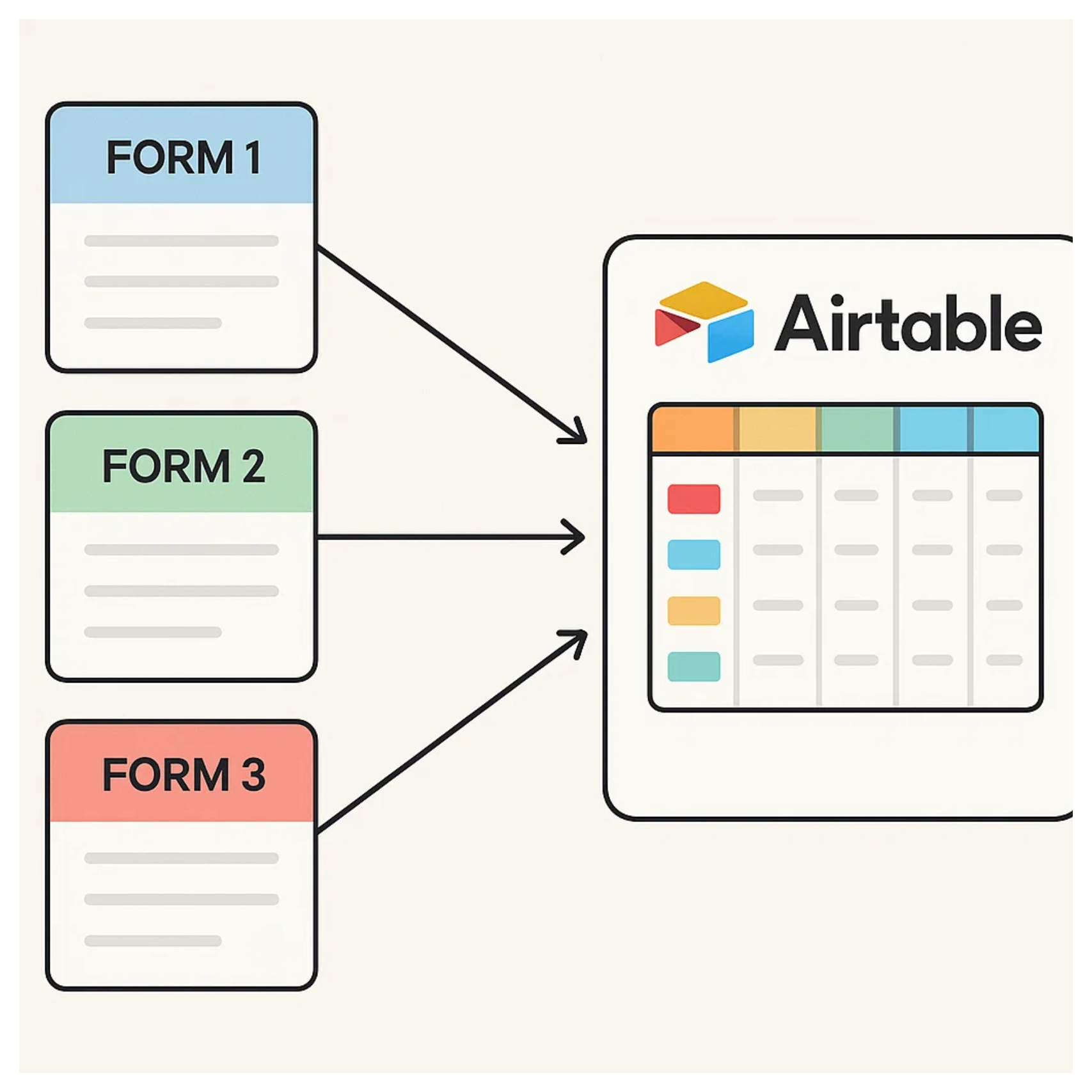
Create multiple forms for the same table
Open your base and click Forms.
Create a new form and choose the table where you want the submissions stored.
You can then create another form and choose that same table again.
For example, you could have:
Developer Onboarding ─┐
                      ├──→ Employees
Sales Onboarding ─────┤
                      │
Contractor Onboarding ┘
Each form creates a new record in the Employees table, but the questions shown on each form can be different.
Airtable currently allows up to 50 forms per base, so you can create multiple forms for different audiences while keeping the resulting data together.
Customize each form separately
Each form can have its own fields, field order, descriptions, required fields, default values, and visibility rules.
Your Developer Onboarding form could ask for certifications and development tools.
Your Sales Onboarding form could ask about territory and CRM access.
Your Contractor Onboarding form could collect contract dates and company information.
All three still create records in the same Employees table.
This is useful when the underlying records are the same type of thing, but different people need to provide different information.
Or use one form with conditional fields
You don't always need multiple forms.
Another option is to create one onboarding form with a Role field at the beginning.
You can then add visibility rules so certain questions only appear when they're relevant.
For example, the Certifications field can appear only when Role is Developer.
Conditional field visibility is available on all Airtable plans.
Airtable also lets you organize multiple fields into groups. If you want the visibility of an entire group to change based on conditions, conditional groups are available on Business and Enterprise Scale plans.
For a relatively small number of differences, I would use one form with conditional fields.
If each audience needs a substantially different form, separate forms are usually easier to build and maintain.
Identify which form was submitted
When several forms feed the same table, it can be useful to know which one created each record.
Add a Form Source single select field to your table with options such as Developer, Sales, and Contractor.
In each form, give Form Source the appropriate default value and prevent respondents from changing it.
The Developer form can automatically submit Developer, while the Contractor form submits Contractor.
Now every record still lands in the Employees table, but you can easily filter or group records based on the form they came from.
Using multiple forms this way lets you keep one clean table while giving each audience a form designed specifically for them.