How to Share Airtable Images with People Who Do Not Have an Account
If someone needs to see images from your Airtable base but does not have an Airtable account, use a shared view. If they need the actual files, send the downloaded images by email. If a website or app needs a stable image URL, store the files outside Airtable.
Choose the sharing method based on what the person needs:
| What they need | Best option |
|---|---|
| Browse several images with their record details | Share a view or gallery |
| Receive one or a few images | Download the files and send them by email |
| Use the image as a permanent URL on a website or app | Upload it to external storage |
| Receive images automatically by email | Add the attachment field to an automation email |
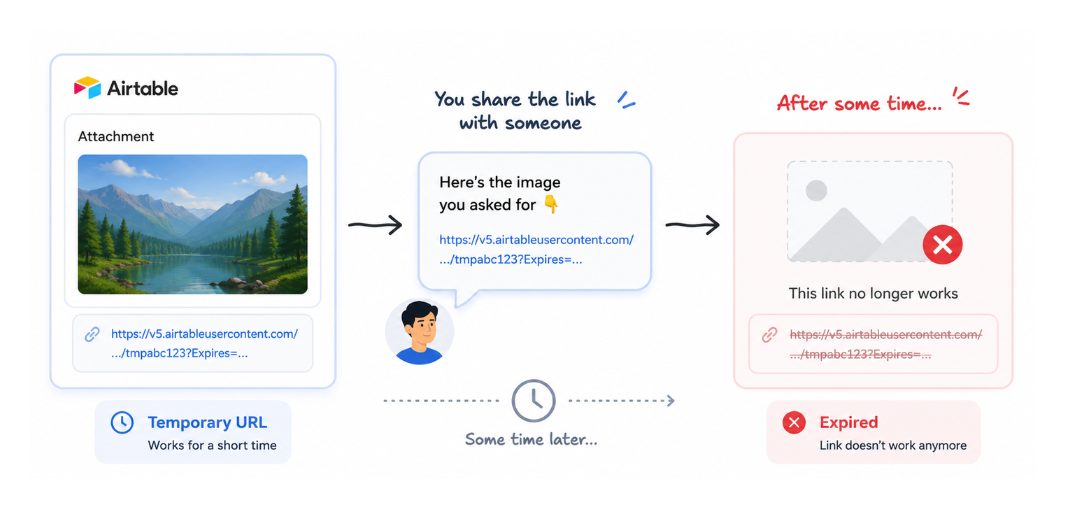
Why a copied Airtable image link expires
The link Airtable gives you for downloading an attachment is temporary. It may work when you copy it, but it expires after a short time and stops opening for the person you sent it to.
If you open the attachment inside Airtable and copy the browser URL instead, that link opens the Airtable attachment viewer. It continues working while the file and record still exist, but the recipient needs access to the base or interface.
So neither link is a permanent public image URL. Use a shared view when someone needs to browse images without an account, or use external storage when a website or app needs a stable image link.
Share several images through a view
Create a view containing the records and attachment field you want to share, then open Share and sync and copy the view link. A public view link can be opened by someone who does not have an Airtable account.
Use a gallery view when the images are the main thing people need to browse. Use a grid view when the image needs to be seen alongside names, statuses, or other record details.
Before sharing the link, hide fields and filter records so the view contains only the information the recipient should see. The shared view is useful for browsing, but it is not a permanent URL for each individual image.
Send the image as an email attachment
For a one-time share, open the attachment, click Download, and send the downloaded file by email.
If an automation should send the image every time a record meets a condition, add the attachment field as a dynamic value in the Attachments section of the Send email action. The recipient receives the file instead of a temporary Airtable download URL.
Create a permanent image URL
If a website, app, or customer portal needs to load the image from a stable URL, store the file outside Airtable. Upload it to storage such as Google Drive, Dropbox, Amazon S3, or a CDN, then use the link from that service.
Make sure the external file permissions allow the intended people to open it. Airtable can keep the external URL in a URL field, while the attachment field remains available for your internal work.
If you regularly add images to Airtable and need permanent links, see how to fix Airtable attachment links and create permanent URLs for an automated upload workflow.