If your Airtable base contains customer details, research, pricing, or your business process, do not give everyone access to the base itself.
Use the narrowest sharing option that still lets someone do their work. The sections below move from the most restricted option to the broadest.
You cannot share an entire Airtable workspace with someone who does not have an Airtable account. Workspace access is for signed-in collaborators. If someone only needs to read information, share a view, base, or published Interface instead.
1. Share an interface without base access
Remove the person's base access first. Then open the interface, click Share interface, and invite them as an interface-only collaborator. They can use the published interface without opening the underlying base. Interface-only access is available on Team, Business, and Enterprise Scale plans.
Only show the records and fields that person needs. In the interface editor, check the page's user actions and turn off Allow users to export data as CSV and printing when those options are available.
If the person keeps base access, they can still open the data layer and the records available through that base permission.
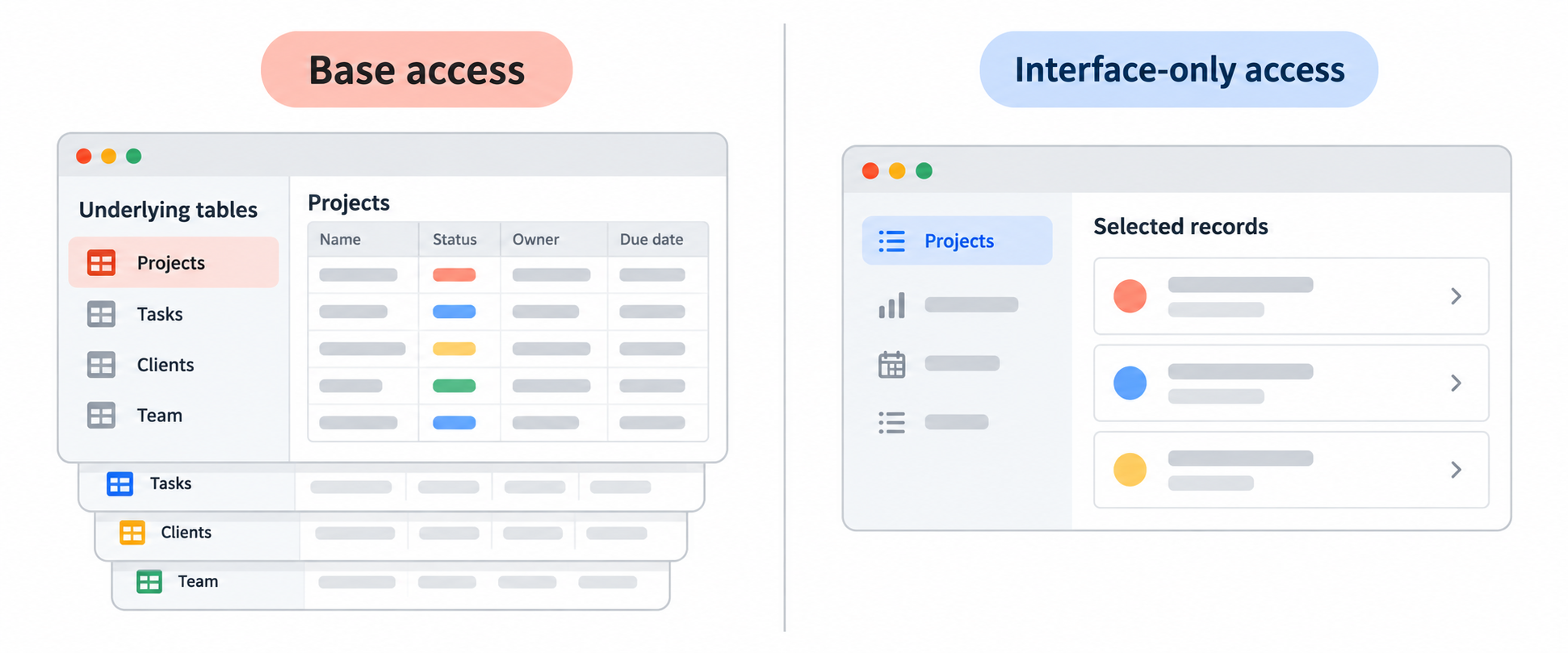
Someone can still manually copy information that appears on the interface, so only show what they need.
For the different interface sharing options, see How to Share Airtable Interfaces with Clients.
2. Share a view link
Use a shared view when someone only needs to read a particular table or filtered set of records.
Open Share and sync, create a view link, and open Link settings. Turn off Allow viewers to copy data out of this view.
With this turned off, viewers cannot copy multiple cells at once or use the Use this data button. They can still copy individual cell values, so only include information you are comfortable sharing.
On paid plans, you can also protect the link with a password or restrict it to an email domain.
This is the simplest option when the recipient does not need an Airtable account. If you need to invite a specific signed-in person and let them edit through an Interface, use interface-only access instead.
3. Share the whole base through a public link
Use a public base link only when the person needs to browse the whole base. It exposes the base's tables and records, so it is a poor fit for confidential data.
To turn off the Copy base option:
- Open the base and click Share.
- Open Share to web.
- Click Manage link settings.
- Turn off Allow viewers to copy data out of this base.
With this setting off, people using the public link cannot click Copy base to create their own copy.
This setting only applies to people using that public link. It does not remove copying or CSV downloads for someone who has been invited as a base or workspace collaborator.
For more detail on CSV downloads and shared views, see How to Stop People from Downloading Your Airtable Data as a CSV.
4. Give direct base access only when needed
Base roles control what someone can edit, not what they can copy. Even a read-only collaborator can view the data available in the base, download CSVs of individual views, and copy view data. Give direct base access only to people who need to work with the tables, fields, views, or automations.
Review workspace and base collaborators regularly. A person can have access through the workspace as well as through a direct base invitation, so removing one invitation may not remove all of their access.
For a full explanation of the different access levels, see How to See and Manage User Permissions in Airtable.
Do not use field permissions to hide data
Field and table editing permissions control who can change field values or create and delete records. They do not hide fields, tables, or records, so use them to prevent unwanted edits rather than to protect confidential data.
If someone should not see a field or table, remove their base access and share only the information they need through a view, form, or interface.
Add a contract for sensitive work
Technical settings are only one part of protecting a valuable base. If a contractor or developer needs broad access, use a non-disclosure agreement and a contract that explains who owns the data and base structure.
That does not replace careful sharing settings. It gives you a separate way to deal with misuse after someone has been given access.