How to Restore Deleted Records in Airtable
Accidentally deleting a record in Airtable is easier than it should be. One misclick while selecting records, one automation that ran with the wrong filter, one "select all and delete" that caught more than you intended — and the data is gone.
The good news is that Airtable has two recovery mechanisms built in. Whether you can use them depends on how long ago the deletion happened and what plan you are on.
Here is how both work, what their limits are, and what to do if neither option is available.
Option 1: Restore From Trash (Within 7 Days)
When you delete a record in Airtable, it does not disappear immediately. It moves to the trash, where it stays for 7 days before being permanently deleted.
This is your best and fastest option if the deletion happened recently.
How to access the trash
-
Open the base where the record was deleted
-
Click the clock icon in the top-right toolbar — this opens the revision history panel
-
Select Trash from the panel
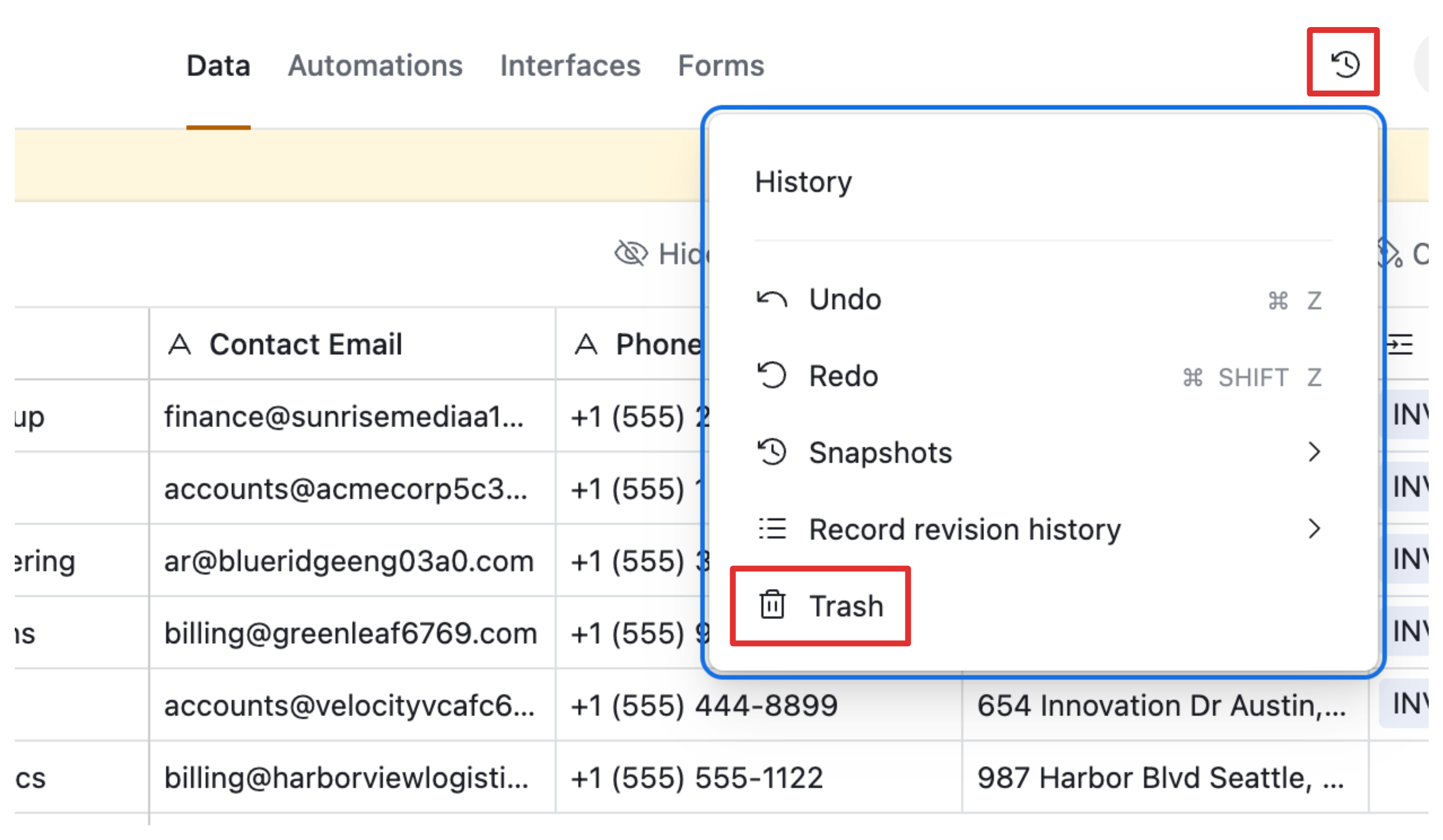
You will see a list of deleted records. Find the one you want and click Restore.
The record comes back exactly as it was at the moment of deletion — all field values, attachments, and comments intact.
What gets restored and what does not
When you restore a record from trash, you get back:
-
All field values as they were at the time of deletion
-
Attachments linked to that record
-
Comments on the record
What you do not automatically get back:
-
Linked record connections. If the deleted record was linked to records in other tables, those links are severed when the record is deleted. Restoring the record does not automatically rebuild those links — you will need to relink it manually.
-
Lookup and rollup values. These recalculate once you restore the record and re-establish any broken links, so they should return to normal once linking is fixed.
The 7-day limit
After 7 days the record is permanently deleted from trash and this option is no longer available. There is no way to extend this window or retrieve records from trash after they pass the 7-day mark, regardless of your plan.
If you are not sure whether 7 days have passed, check the trash panel — deleted records show a timestamp indicating when they were deleted.
Option 2: Restore From a Snapshot (Beyond 7 Days, or Bulk Deletions)
If the 7-day window has passed, or if a large number of records were deleted at once and you need to recover a specific earlier state of the base, snapshots are your next option.
A snapshot is a full saved copy of your base at a specific point in time. Airtable creates snapshots automatically at intervals, and you can also take manual snapshots whenever you want.
How to restore from a snapshot
-
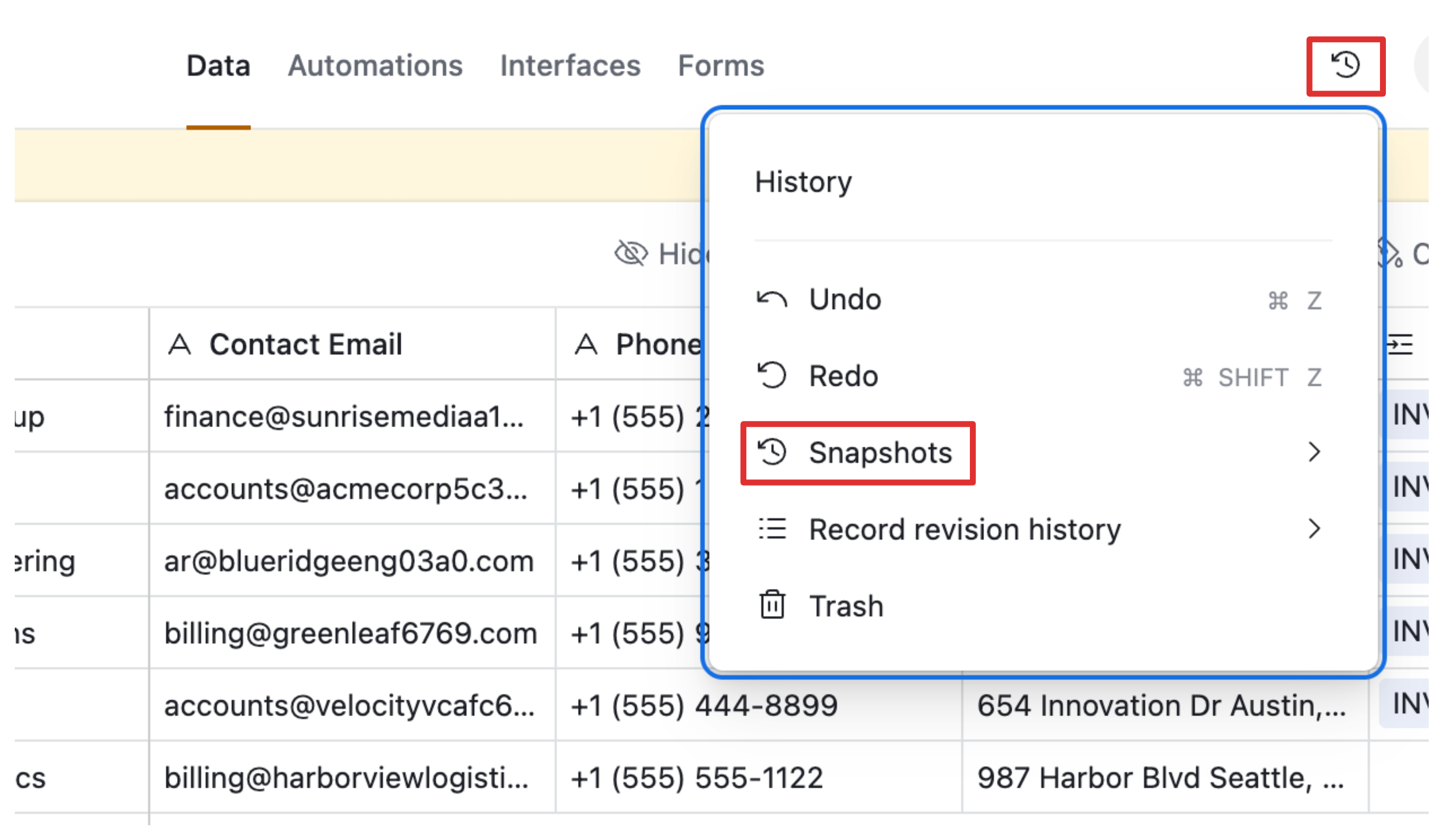
Click the clock icon in the toolbar
-
Select Snapshots from the panel
-
Browse the list of available snapshots and find one that was taken before the records were deleted
-
Click Restore snapshot
Airtable does not overwrite your current base. Instead, it creates a new copy of the base in your workspace, reflecting the data as it existed when the snapshot was taken. Your live base stays untouched.
-
Open the restored copy, find the records you need, and manually copy them back into your live base
Limitations of snapshot recovery
-
Snapshots are not taken on a fixed schedule. Airtable triggers automatic snapshots based on the number of user actions in the base, not on a fixed daily timer. Heavily used bases will get more frequent snapshots; inactive bases will get fewer. If you need to recover a record that was added and deleted between two automatic snapshots, that record may not exist in any snapshot.
-
Restoring from a snapshot creates a duplicate base. You cannot selectively restore individual records from a snapshot without doing it manually. You open the snapshot base, find the record, and copy the data back yourself.
-
Revision history is not included. The restored base will not have any revision history. Record comments are included, but the full edit history is lost.
-
Snapshot availability depends on your plan. Free plan bases have limited snapshot history. Paid plans retain snapshots for longer. If you are on a free plan and the automatic snapshots do not go back far enough, you may not be able to recover.
-
The restored base has a new base ID. Record IDs, view IDs, and interface page IDs are preserved. The one ID that changes is the base (app) ID itself, since a new base is created. If you use external tools that reference the base by its app ID (webhooks, API calls, integrations), those will need to be updated to point at the new base.
How far back do snapshots go?
Airtable publishes its snapshot retention limits by plan:
-
Free plan: 2 weeks of snapshot history
-
Team plan: 1 year of snapshot history
-
Business plan: 2 years of snapshot history
-
Enterprise plan: 3 years of snapshot history
If you are on the Free plan and the deletion happened more than two weeks ago, no snapshot will cover it. If you need guaranteed long-term backup history beyond what your plan provides, see the section below on prevention.
What to Do When Neither Option Works
If the 7-day trash window has passed and no snapshot covers the period before the deletion, the records are gone and cannot be recovered through Airtable's native tools.
Your only remaining option at that point is if you have an external backup — a CSV export, a copy in Google Sheets, a third-party backup tool like On2Air Backups or ProBackup. If you have one of those, you can manually reconstruct the deleted records from it.
This is a painful situation to be in and the only real solution is to prevent it from happening again.
How to Prevent This in the Future
Take manual snapshots before risky operations
Any time you are about to run a bulk delete, run an automation that modifies many records, or make significant structural changes to your base, take a manual snapshot first.
To take a manual snapshot, click the clock icon → Snapshots → Take snapshot now.
This gives you a guaranteed restore point before anything goes wrong. Note that there is a short cooldown between manual snapshots — typically a few hours — so you cannot take them back to back indefinitely.
Use automations carefully with filters
Most accidental bulk deletions happen through automations — either a script that ran with the wrong condition or a "delete record" action that triggered more broadly than expected. Before running any automation that includes delete actions, test it on a small filtered set first and confirm the results are what you expected.
Consider an external backup tool
If your base contains data you genuinely cannot afford to lose, relying only on Airtable's snapshots is risky. Tools like ProBackup and On2Air Backups run on a schedule, keep a full version history of your data outside Airtable, and let you restore to any point without depending on Airtable's snapshot frequency.
For a full breakdown of how Airtable's snapshot system works and how to combine it with external backups, see How to Back Up Your Airtable Bases (And Restore Them Safely).
If you want to prevent this kind of situation by taking regular automated snapshots of your data into a separate table before changes happen, see How to Take Regular Snapshots of Your Data in Airtable.