How to Automate Expiry Date Reminders in Airtable
Missed renewals are expensive. A contract auto-renews at a bad rate, a software license lapses, a team member's certification expires. Airtable can catch all of these with a daily automation that checks expiry dates and emails the right person before it is too late.
The Formula Fields You Need
Add two formula fields to the table that holds your expiry dates.
Days Until Expiry:
DATETIME_DIFF({Expiry Date}, TODAY(), 'days')
Returns a positive number for future dates (30 means 30 days left), zero for today, and a negative number for past dates (the record is already expired).
Expiry Status:
IF({Days Until Expiry} < 0, "Expired",
IF({Days Until Expiry} = 0, "Expires Today",
IF({Days Until Expiry} <= 7, "Critical",
IF({Days Until Expiry} <= 30, "Warning",
"OK"))))
This formula gives each record a status label. In the field’s Formatting settings, display the results as coloured select-style options, assigning red to Expired and Critical, amber to Warning, and green to OK. This makes the expiry status easy to scan in any view.
The Renewed Field
The examples below filter out records where a Renewed field is checked, so reminders stop once someone has actually handled the renewal. Add this as its own checkbox or single select field on the table, separate from Expiry Status. Expiry Status only ever outputs Expired, Expires Today, Critical, Warning, or OK, so it can't be used to track whether a renewal has happened.
The Automation
Create a new automation.
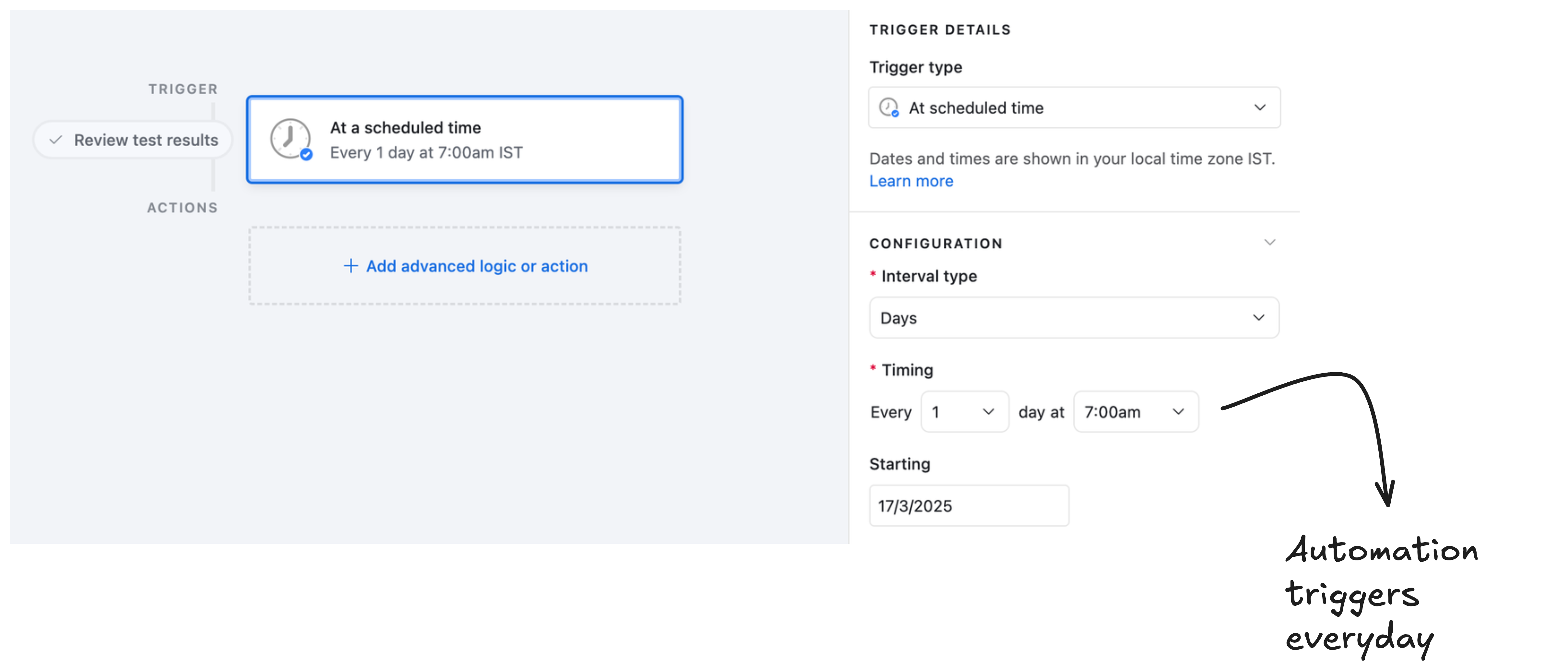
Trigger: Scheduled time daily at a fixed time (8:00 AM works well)
Action 1: Find records
Filter for records where:
- Days Until Expiry is greater than or equal to 0 (not yet expired)
- Days Until Expiry is less than or equal to 30 (expiring within 30 days)
- Renewed is unchecked (add this field if you do not have it)
Because the filter requires Days Until Expiry to be zero or greater, records that are already past their expiry date are excluded from this automation entirely. If you also want to catch and follow up on already-expired records, build that as a separate automation with its own filter (Days Until Expiry less than 0) rather than folding it into this one.
You can send reminders two ways from here. Either loop through each matching record individually so each person gets their own email (Action 2 and 3 below), or skip the loop and send a single daily summary email listing everything found by the Find records step, useful if one person, like an office manager, tracks renewals for the whole team.
Action 2: Repeating group
Loop through each found record.
Action 3: Send email
Inside the repeating group, send an email to the responsible person (use a field on the record for the email address). Subject and body should include the record name, the expiry date, and the days remaining using field tokens.
Avoiding Duplicate Reminders
Without extra logic, the same record gets a reminder email every single day it sits within the 30-day window. To send each reminder only once, use a Last Reminder Sent date field.
Airtable's Find records filter doesn't have a built-in "more than X days ago" condition for dates, so add a helper formula field, for example Reminder Due:
OR(
  {Last Reminder Sent} = BLANK(),
  DATETIME_DIFF(TODAY(), {Last Reminder Sent}, 'days') >= 7
)
Then filter Find records on Reminder Due is true. After sending, add an Update record action inside the repeating group that sets Last Reminder Sent to today.
This way each record gets a reminder, then is excluded for 7 days before the next one goes out. Adjust the interval to match your workflow: every day for the final 3 days before expiry, every week for the earlier period.
Multi-Stage Reminders at Different Thresholds
For more precise control, run separate automations for each threshold:
- 30-day automation: runs weekly, sends a heads-up email
- 7-day automation: runs daily, sends an urgent reminder
- 1-day automation: runs daily, sends a final warning
Each automation uses a different Days Until Expiry range in its Find records condition. Use separate Reminder 30 Sent, Reminder 7 Sent, Reminder 1 Sent checkbox fields to track which reminders have already gone out for each record and prevent duplicates.
For the same daily-scheduled pattern applied to project deadlines, see how to automatically email upcoming project deadlines in Airtable. For a general guide to date comparison formulas in Airtable, see why DATETIME_DIFF shows the wrong value.