How to Create EUR Expense Reports From USD and EUR Expenses in Airtable
I’ll use an international agency as the example. Its team submits expenses in either USD or EUR, but finance wants every expense report to show one EUR total.
Keep the original amount in one field, store its currency beside it, and calculate a separate Total EUR field. The report can then add one EUR value without losing the amount shown on the receipt.
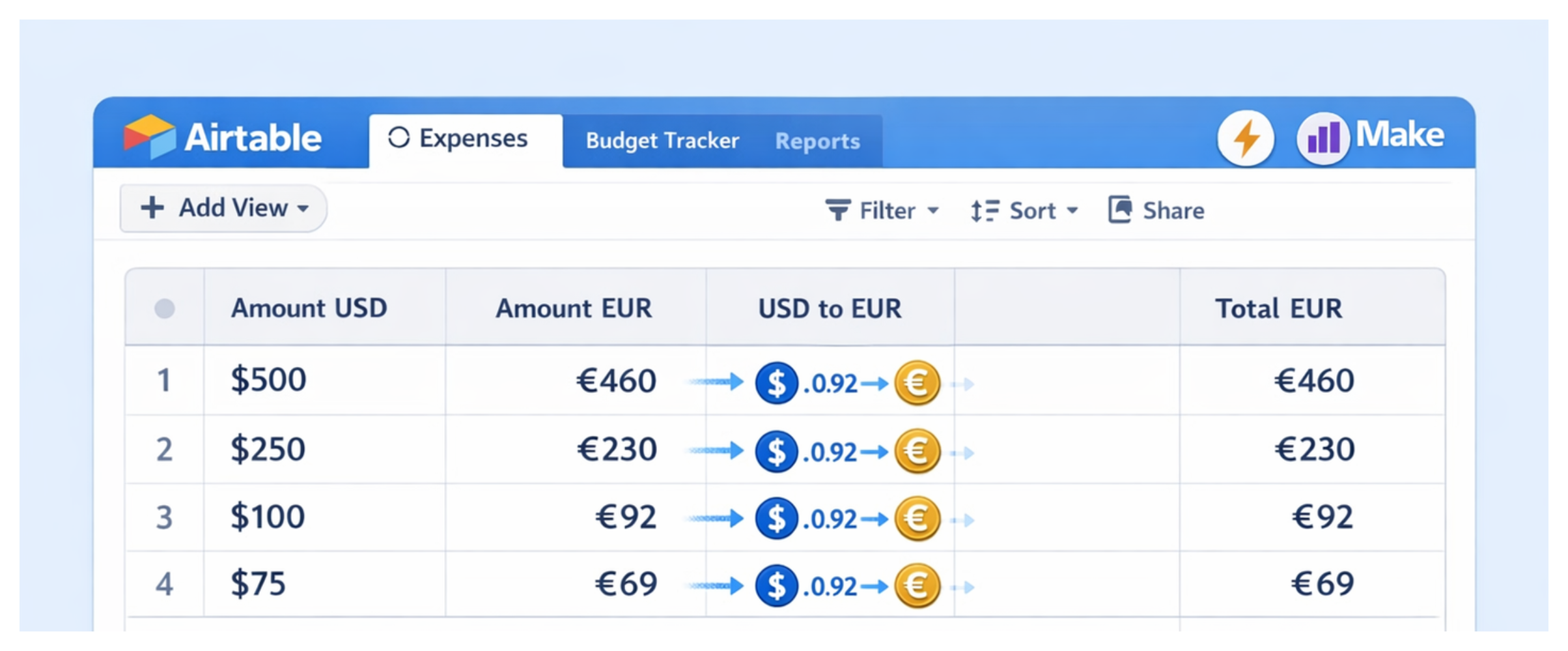
Create the expense fields
In the Expenses table, add these fields:
| Field | Type | Purpose |
|---|---|---|
| Amount | Currency or number | The amount shown on the receipt |
| Currency | Single select | USD or EUR |
| Expense Date | Date | The date of the purchase |
| Receipt | Attachment | The receipt for the expense |
| EUR Rate | Number | The approved rate used to convert the expense to EUR |
| Rate Date | Date | The date that rate was taken or approved |
| Rate Source | Single line text | Where the rate came from |
| Total EUR | Formula | The value used in the EUR report |
Use one Amount field instead of separate USD and EUR amount fields. Currency tells your team whether that amount is in USD or EUR.
For example:
| Amount | Currency | EUR Rate |
|---|---|---|
| 100 | USD | 0.92 |
| 75 | EUR | 1 |
If you only need to store the original amounts, see how to manage multiple currencies in one Airtable base.
Choose the exchange-rate rule
The agency also needs one exchange-rate rule for every report. It could use the rate on the purchase date, the rate on the day the report is submitted, or a fixed rate supplied by finance.
Enter the approved rate in EUR Rate and record the Rate Date and Rate Source on the same expense. This keeps the conversion used for an old report visible later.
For a EUR expense, enter 1 as the rate. A €75 expense stays €75.
For a USD expense, enter the USD-to-EUR rate. If $1 is worth about €0.9174, enter 0.9174.
Calculate the EUR amount
In Total EUR, add a formula field with this formula:
{Amount} * {EUR Rate}
For EUR expenses, the rate is 1, so the original amount stays the same. For USD expenses, Airtable multiplies the amount by the approved EUR rate.
Use Total EUR for the report total. Keep using Amount when you need to show what appeared on the receipt.
Collect expenses with a form
Add Amount, Currency, Expense Date, and the receipt attachment field to the form. Staff can then submit the expense without entering the conversion details.
Once the form creates the record, finance can add the approved EUR Rate. Airtable will calculate Total EUR automatically.
To prepare the report, create a view that shows expenses where Total EUR is not empty. Group the view by report, employee, or month, then use the total at the bottom of the Total EUR column.
Fill the rate automatically when needed
Entering the rate manually is enough when finance reviews each expense. If finance uses a published exchange-rate service, Airtable can fill EUR Rate, Rate Date, and Rate Source after the expense is submitted.
You can use Airtable’s Run a script action to call the service’s API, or use Make to retrieve the rate and update the expense record. The Run a script action is not available on Airtable’s Free plan.