How to Populate a Linked Record Field Using a Lookup Field in Airtable
A common Airtable pattern is where a lookup field already knows the correct linked record, but the actual linked record field is still empty.
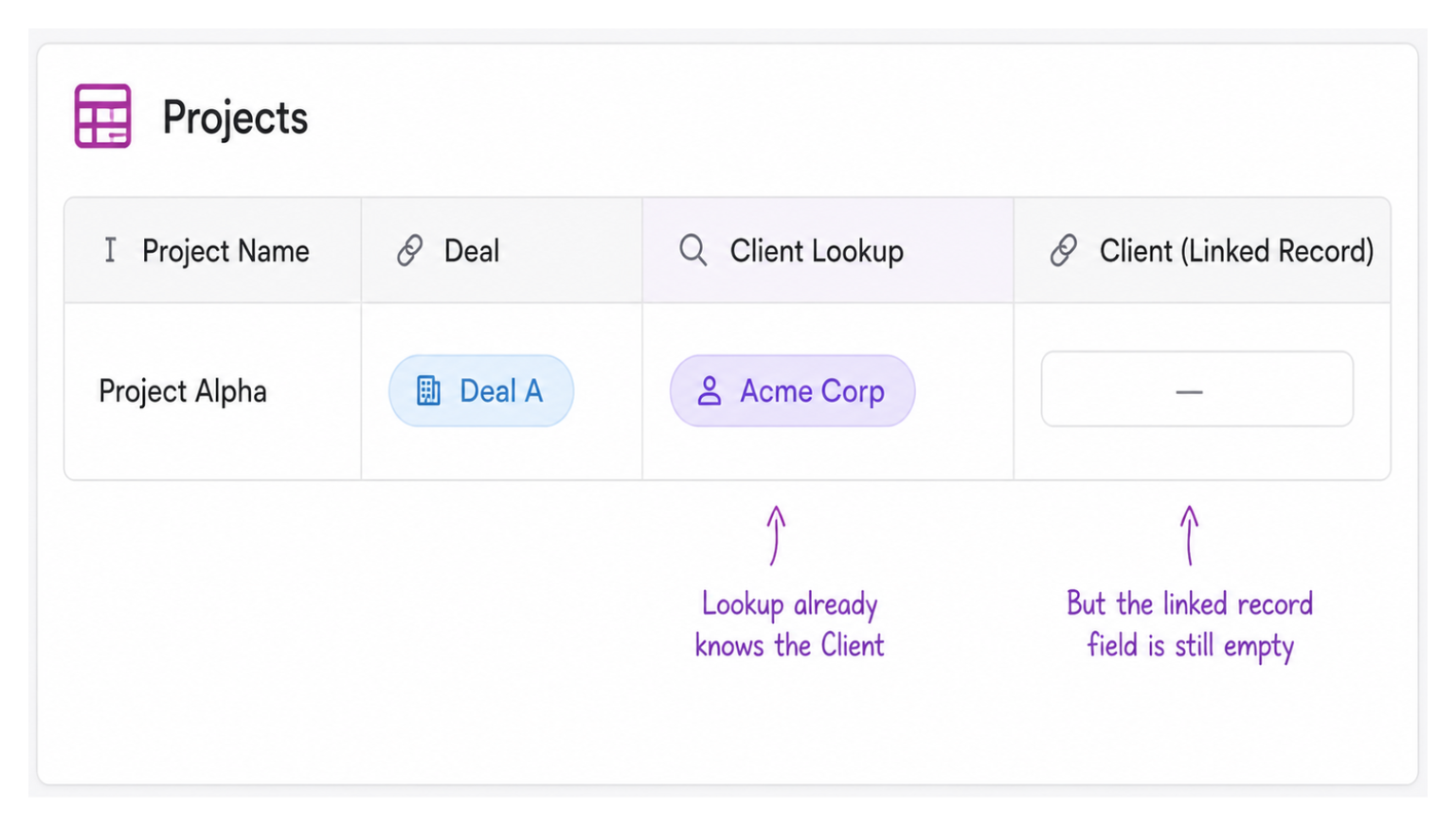
For example, a Project may be linked to a Deal, and that Deal is already linked to a Client. Through a lookup field, the Project can already see the correct Client. But the Project's own Client linked record field is still blank.
In cases like this, a simple automation can copy the lookup value into the linked record field automatically.
Why You Cannot Just Use the Lookup Field Directly
A lookup field pulls values from a related table through a linked record. The values appear in your table, but the lookup field itself is read-only. You cannot edit it, reference it as a filter source in most contexts, or use it directly in interface elements the same way a native linked record field works.
When you need the linked record relationship to exist directly in the table, not just as a read-through lookup, you need to copy the value into a proper linked record field. That is what the automation does.
Setting Up the Automation
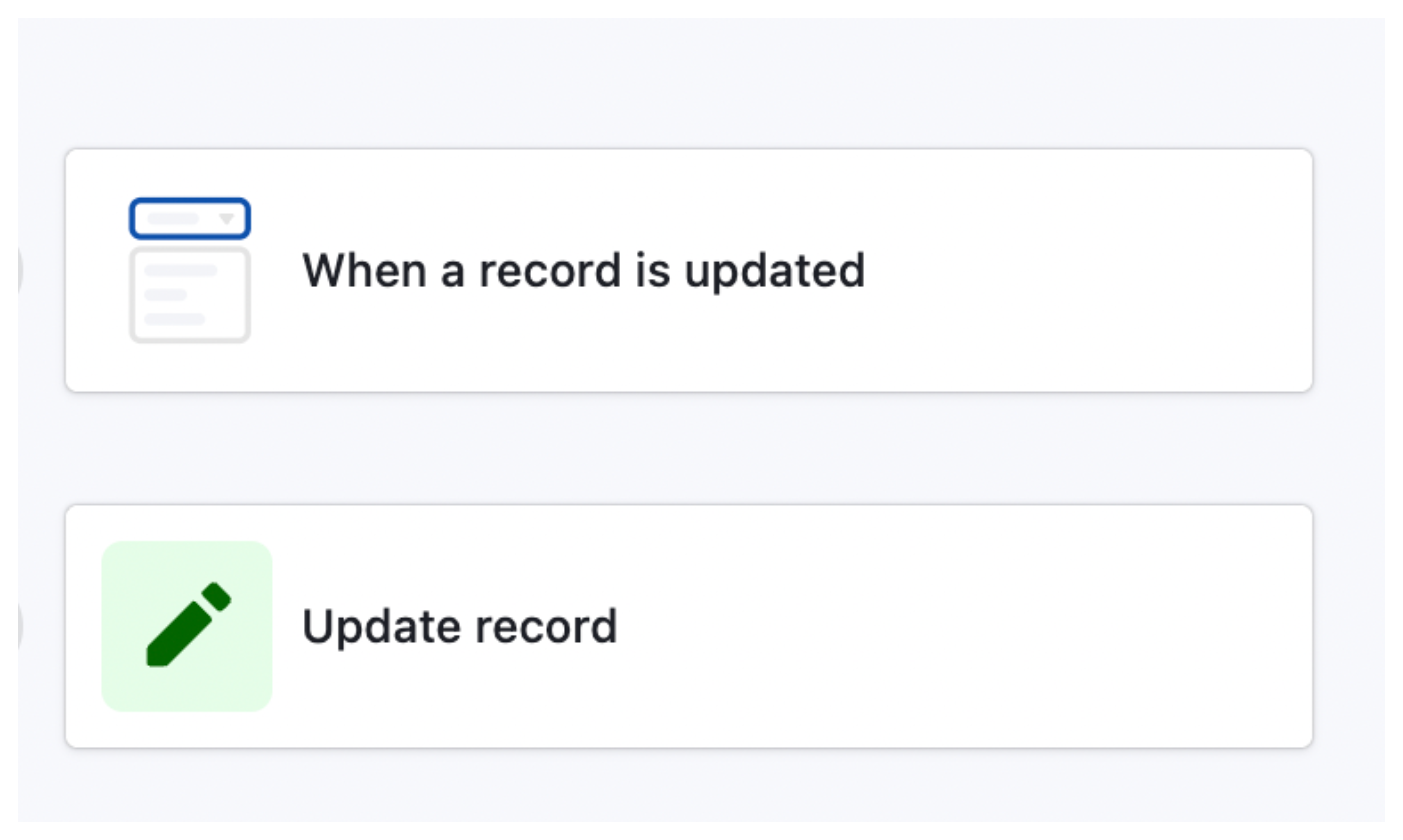
Trigger: When a record is updated
Set the trigger to When record is updated on your Projects table. In the field selection for the trigger, choose the Client lookup field (the one that pulls Client through the Deal).
This ensures the automation only runs when that lookup field changes, which happens when a Deal is linked to the Project or when the Deal's own Client link changes.
Action: Update record
Add an Update record action targeting the same Projects table and the same record that triggered the automation.
In the field mapping, find the manual Client linked record field. Set its value using the token from the Client lookup field in the trigger step.
When you pick the lookup field value from the token picker, Airtable recognises it as a record reference and correctly populates the linked record field rather than pasting it as plain text.
That is the entire automation. Projects that come from Deals automatically get a Client linked. Projects created manually have an empty Client lookup field, so the automation does not fire, and the manual linked record field stays available for someone to fill in.
What to Watch Out For
The lookup field must return a single value. If a Deal can be linked to multiple Clients (a multi-select linked record field on Deals), the lookup returns an array of values. The update action handles this correctly for multi-linked-record fields, but verify the field type on the Client linked record field in Projects is set to allow multiple records if multiple clients are possible.
Circular updates. If updating the Client linked record field also triggers something that updates the Deal, and that in turn changes the lookup, you can create a loop. Keep an eye on your automation run history after enabling this. See how to monitor your automations to catch any runaway loops early.
Manual edits are overwritten. If someone manually picks a Client on a Project that already has a Deal linked, the next time the Deal's Client changes, the automation will overwrite the manual pick. If manual and automatic values need to coexist, add a condition to the automation that only runs when the manual Client field is empty.
Extending the Pattern
This same pattern works for any situation where a lookup already knows the correct value for a linked record field. Some common variations:
- Copying a Project's linked Team from a Deal, so the team is auto-assigned when a project is created from a deal
- Copying a Client's billing contact into an Invoice's recipient field based on the linked Client
- Copying a Product's linked Supplier into an Order's supplier field when the product is selected
In each case the structure is the same: a lookup reveals a value that should also exist as a direct linked record, and the automation bridges the gap. If you are building these kinds of multi-table relational structures and need records to stay connected across tables in different bases, see whether linking records across bases fits your use case, since the pattern above only works within a single base.