How to Trigger an External API from an Airtable Button
You can add a button to an Airtable Interface so someone can send a record to another system with one click.
I’ll use an invoice as the example. When an invoice is ready, someone clicks Send to billing. Airtable sends the invoice ID and a few field values to an external endpoint, such as your own server or a Make scenario.
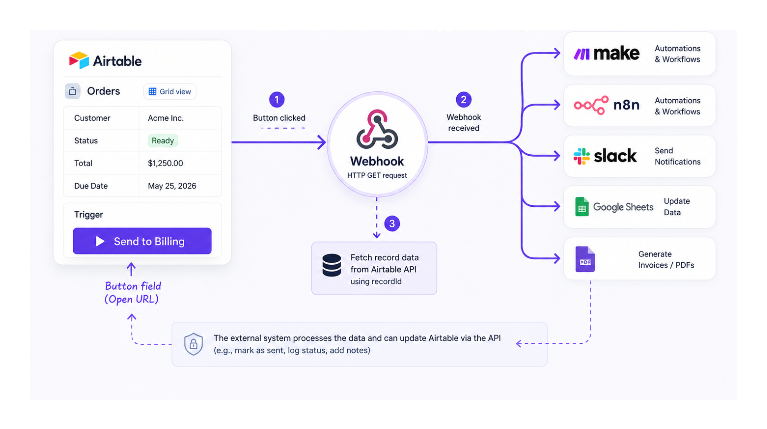
Choose the setup
Use the option that matches where the button will be used and how the external system expects to receive the data.
| Setup | Use it when |
|---|---|
| Interface button and automation | Someone clicks a button in an Interface and the external system expects a POST request with JSON data. |
| Button field and Open URL | Someone clicks a button in the base and the external endpoint accepts a browser GET request. |
| Automation without a button | The request should happen automatically when an invoice reaches a certain status. |
The first option is usually the best fit for the invoice example, so the steps below use it. Airtable's Button field and Interface button are different controls. A Button field can open a URL, while an Interface button can start an Airtable automation.
1. Create the receiving endpoint
The endpoint is the address that receives the invoice data. It can be an API route on your own server or a webhook created in Make.
If you are using Make, create a scenario and add a Custom webhook as the first module. Copy the webhook URL. You will add it to the Airtable script in the next step.
If you are using your own server, create an endpoint that accepts a POST request with JSON data. For this example, the endpoint is:
https://your-server.com/invoice-created
2. Create the Airtable automation
Open the base's Automations section and create a new automation. Choose When a button is clicked as the trigger.
Select the Interface that contains the invoice records, then test the trigger with an invoice record. Airtable will make the clicked record available to the next step.
3. Send the invoice data
Add a Run a script action after the trigger. Create these input variables and map them to values from the button trigger:
recordIdinvoiceNumbertotal
Use the script to send the values to your endpoint:
let config = input.config();

let response = await fetch("https://your-server.com/invoice-created", {
  method: "POST",
  headers: {
    "Content-Type": "application/json"
  },
  body: JSON.stringify({
    recordId: config.recordId,
    invoiceNumber: config.invoiceNumber,
    total: config.total
  })
});

if (!response.ok) {
  throw new Error(`External request failed: ${response.status}`);
}
Replace the URL with your Make webhook URL or your own endpoint. Add more input variables when the external system needs more invoice fields.
If the external system only needs the record ID, send that value and let the receiving system fetch the rest of the invoice through the Airtable API.
4. Add the button to the Interface
Open the invoice record detail page in the Interface and add a button under User actions.
Set the button action to Run automation, then select the automation you created. Change the label to Send to billing.
Test the automation once, then publish the Interface. When someone clicks Send to billing, Airtable runs the automation and sends the invoice data to the endpoint.
If you use Make, the scenario can now create the invoice in another system, generate a document, or send a notification. You can also add an Airtable step in Make to update the invoice status to Sent or Completed.
Use a Button field instead
Use a Button field when the endpoint accepts a browser GET request and you want a simple link from the base.
Add a Button field to the table and choose Open URL. Build the URL with the current record ID:
"https://your-server.com/invoice-created?recordId=" & RECORD_ID()
When someone clicks the button in the base, Airtable opens the URL in a new tab. The endpoint receives the record ID as a query parameter.
This option does not run an Airtable automation. It only opens the URL, so use it when the receiving endpoint is designed for a GET request. Keep sensitive information out of the URL because people who can view the Button field may be able to see it.
Trigger the request automatically
You do not need a button when the request should happen whenever an invoice reaches a certain stage.
Create an automation with When a record matches conditions as the trigger. Set the condition to Status is Ready for billing, then use the same Run a script action to send the invoice data to the external endpoint.
Nobody needs to click anything. Every invoice that reaches Ready for billing follows the same workflow.
If the external request fails, write the result back to a status or error field so the team can see what happened. You can review failed runs in Airtable's automation history.