How to Handle Multiple Options Without Conditional Automations in Airtable
Let's say you have a form where people can register for multiple training sessions.
Each training has its own date, time, and Zoom link.
Someone might select Training 1 and Training 3, while someone else selects Training 2, Training 3, and Training 4.
After they submit the form, you want to send one confirmation email containing the details for all the trainings they selected.
The first approach you might think of is conditional automation logic.
If Training 1 is selected, include Training 1.
If Training 2 is selected, include Training 2.
And so on.
That works when you have two or three options, but it becomes difficult to manage pretty quickly.
For this type of setup, I prefer using linked records and a rollup instead.
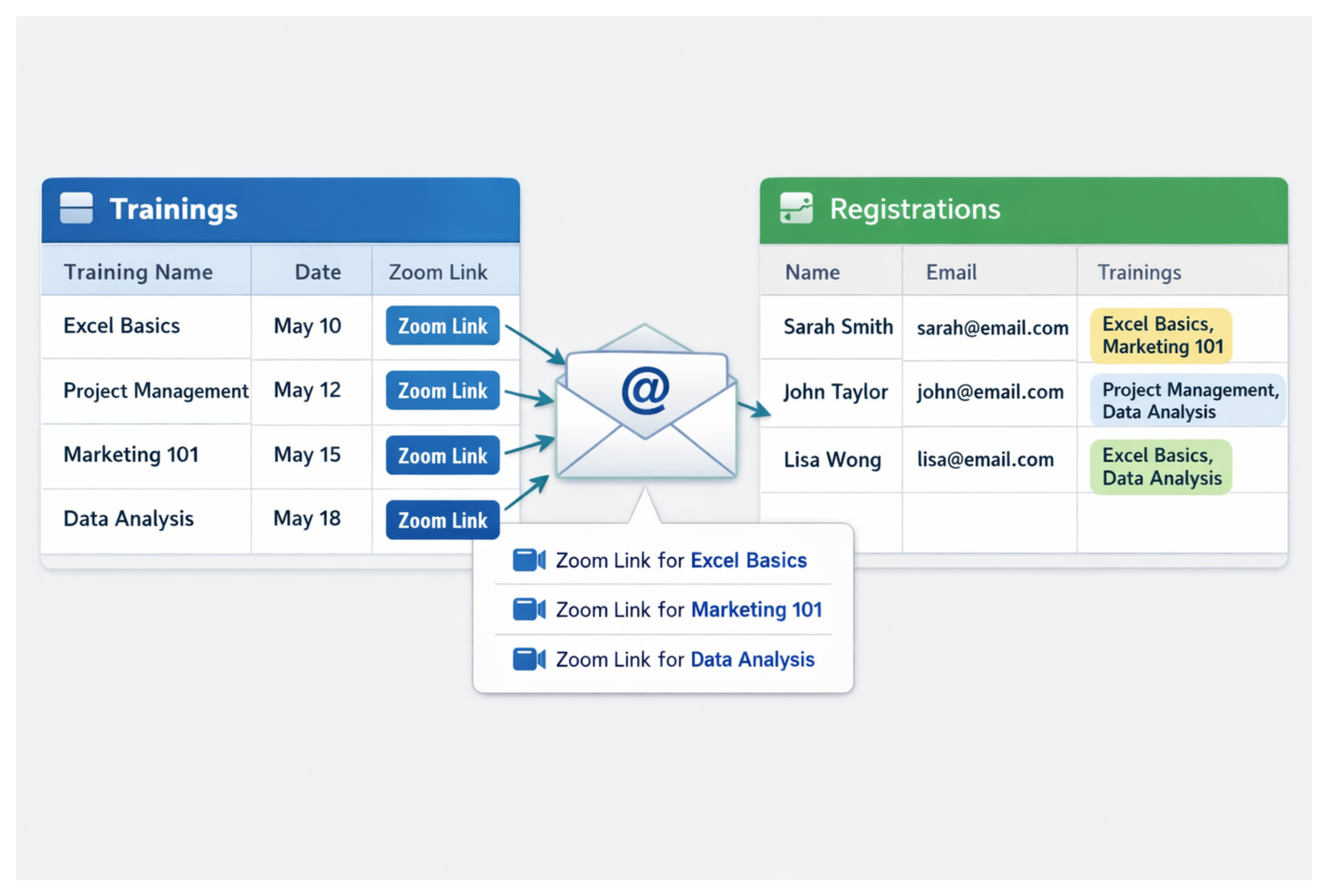
Create a Trainings table
Start with two tables:
Trainings
This table has one record for each training and stores information such as:
- Training Name
- Date
- Time
- Zoom Link
Registrations
This table stores each form submission and information such as:
- Name
- Selected Trainings
The Selected Trainings field should be a linked record field connected to the Trainings table, with multiple records allowed.
That means someone filling out the form can select Training 1, Training 3, and Training 4 in the same submission.
Prepare the email content for each training
In the Trainings table, I would create a formula field called something like Email Details.
Instead of trying to assemble all the formatting later, this field prepares exactly what should appear in the confirmation email for that training.
For example:
{Training Name} &
"\nDate: " & DATETIME_FORMAT({Date}, "MMMM D, YYYY") &
"\nTime: " & {Time} &
"\nZoom: " & {Zoom Link}
Each training now has its own ready-to-use block of email content.
If you need to change the information included in your emails later, you only have to change this formula.
Bring all the selected trainings together
Now go back to the Registrations table and create a Rollup field.
Use Selected Trainings as the linked record field and roll up the Email Details field we just created.
For the aggregation formula, use:
ARRAYJOIN(ARRAYCOMPACT(values), "\n\n")
This takes the Email Details from every selected training and combines them into one field.
The extra line break between each value keeps the trainings separated in the email.
So if someone selects Training 1 and Training 3, the rollup might look something like:
Training 1
Date: January 20, 2026
Time: 10:00 AM
Zoom: [Zoom link]

Training 3
Date: January 24, 2026
Time: 2:00 PM
Zoom: [Zoom link]
If someone selects four trainings instead, all four are included automatically.
You don't have to change the automation.
Send everything in one email
Now the automation becomes very simple.
I would normally trigger it when the registration reaches whatever point means it is ready to send.
For example:
Status is Confirmed → Send email
In the Send email action, add your normal greeting and confirmation message.
Then insert the rollup field containing the training details.
Something like:
Hi Jane,

Thanks for registering. Here are the details for your selected trainings:

[Training Details]

See you there!
The automation doesn't need to know whether Jane selected one training or five.
The rollup has already prepared everything.
Why I prefer this setup
The biggest advantage is that your automation doesn't change when your options change.
If you add Training 5 next month, you simply create another record in the Trainings table.
You don't need to open the automation and create another conditional branch for Training 5.
The same pattern also works for things other than trainings.
You could use it for services, products, event sessions, packages, features, locations, or any situation where someone can select multiple options and each option has its own information.
The main idea is to keep the option-specific information in its own table, prepare the content there, and then use a rollup to bring everything selected into the main record.
Your automation is then responsible for one thing: sending the finished content.