How to Auto-Fill Item Details From Another Table in Airtable
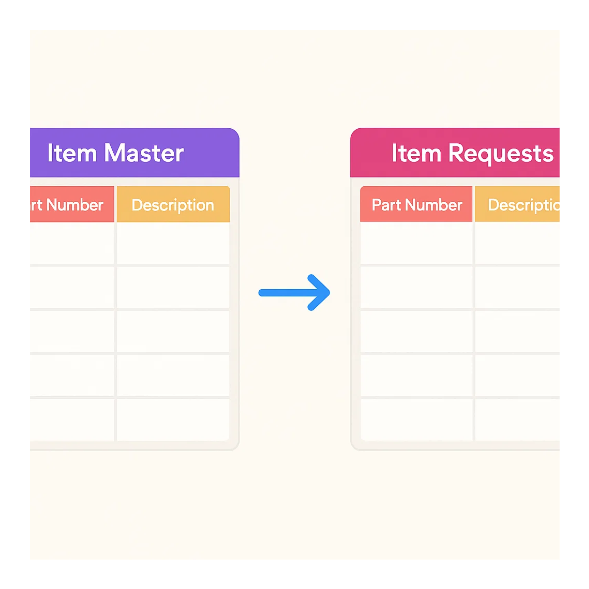
Imagine a lab with an Item Master table containing every approved item it can order. Each item has a part number, description, vendor, and unit cost.
Employees submit requests in a separate Item Requests table. When a request matches an approved item, you want Airtable to show those details without copying them into the request.
The Airtable setup is a linked record plus lookup fields. If employees type the part number into a free-text request field, an automation can find the exact match and create the link for them.
Create the item tables
In Item Master, make Part Number the primary field. Add Description, Vendor, and Unit Cost fields.
In Item Requests, add these fields:
| Field | Type | What it does |
|---|---|---|
| Requested item | Long text | What the employee types, such as ABC-100G or 100 gram tubes |
| Matched item | Link to another record | Connects the request to Item Master |
| Description | Lookup | Shows the matched item’s description |
| Vendor | Lookup | Shows the matched item’s vendor |
| Unit Cost | Lookup | Shows the matched item’s current cost |
When you create each lookup field, choose Matched item as the linked record field and select the matching field from Item Master.
The lookup fields stay empty until Matched item contains a real link. Creating the linked field alone does not connect any records.
Let the employee choose an approved item
If every request must use an item that already exists in Item Master, add Matched item to the Airtable form. Employees can search the list and select the approved item, and the lookup fields fill in as soon as they submit the request.
This is the simplest option because the employee creates the link while submitting the request. You do not need an automation.
For more examples of showing information from related tables, see how to display related data from multiple Airtable tables.
Let the employee describe the request instead
Sometimes the request form must accept more than the approved list. An employee may type ABC-100G when they know the part number, or 100 gram tubes when they are asking for something that has not been added to Item Master yet.
In that workflow, do not force every answer into a linked record field. Keep the employee’s answer in Requested item, then let an automation link only the requests that contain an exact approved part number.
Create an automation with the When record matches conditions trigger in Item Requests. Set it to run when Requested item is not empty and Matched item is empty.
Add a Find records action that searches Item Master where Part Number equals Requested item from the request.
Then add an Update record action:
- Choose Item Requests as the table.
- Insert the triggering request’s Record ID.
- Choose Matched item as the field to update.
- Insert the matching Item Master record’s Airtable record ID from the Find records step.
After Airtable creates the link, the Description, Vendor, and Unit Cost lookup fields fill in. This is the same find-and-link pattern used in how to automatically link records between Airtable tables.
Review requests without a match
The automation only handles exact part-number matches. ABC100G will not match ABC-100G, and 100 gram tubes will not match either value.
Requests without a match stay unlinked, so someone can correct the part number, choose an approved item, or add a new item to Item Master. Keep part numbers unique because Airtable cannot choose between two master records with the same value.
If Part Number is a formula field, link the matching record using its record ID instead of trying to match the formula value in the automation.
Keep old request costs unchanged
The Unit Cost lookup always shows the current value in Item Master. If the cost changes, older requests show the new cost too.
That is useful when requests should always use the latest catalog information. If a purchase needs to keep the cost from the day it was approved, copy the lookup value into a regular currency field at that point. See how to keep old sales records accurate when product prices change in Airtable.