How to Show Data From One Airtable Table in Another Without Automations
I’ll use a Policies and Documents setup as the example. The Policies table stores the policy details, while the Documents table stores the files connected to each policy.
You want each document to show the policy’s client, carrier, and policy type. The simplest setup is a linked record field and a few lookup fields. The details stay in Policies, and the Documents table always shows the current values without copying them with an automation.
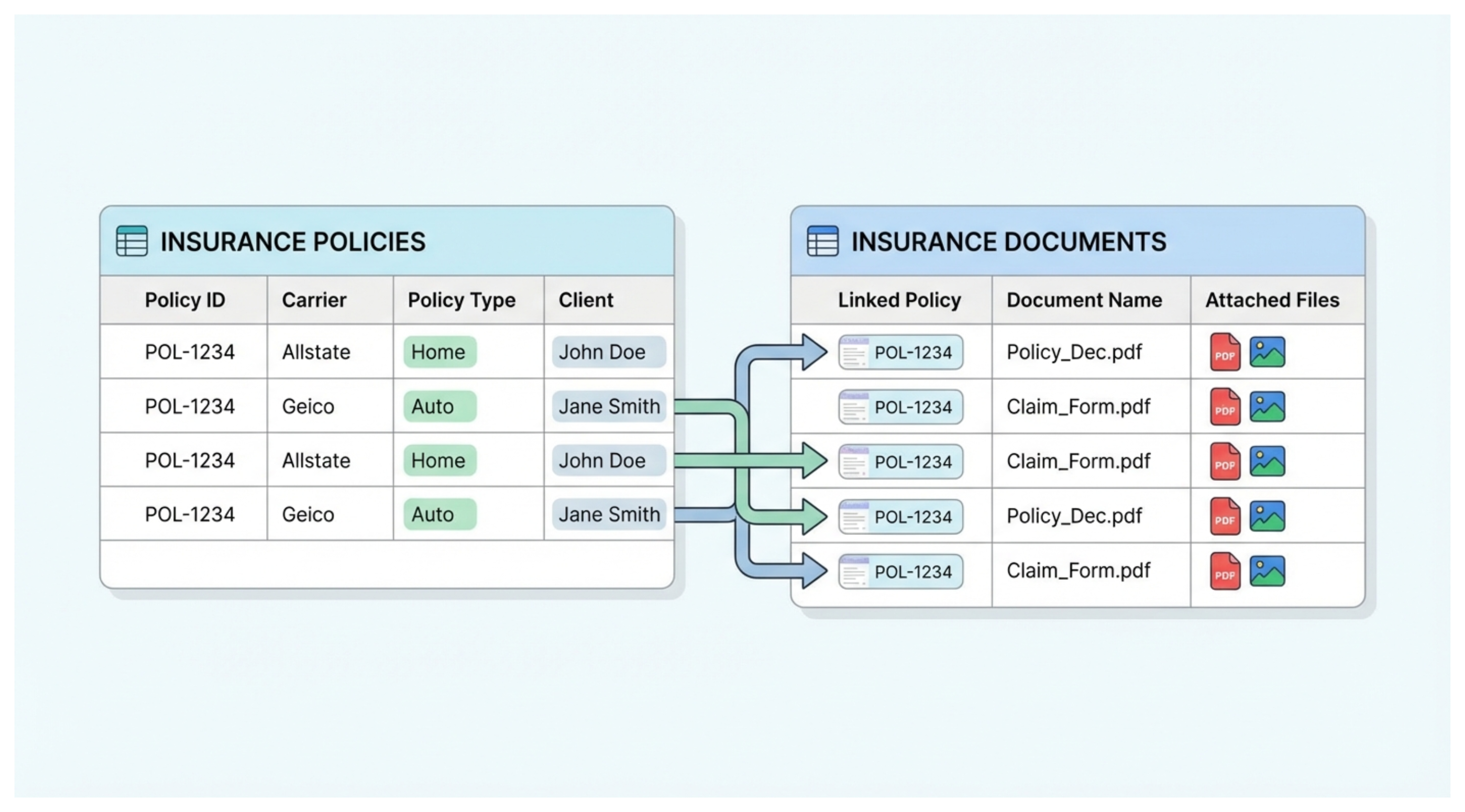
Link each document to its policy
Open the Documents table and add a Link to another record field. Choose Policies as the table it should link to, and name the field Policy.
Now link each document to the policy it belongs to. For example, the document Signed Health Policy could link to the policy with the ID POL-1042.
This link is the connection between the two records. A lookup cannot pull anything through until the document is linked to an actual policy record.
If you already have many documents, the linked record field will not connect every row just because both tables contain the same Policy ID. You need to create those links manually or use an automation that finds the matching policy and writes its record ID into the link field. See how to automatically link records between Airtable tables for that setup.
Show policy details in Documents
Once the records are linked, add a field in Documents and choose Lookup.
For the lookup source, choose the Policy field. Then select Client as the field to display.
Repeat the same process for Carrier, Policy Type, and Policy ID.
The Documents table now shows those policy details beside each document. These are lookup values, not separate copies that someone has to update.
What happens when the policy changes?
If the carrier for POL-1042 changes, update it once in the Policies table. The lookup in Documents will show the new carrier automatically for every document linked to that policy.
That is why this setup does not need an automation. The link connects the records, and the lookup displays the current value from the policy record.
When this setup is not the right one
This setup works when the second table only needs to show information from the first table. It does not create a second editable copy of the policy details.
If someone should be able to change the client or carrier separately on each document, use regular fields in Documents instead. You can fill those fields with an automation, but later changes in Policies will not update the copied values unless you build that workflow too.
If the two tables are in different Airtable bases, use Airtable Sync instead. Sync brings records from a source view into another base, but a one-way synced table is not editable. Airtable Sync is available on paid plans. Two-way sync, which lets existing records be edited in the destination and sent back to the source, is available on Business and Enterprise Scale plans.