Airtable Form Limits: Max Fields, Images, and What to Do When You Hit Them
Airtable forms work well for straightforward data collection.
But once you start building a long survey, client intake form, application form, or internal review form, you can run into limits pretty quickly.
This article is mainly about the limits that come up when a form gets too large or needs richer layout options.
Limit 1: Interface Forms Can Get Too Big
If you are building a large survey or form and suddenly see this message:
"Your change was reverted because your interface is too big. Try deleting some elements."
You have probably hit the Interface size limit.
I have seen Interface Forms cap out around 249 elements, but Airtable does not publish that exact number in its help docs. So treat this as an observed limit, not an official plan limit.
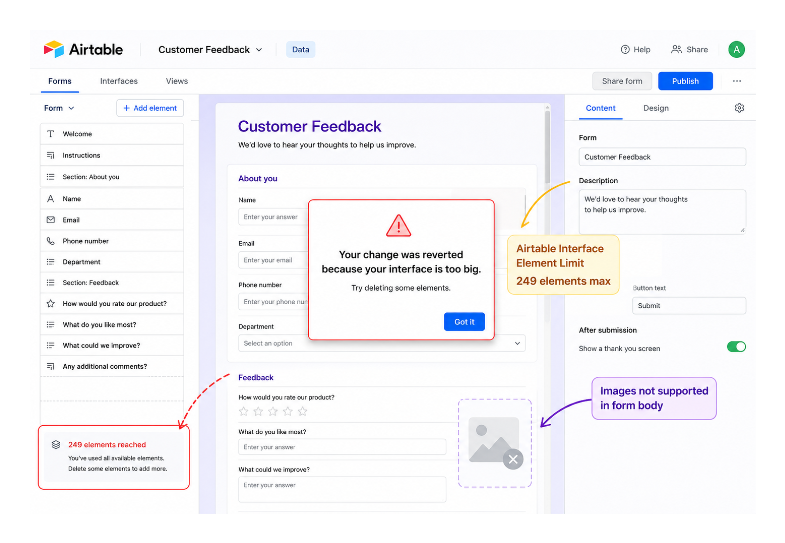
Fields, text blocks, descriptions, and section-style elements all make the interface heavier. A form with a lot of instructions beside every question will hit the limit faster than a plain list of fields.
What to do:
If you are approaching the limit, first remove anything that does not need to be there.
Shorten repeated instructions. Combine nearby help text. Move longer explanations into an email, PDF, or separate page.
If the form is genuinely long, Fillout is usually the better option. It connects to Airtable and can write responses back to the same tables, but gives you more room for long multi-page forms.
Limit 2: No Images in the Form Body
Airtable form views let you add a cover image and a logo on paid plans.
But they are not built for putting images throughout the form body.
You cannot build a form where each question has its own product image, floor plan, mockup, or image-based answer choices.
This is a meaningful limitation for forms where visual context matters. Common scenarios where this is a problem:
- Showing a product image before asking someone to pick a size or variant
- Displaying a floor plan and asking someone to choose a workstation
- Showing a design mockup and collecting feedback on specific elements
What to do:
For image-heavy forms, use a third-party form tool.
Fillout supports adding individual images and GIFs inside the form alongside questions. It also supports picture choice fields where each option is displayed as an image rather than text. Someone selecting a shirt size can see each option as a visual before clicking. All responses still write to your Airtable base.
If images are needed in a form that also collects data in an existing Airtable setup, Fillout connects to existing tables without requiring any restructuring.
Other Airtable Form Limitations Worth Knowing
Beyond element count and images, a few other form limits come up often.
Conditional visibility: Airtable forms do support showing or hiding fields based on previous answers. But if you need a true multi-page branching flow, where people go down different paths with progress bars and separate pages, Airtable's native forms are still limited.
Prefilled values: Airtable forms can be prefilled through URL parameters. This is useful when you already know the client, project, or record value and can send a personalized link. The values have to be included in the link you send. For updating existing records with a form, see how to update existing Airtable records with forms.
Duplicate prevention: A normal Airtable form submission creates a new record. If you want to stop duplicates before the record is created, a form tool like Fillout is often easier. Airtable can still handle duplicates after submission with automations, scripts, or a review process. I have a separate article on preventing and removing duplicate records in Airtable.
Multi-page forms: Airtable form views are not split into multiple pages. For long forms, one long scrolling page can feel tiring. If you need pages, progress bars, save-and-resume, or a more polished respondent experience, use a third-party form tool.
If you are regularly hitting Airtable's form limits, do not force everything into the native form just because the data lives in Airtable.
Keep Airtable as the database. Use Fillout when the form itself needs to be more flexible.