How to Let Users Save Progress While Filling Out an Airtable Form
Airtable's native Interface forms do not save partial submissions. When someone closes the browser, refreshes the page, or gets interrupted mid-way through a long form, everything they have entered is gone. The form starts completely blank when they return.
For short forms this is not a problem. For longer forms with many fields, it creates real friction.
Here are the approaches that actually work for saving progress.
What Happens When Someone Closes a Native Airtable Form
Airtable forms are stateless from Airtable's perspective. Nothing is written to your base until the Submit button is clicked. If the tab closes before submission, no data reaches Airtable and nothing is saved anywhere.
Browser autofill may partially restore typed text in text fields if the person returns to the same form URL on the same device and browser, but this is unreliable and only covers text fields. Linked record fields, attachment fields, and single select fields do not restore.
Approach 1: Use Fillout (Draft Saving Built In)
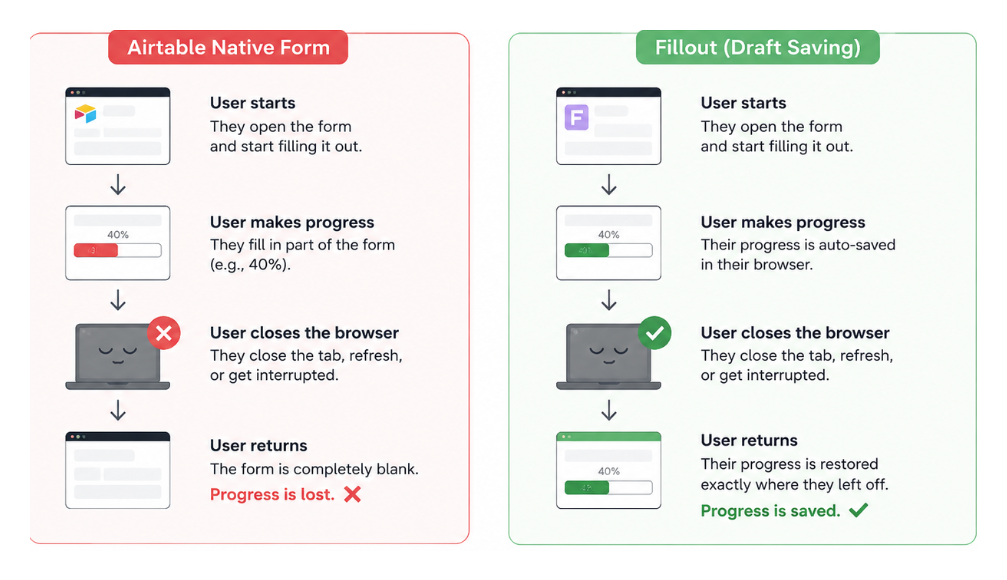
Fillout has a built-in draft saving feature. When enabled, it saves the person's form progress to their browser automatically as they type. If they close the browser and come back to the same form URL on the same device, their answers are restored from the saved draft.
Fillout connects directly to your Airtable base and writes completed submissions to the same tables. You do not need to change your base structure.
Draft saving in Fillout works without requiring the user to log in or create an account. The draft is stored locally in the browser. If the person switches devices or clears their browser storage, the draft is lost, but for the common case of closing a laptop mid-way through a form, it works reliably.
Fillout also supports multi-page forms with a progress bar, which makes long forms feel less overwhelming and helps users understand how far through the process they are.
Approach 2: Break the Form Into Multiple Shorter Forms
If a long form covers distinct sections, splitting it into multiple shorter forms is a practical alternative. Each form submission saves the data entered up to that point.
The pattern:
- Form 1 covers the first section and creates a new record in Airtable with those fields
- An automation sends the submitter a link to Form 2 pre-filled or pre-identified with their record
- Form 2 updates the existing record with the next section's data
See how to update existing Airtable records with forms for the mechanics of using forms to update rather than create records.
The downside is operational complexity. You need automations to chain the forms together and a way to identify the submitter across sessions (typically via email).
Approach 3: Create a Draft Record That the User Updates
A more native Airtable approach: create a record when the user starts the form and let them update it over multiple sessions.
- When a user begins the form, ask for their email first and create an Airtable record immediately with just the email
- Send them a personalised update link (a form that updates their specific record) via email
- They complete the rest of the form at their own pace across as many sessions as needed
This approach requires the person to provide their email at the start and to receive and use the personalised link each time they return. It works well for workflows where the submitter is a known person (a client, a team member) rather than an anonymous respondent.
Approach 4: Use a No-Code App With User Accounts
For forms where users need to log in and genuinely manage their submission over time (editing fields, uploading documents at different stages, tracking their application status), a portal tool like Softr or Noloco is a better fit than a simple form.
These tools connect to your Airtable base and give each user a personalised view of their own record. They can return at any time, pick up where they left off, and see the current state of everything they have submitted. The experience is closer to a client portal than a form, which is appropriate when the process takes days or weeks rather than minutes.
Which Approach Should You Use?
| Situation | Best Option | Why |
|---|---|---|
| Long forms where users may accidentally close the page | Fillout draft saving | Automatically restores progress without extra setup |
| Multi-step onboarding or applications | Fillout | Multi-page forms, draft saving, and progress tracking are already built in |
| Forms tied to a known person or client | Draft record + update links | Lets users return and continue editing the same Airtable record |
| Processes that span days or weeks | Softr or Noloco | Gives users a proper portal experience with logins and ongoing access |
| Fully native Airtable workflow with no third-party tools | Multiple chained forms | Works inside Airtable, but requires more setup and maintenance |
| Anonymous surveys or short forms | Native Airtable forms | Simple and fast when draft saving is not important |