How to Get an Airtable Notification When a Field Changes
Airtable does not send a notification for every field edit automatically. If you want to know when someone changes a particular field, create an automation that watches that field and sends a notification.
I’ll use a Tasks table as the example. Each task has a Status field and an Assigned to user field. The goal is to notify the assigned person when another collaborator changes the task's status.
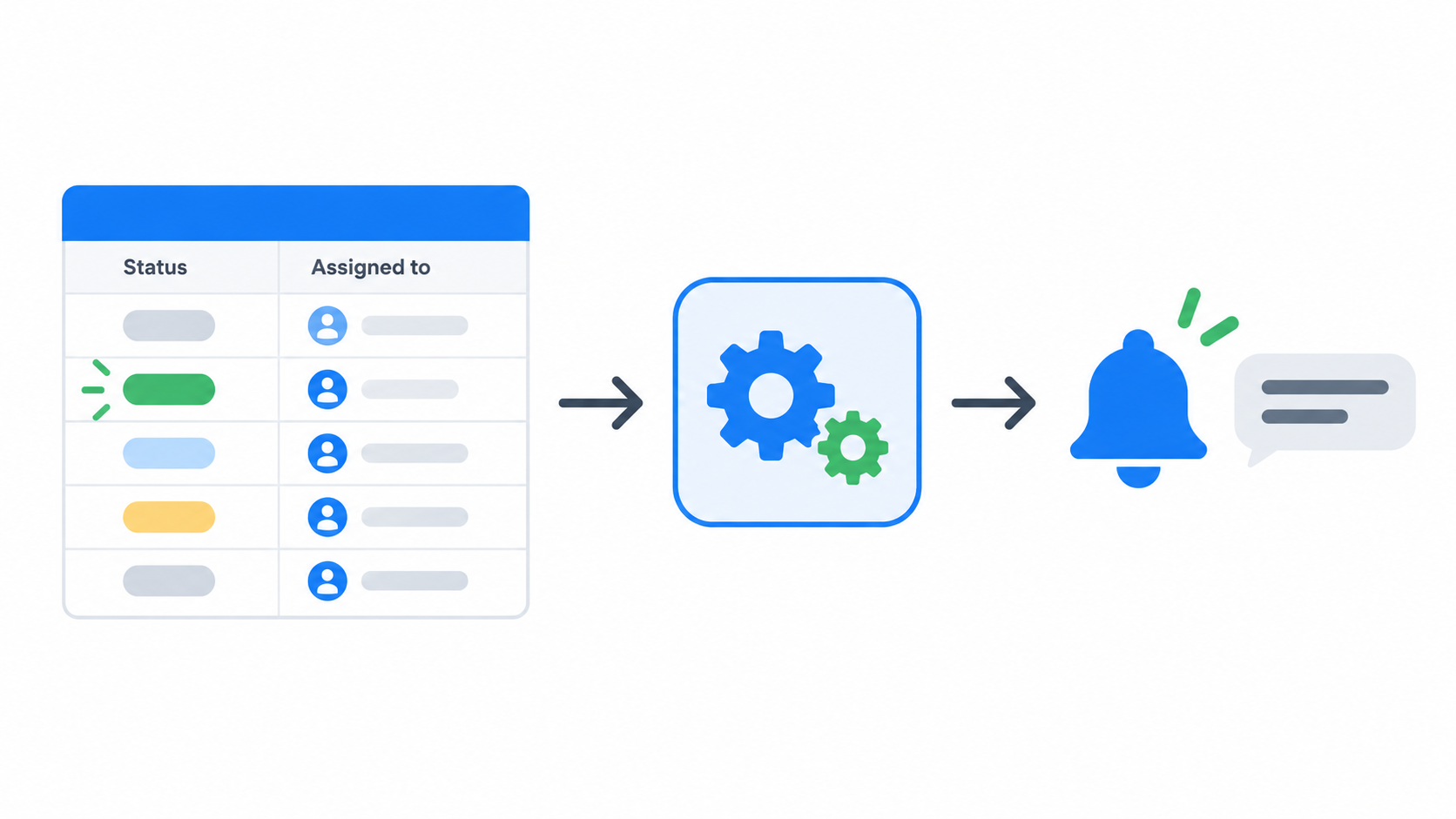
Notify someone whenever the field changes
Use the When record updated trigger when the notification should be sent for any change to the field.
- Open the base and click Automations.
- Create an automation and add the When record updated trigger.
- Select the Tasks table.
- Open Select fields, choose Unwatch all, and select Status.
- Test the trigger with a task whose status has changed.
- Add a Send notification action and choose the Assigned to user field as the recipient.
- Add the task name and its new status to the message.
- Test the action, then turn on the automation.
The automation now runs when Status changes. Editing the task name, due date, or another field will not trigger it.
Notify someone only for a specific value
If the person should be notified only when the task becomes Approved, use When record matches conditions instead.
Set the condition to:
Status is Approved
Then add the Send notification action and choose Assigned to as the recipient.
This trigger waits until the record enters that state. It does not send another notification every time someone edits a different field while the status remains Approved.
If the notification still does not arrive
If the automation runs but the person sees nothing, check the Assigned to field first. It must contain a collaborator with a verified Airtable account and notifications enabled.
If the recipient does not have access to the base, replace Send notification with Send email and use their email address in the To field. See how to send notifications from Airtable to users without base access.