Why Airtable Emails Show the Wrong To and CC Addresses
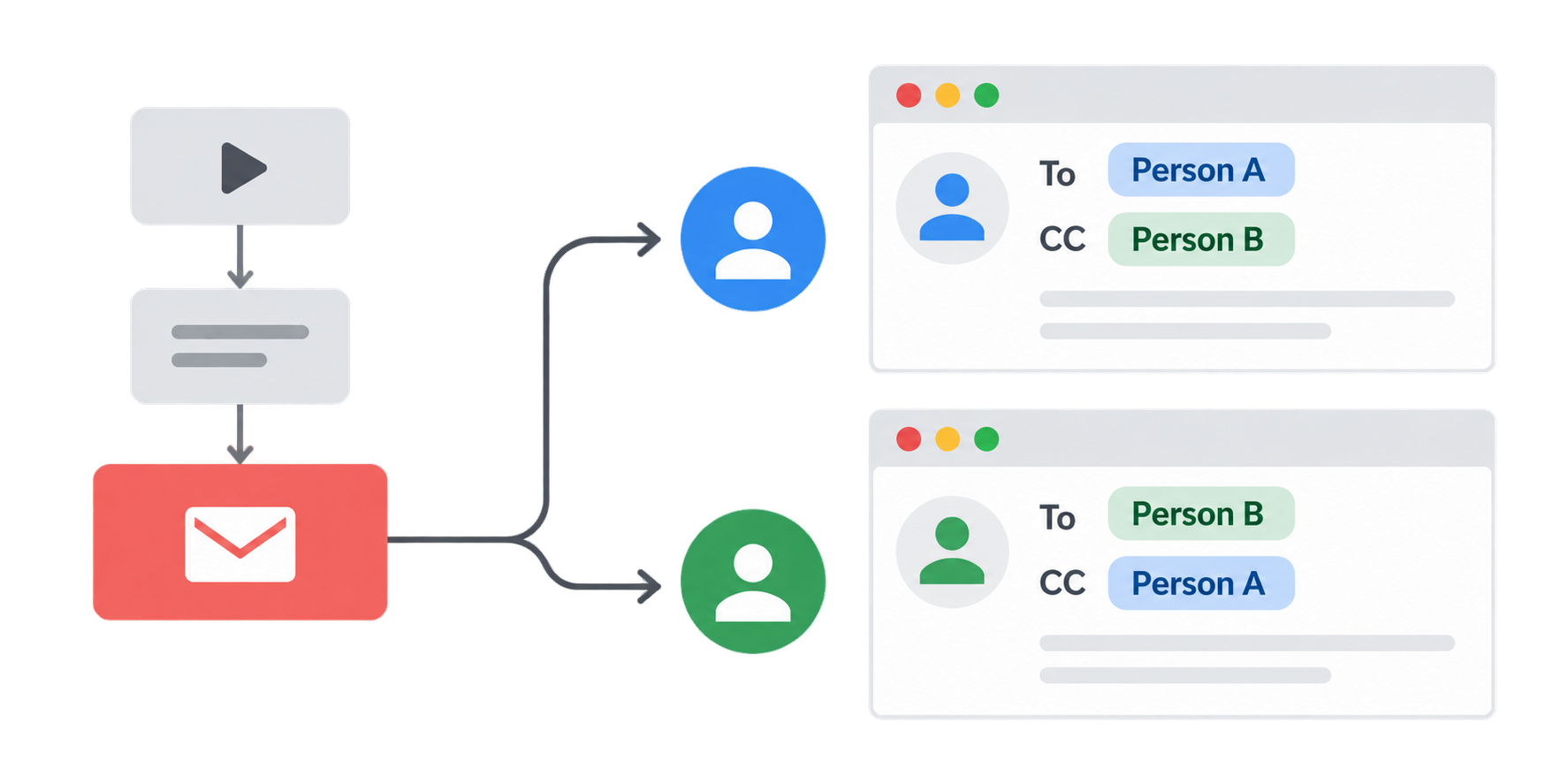
If an Airtable automation email shows your address in To even though you were added to CC, the automation is still using the addresses you entered. Airtable currently displays each recipient's own address in To, while the other recipients appear under CC.
For example, if you put [email protected] in To and [email protected] in CC, Person A sees their own address in To and Person B under CC. Person B sees their own address in To and Person A under CC.
Check the Automation Settings
Open the automation's Send email action and check the To, CC, and BCC fields. The automation preview and run history show the addresses as you configured them, so use those screens to check the setup instead of the recipient's copy of the email.
The recipient may see a different order in their inbox, but Airtable still sends the email to the addresses in the action.
If you are sending the email to someone who does not have access to the base, see how to send notifications from Airtable to users without base access.
Use Gmail or Outlook for Normal Headers
If recipients need the email to show the original To and CC fields, use Airtable's Gmail: Send email or Outlook: Send email action instead. These actions send the message through a connected Gmail or Outlook account rather than Airtable's native Send email action.
To switch to this approach:
- Remove the native Send email action from the automation.
- Add Gmail: Send email or Outlook: Send email.
- Connect the account that should send the message.
- Add the same To, CC, Subject, and message details.
The connected Gmail or Outlook action also sends from that account instead of Airtable's automation email address.