Why Colors Set in Grid View Do Not Show in Airtable Calendar View
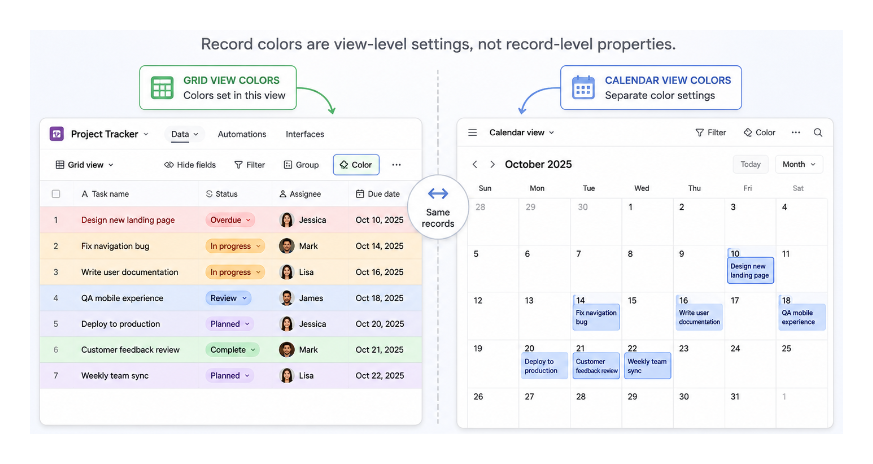
You color-coded your records in the grid view to make different types easy to identify at a glance. When you switch to the calendar view, all the events appear in the same default color. The grid view colors did not carry over.
This is expected behaviour. Record colors in Airtable are a view-level setting, not a record-level property. Each view has its own independent color configuration. Setting colors in the grid view has no effect on what the calendar view shows.
How Record Colors Work in Airtable
When you set colors in a grid view, you are configuring a visual rule for that specific view only. The rule says "in this view, color records based on this field or these conditions." The color is rendered by the view, not stored on the record.
The calendar view is a separate view with its own rendering rules. It does not inherit the grid view's color settings. You need to configure colors in the calendar view independently.
How to Set Colors in the Calendar View
- Open the calendar view
- Click the Color button in the toolbar (or look for it in the view settings panel on the right)
- Choose the field you want to color by
Airtable calendar events can be colored by:
- A single select field: each option gets its own color
- A collaborator field: each person gets their own color
- A record condition: you can define rules like "color red when Status is Overdue"
If you want the calendar to show the same color logic as your grid view, configure the calendar color setting to use the same field and the same conditions.
When the Color Options Are Different Between Views
Some color options available in the grid view are not available in the calendar view. The calendar supports coloring by a field value (single select or collaborator) or by a condition set. The grid view has more flexibility with multi-condition rules.
If your grid view uses a complex multi-condition color rule that the calendar cannot replicate exactly, the closest alternative is to add a dedicated single select field that categorises records the way your color rules do, then color the calendar by that field.
For example, if your grid view colors records red when both Status is Overdue and Priority is High, add a formula field that outputs "Urgent" when both conditions are true, and "Normal" otherwise. Format this formula field as a single select, then color the calendar by it. This gives you the same visual result using a field the calendar can work with.
Applying Colors Consistently Across Multiple Views
If you want consistent colors across grid, calendar, gallery, and other views, the most reliable approach is to base all of them on the same single select field. Configure each view to color by that field, and they will all show the same colors because they are all drawing from the same source.
This also means updating colors is simple: change the color of an option in the single select field definition, and every view that colors by that field updates automatically.
For understanding how view-level settings work more broadly, the same principle applies to sorting and grouping: sorting set in the grid view does not carry over to other views. Each view is configured independently. See why Airtable Interface sorting does not stick after publishing for the same concept applied to Interfaces.