How to Fix an Embedded Airtable Calendar Defaulting to Month View
When you embed an Airtable calendar view on a website or in a tool like Notion, it defaults to Month view even if the original calendar in your base is set to Week view or 3 Day view.
This happens because the embedded calendar uses its own default timescale setting, which is separate from the view setting inside your base. Changing the view in your base has no effect on what the embed displays.
The fix is in the share link settings.
How to Set the Default Timescale for an Embedded Calendar
- Open your Airtable base and navigate to the calendar view you want to embed
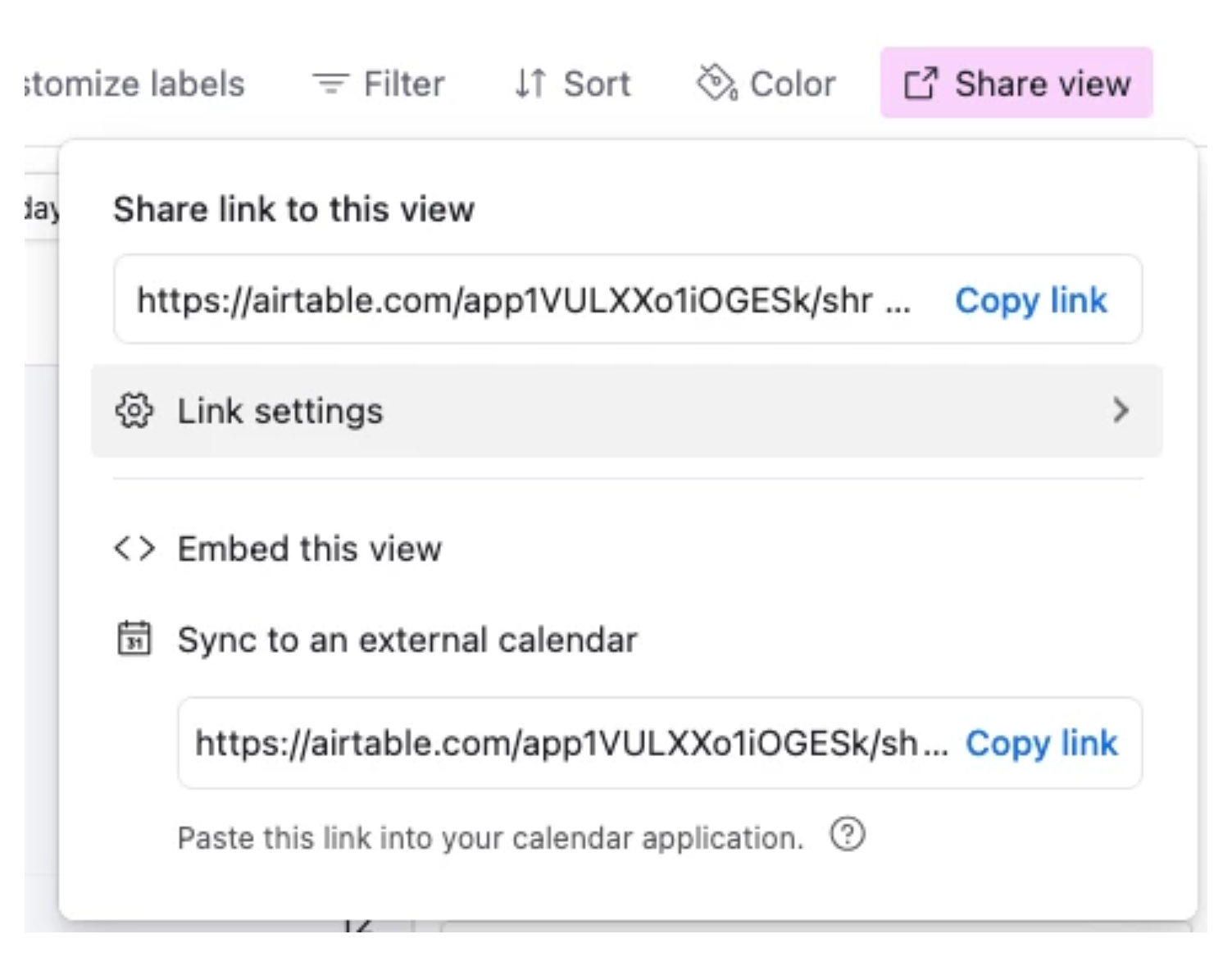
- Click Share view in the top-right toolbar
- Click Link settings or the gear icon next to the share link
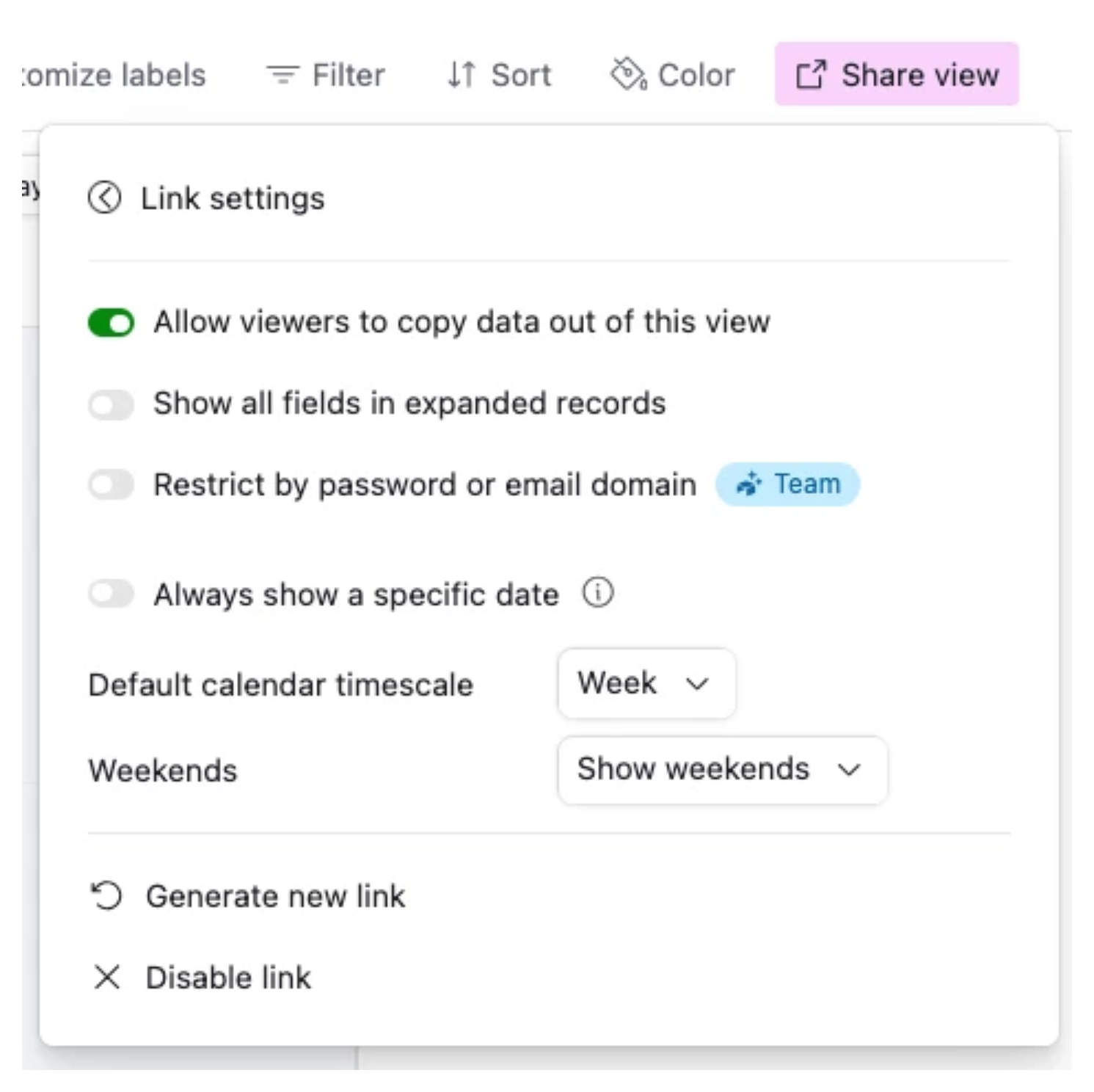
- Find the Default calendar timescale option
- Choose your preferred default: Month, Week, or 3-Day
- Copy the updated share link or embed code and use it wherever you are embedding the calendar
The embedded calendar will now open at the timescale you selected. Viewers can still switch between Month, Week, and 3-Day views after the embed loads - this setting only controls the default they see when it first opens.
What Viewers Can and Cannot Do in an Embedded Calendar
It is worth knowing what someone who views your embedded calendar can interact with:
-
They can switch between Month, Week, and 3-Day timescales using the controls in the embed
-
They can navigate forward and backward through dates
-
They can click on individual records to expand them and see field details (unless you have restricted this in the share settings)
-
They cannot create new records, edit existing ones, or change any view settings
If you want to prevent viewers from clicking into individual records, check the Restrict record expansions option in the same Link settings panel.
Embedding the Calendar as an Iframe
To embed the calendar on a website rather than just sharing the link:
-
In the same Link settings panel, look for the Embed this view option or a code snippet
-
Copy the iframe code provided
-
Paste it into your website's HTML where you want the calendar to appear
The iframe respects the timescale setting you configured. You do not need to edit the iframe code manually.
If You Are Embedding in Notion or Confluence
When embedding in Notion using the /Embed block, paste the share link (not the iframe code) directly into the embed block. Notion renders it as an embedded view automatically.
The same timescale setting applies here as well. Set the Default calendar timescale in Link settings before copying the URL, and Notion will display the calendar using that timescale by default.
For related reading on sharing and embedding Airtable views, see 6 Ways to Share Airtable Interfaces with Clients for a broader look at sharing options and access levels.