How to Create a Custom Interface in Airtable
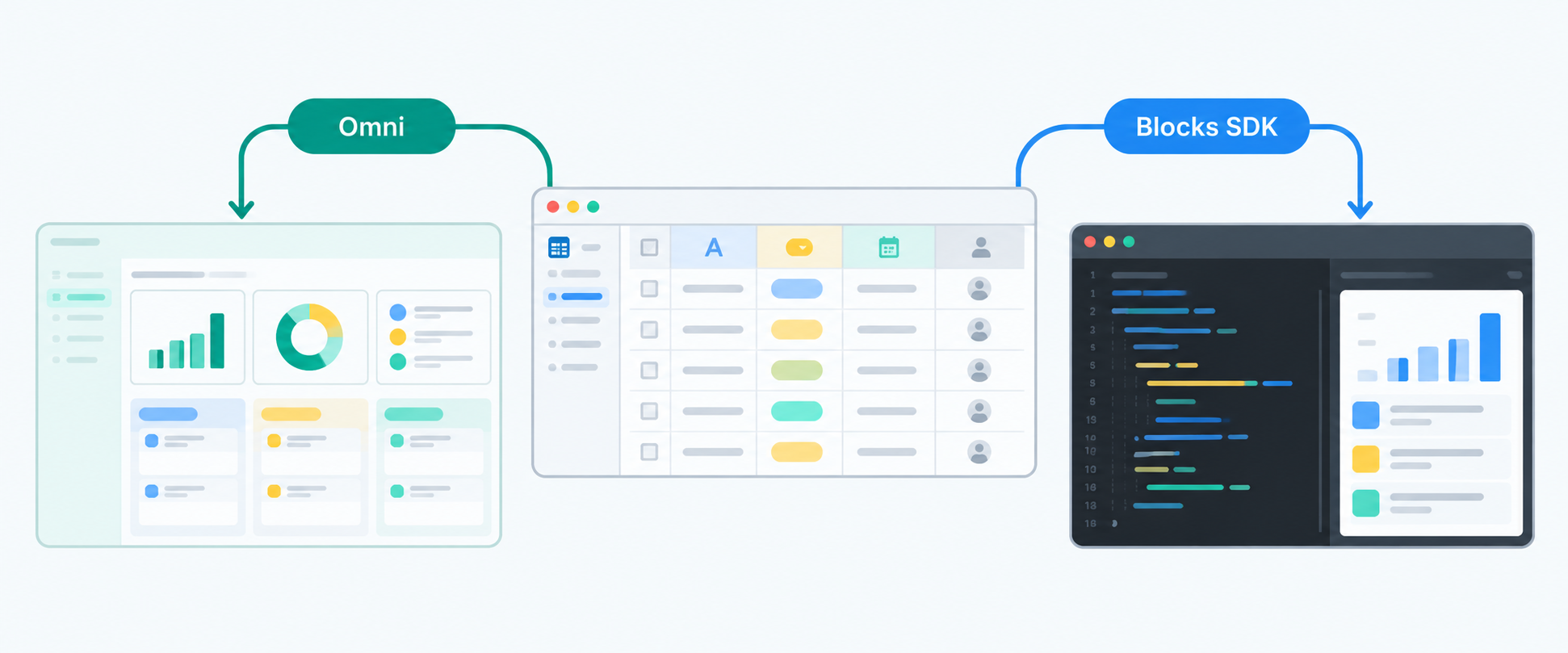
There are two ways to create a custom experience for Airtable data. You can ask Omni to create a table layout or dashboard element, or build a coded extension with Airtable’s Blocks SDK.
I’ll use a project dashboard as the example. It should show overdue work, group projects by owner, and let the team update a project without opening the full base.
Omni is the quickest way to create a table layout or dashboard element from a prompt. The Blocks SDK gives you more control because you build the extension with code. You can use either option, depending on how much of the interface you want to build yourself.
Create the interface with Omni
Open the base that contains your project data, then open Omni and describe the interface you want to build.
You can also open Interfaces, create a new interface, and click Generate with Omni. If you want a dashboard element rather than a full table layout, open the dashboard page before you send the request.
Be specific about the table, fields, filters, and actions you need. For example:
Create a project dashboard from the Projects table. Show the project name, owner, status, due date, and budget. Put overdue projects at the top, group the records by owner, and let editors update the status and due date.
Omni will show you a plan before it builds the element. Review the proposed table and fields, then click Build it.
Choose what the interface can use
After Omni creates the element, open its properties and check the table and fields it selected.
The element can only use the tables and fields selected in its Data settings. Add any missing fields there, and remove fields the team should not see.
Check the filters and sorting as well. For the project dashboard, completed projects should be hidden and the remaining projects should be sorted by due date. Change those settings if Omni did not set them correctly.
Let people update records
If the prompt asks the team to update records, Omni may add those actions to the element. Check which actions it created and whether they match the workflow. An AI-generated element can let people create, edit, or delete records when their Airtable permissions allow it.
For the project dashboard, editors should be able to change Status and Due date, while the other fields remain view-only. If Omni did not set that up correctly, adjust the actions before sharing the page.
Preview it before sharing
Open the interface preview and check it as the people who will use it.
Make sure the filters show the right records, the buttons change only the fields they should change, and users cannot open information they should not see. You can use Airtable’s View as option to check the interface with another permission level.
If the interface is for clients or other people who should not open the base, review their interface access separately. How to See Who Has Access to an Airtable Workspace, Base, or Interface explains where to check that access.
For a Business or Enterprise Scale base, test larger changes in an App Sandbox before applying them to production. See how to safely make changes in Airtable without breaking production.
Know the limits of AI-generated elements
AI-generated elements are available on all Airtable plans, but they do not work in every interface layout. They can be added to dashboard and standalone pages, not blank layout or record detail pages.
They are also not available on Airtable’s mobile apps. If your team needs the interface on a phone, use a layout that Airtable supports on mobile instead.
Do not put passwords or other service credentials inside an AI-generated element. Airtable does not provide a secure place for those credentials, and anything used by the element can be visible to people who use it.
An element created on one page cannot be reused on another page as the same live element. Duplicating the page creates a separate copy, so later changes to the original do not update the copy.
Build a coded extension with the Blocks SDK
The Blocks SDK is another way to create a custom Airtable experience. You build the extension in a development environment with React and Airtable’s SDK, then import it into Airtable.
This is a different Airtable feature from an AI-generated interface element. An Omni element is created and configured from the Interface Designer. A custom extension is a coded tool that runs inside Airtable and can work with the data and permissions available to it.
For the project dashboard, you could use the Blocks SDK for a custom interaction, a layout you want to control in code, or a component you plan to reuse in several bases. You can also download or edit the source code of an Omni-generated element if you want to continue the work in code.
For more on custom extensions, see Airtable’s documentation on building your own Airtable extensions.