Using Base-Level Field Permissions to Control Editing in Interfaces
Here is a scenario that comes up frequently when building Airtable interfaces for larger teams.
You have a core team of 50 people who need full editing access to records in an Airtable Interface. You also want to share the same interface with a broader organisation of 300 people, but only allow them to edit a few specific fields rather than everything.
Your first instinct might be to configure this at the interface level. But interface field settings are all-or-nothing. A field is either editable for everyone in the interface, or it is read-only for everyone. You cannot make a field editable for some users and view-only for others through interface settings alone.
The solution is to leave the interface fields as editable and control access at the base level through field permissions.
How the Two Permission Layers Work Together
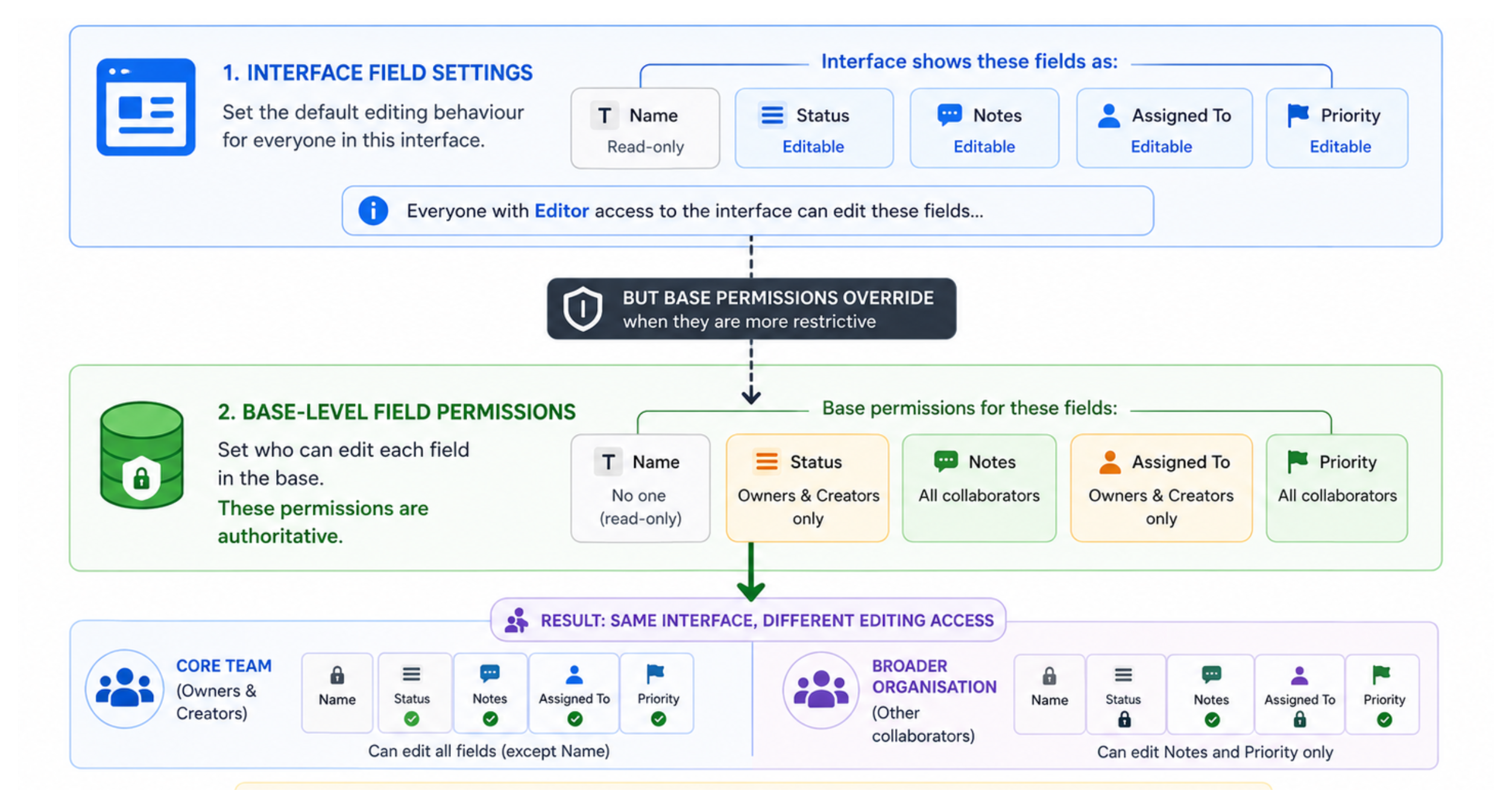
Airtable applies permissions in layers. The base level is always authoritative.
Interface-level field settings control the default editing behaviour for everyone who opens that interface. Setting a field to editable in the interface means anyone with appropriate permissions can edit it. Setting it to read-only means no one can edit it from the interface, regardless of their base permissions.
Base-level field permissions apply on top of that. If a field is editable in the interface but a user does not have permission to edit that field at the base level, they still cannot edit it, even though the field appears editable for other users.
In other words: base-level permissions override interface-level settings when they are more restrictive.
Plan Requirement
Base-level field permissions are available on all paid plans. They are not available on Free plan.
If you are on the Free plan and need this kind of differentiated access, the only option is to create separate Interfaces for different user groups, one with certain fields editable and one without, then invite each group to the appropriate interface.
Setting Up Field Permissions
Step 1: Give everyone Editor access to the interface
Give all users, both your core 50 and the broader 300, Editor access to the interface. At this stage, everyone can theoretically edit every field they see.
Do not worry about over-granting at this step. The base-level restrictions you apply next will override this for users who should have limited access.
Step 2: Set field-level permissions for restricted fields
For each field that only your core team should be able to edit:
-
Open your base in the underlying grid view
-
Click the arrow icon to the right of the field name
-
Click Edit field permissions
-
Click the dropdown under "Who can edit values in this field?"
-
Select the appropriate restriction. For example, limit editing to Owners and Creators, or specify individual users.
Repeat this for every field that should be restricted to your core team.
For fields that everyone should be able to edit, such as a status field or a notes field that the broader organisation fills in, leave the field permissions at the default setting, allowing all collaborators with edit access to modify them.
Step 3: Verify behaviour
Ask someone from the broader organisation to open the interface. They should be able to see all fields but only edit the fields you left unrestricted. The restricted fields will appear read-only for them even though the interface marks those fields as editable for others.
How This Looks in Practice
Consider this example. Your interface shows five fields: Name, Status, Notes, Assigned To, and Priority.
-
Name - should never be edited once created. Set to read-only in the interface entirely.
-
Status - core team only. Leave editable in interface, restrict to Owners and Creators at base level.
-
Notes - everyone can edit. Leave editable in interface, no field-level restriction.
-
Assigned To - core team only. Leave editable in interface, restrict at base level.
-
Priority - everyone can edit. Leave editable in interface, no field-level restriction.
The result: someone from the broader 300 opens the interface, can add notes and set a priority, but cannot change the status or assigned-to fields. Your core team opens the same interface and can edit everything.
Everyone is using the same interface. No one is locked to Commenter access. Editing capabilities are differentiated by base-level field permissions.
What Field Permissions Cannot Do
Field permissions control editing, not visibility. A user who cannot edit a field can still see its value. If you need to hide a field from certain users entirely, you need to either remove it from the interface layout for those users (using a separate interface) or build a separate interface that does not include that field.
Field permissions also apply per-field, not per-table. If you need to restrict access to an entire table, the right approach is to not include that table in the interface for users who should not see it.
For more on how the full permission system works across workspace, base, and interface levels, see How to See and Manage User Permissions in Airtable.
For the broader question of what is and is not possible when restricting data visibility in Airtable, see Why You Cannot Restrict Sensitive Data in an Airtable Base.