How to Email a PDF Attachment From Airtable
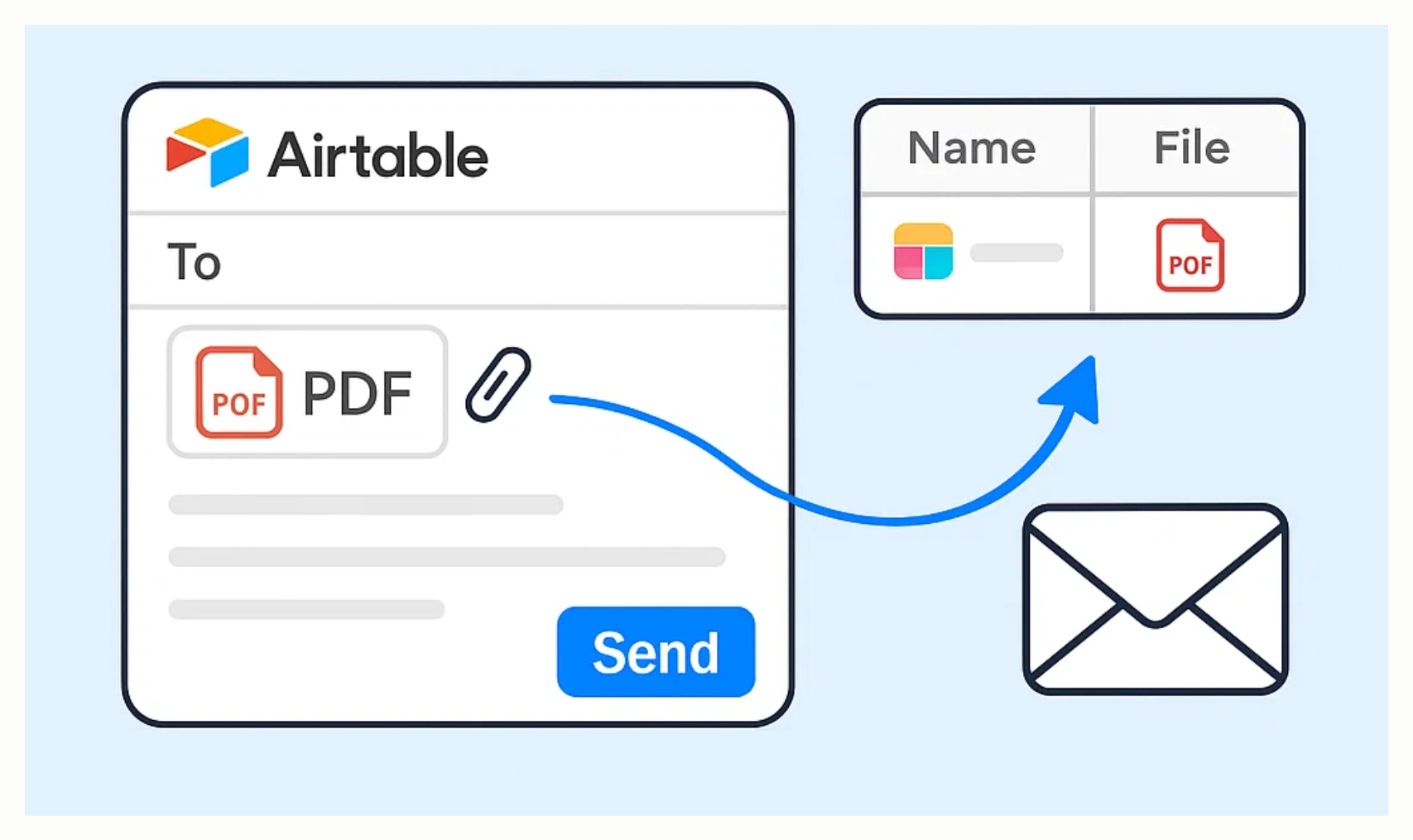
You can send a PDF from an Airtable attachment field with the native Send email automation action.
The setup depends on where the PDF is stored in your base. Some bases keep the PDF on the invoice record. Others keep documents in a separate table and connect each file to its invoice. Both setups work, so use the section that matches your tables.
The examples below use an Invoices table with one record per invoice. Each invoice has an Invoice ID and Customer Email. The PDF is either stored in an Invoice PDF attachment field on that record or in a separate Invoice Documents table.
When the PDF is on the invoice record
Use this setup when Invoice PDF is an attachment field in the Invoices table.
Create an automation with the trigger that should send the invoice. Then add a Send email action.
Set Customer Email as the recipient, write the subject and message, and scroll to Attachments. Click the plus button and select Invoice PDF.
When the automation runs, Airtable sends the PDF attached to that invoice record.
When the PDF is in a separate table
Use this setup when the invoice starts the automation but the file is stored in Invoice Documents.
Each document record should have an Invoice ID field and an attachment field such as PDF. In the automation, add Find records before Send email and search the Invoice Documents table where Invoice ID matches the Invoice ID from the triggering invoice.
Use a unique value so the search returns the document for that invoice. Do not use the linked record field itself as the Find records condition. Airtable does not support linked record fields as conditions in this action.
In Send email, open Attachments and insert the PDF field from Find records. When Airtable asks how to use the list of attachment values, choose Flatten.
If the search returns more than one document, Airtable can add more than one file to the email. Use a more specific match when only one PDF should be sent.
The native Send email action can email non-collaborators only from a paid workspace. The current daily limits are 100 unique non-collaborator addresses on Team, 1,000 on Business, and no stated limit on Enterprise Scale.
If you still need to create the invoice PDF from Airtable data, save the finished file in Invoice PDF or in the Invoice Documents table first. Then use the email setup above that matches your table structure. See how to create PDFs from Airtable records and attach them back automatically for that separate step.