How to Keep Old Sales Records Accurate When Product Prices Change in Airtable
Let's say you run a clothing store and keep your products and sales in Airtable.
You have a Products table where each shirt, trouser, or jacket has its current price.
Then you have a Sales table. Each sale is linked to a product, and a lookup field brings the product price into the sale.
Everything works fine until you change a product's price.
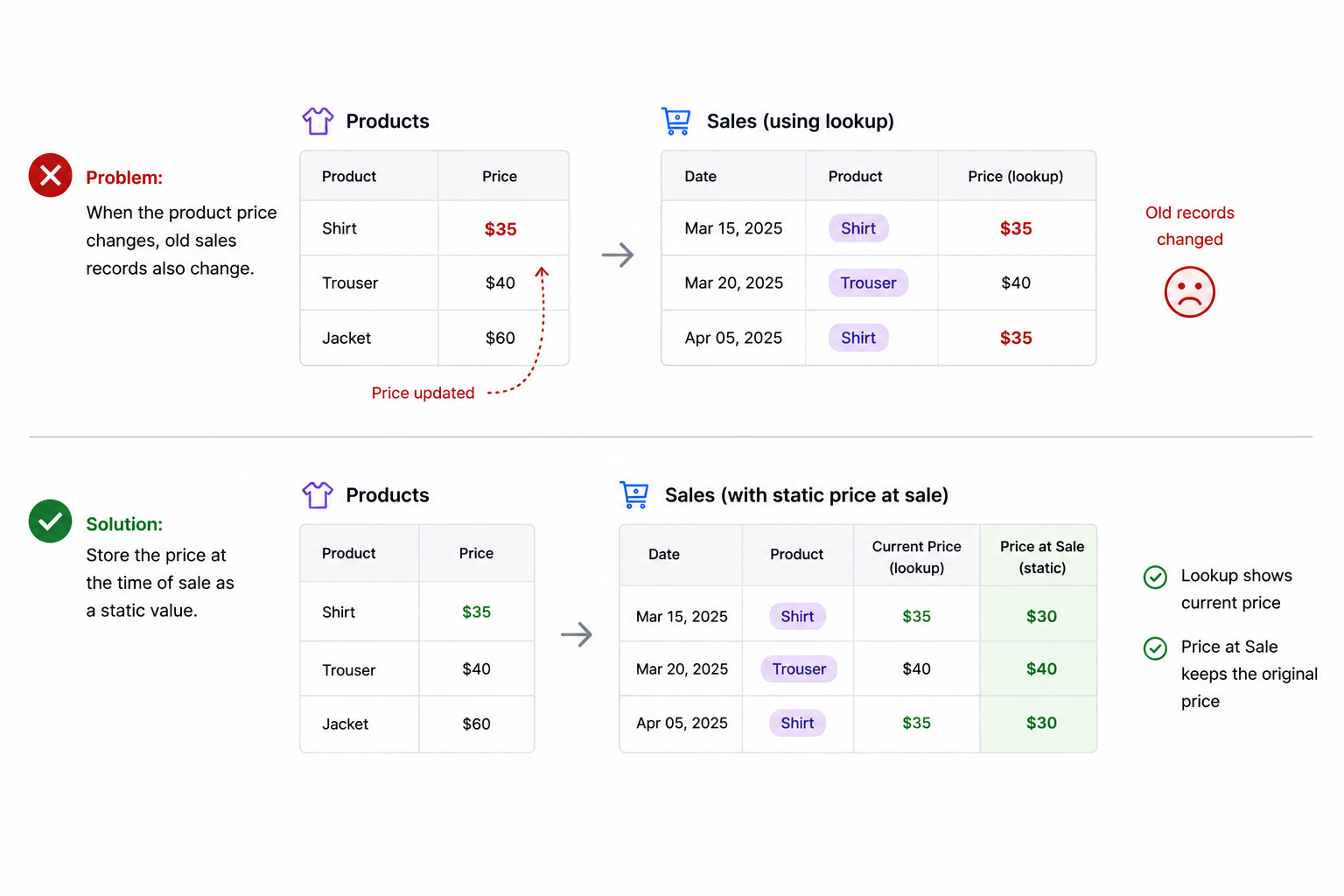
Maybe a shirt was $30 in March and is now $35.
When you update the price in the Products table, the lookup field on your old sales records also changes to $35.
Now it looks like you sold the shirt for $35 in March, even though the actual sale price was $30.
For sales and other historical data, that is a problem.
You need to store the price at the time of the sale rather than relying only on the lookup field.
Why the lookup price changes
A lookup field is connected to the value in the linked record.
So if your Sales table looks up Price from the Products table, it always shows the current value of that Price field.
That is normally useful because you only have to maintain the price in one place.
But it does not work when you need to preserve what the value was at a particular point in time.
For that, you need a static field.
Create a Price at Sale field
In the Sales table, keep your existing lookup field that brings in the current product price.
Then create another field called Price at Sale.
Make this a regular currency field rather than a lookup.
The idea is simple:
Current Price lookup → Price at Sale
When the sale is ready, an automation copies the current lookup value into Price at Sale.
Once the value has been copied, it stays there.
If you change the product price later, the lookup changes but Price at Sale does not.
Set up the automation
Create an automation that runs when the sale has the information needed to capture the price.
For example, you could use When record matches conditions with:
Product is not empty
and
Price at Sale is empty
Then add an Update record action.
Use the Record ID from the trigger so Airtable updates the same Sales record that triggered the automation.
For the Price at Sale field, insert the value from your current price lookup.
Your automation is basically:
Product selected → Copy current price → Store it in Price at Sale
You do not need to find the Product record again because the lookup has already brought the price into the Sales record.
What happens when the product price changes?
Let's say you sell a shirt for $30.
At the time of the sale:
Current Price: $30
Price at Sale: $30
A month later, you change the shirt's price in the Products table to $35.
The old Sales record now shows:
Current Price: $35
Price at Sale: $30
That is exactly what you want.
The lookup can continue showing the current product price, while Price at Sale preserves what the customer actually paid.
Use Price at Sale for your reporting
Once you have this setup, make sure your sales calculations use Price at Sale, not the current price lookup.
For example, if you calculate revenue using:
Quantity × Price
the Price should come from Price at Sale.
The same applies to rollups, reports, charts, and other financial calculations based on historical sales.
You can still keep the lookup field if it is useful to see what the product costs today.
The important part is that anything related to the original transaction should use the static Price at Sale value.
This same setup is useful for more than product prices.
You can use it whenever you need to preserve a value at a particular point in time, such as costs, commission rates, hourly rates, discounts, tax rates, or other values that might change later.