How to Add UTM Parameters to URLs in Airtable
Want Airtable to add UTM tracking to a landing-page URL? Store the URL and the UTM values in separate fields, then use one formula field to build the finished link. The formula adds ? to a plain URL and & when the URL already has parameters.
Let's take a campaign intake table as the example. A form collects a Landing page URL, UTM source, UTM medium, and UTM campaign. Some landing pages are plain URLs, while others already include a parameter such as ?coupon=summer.
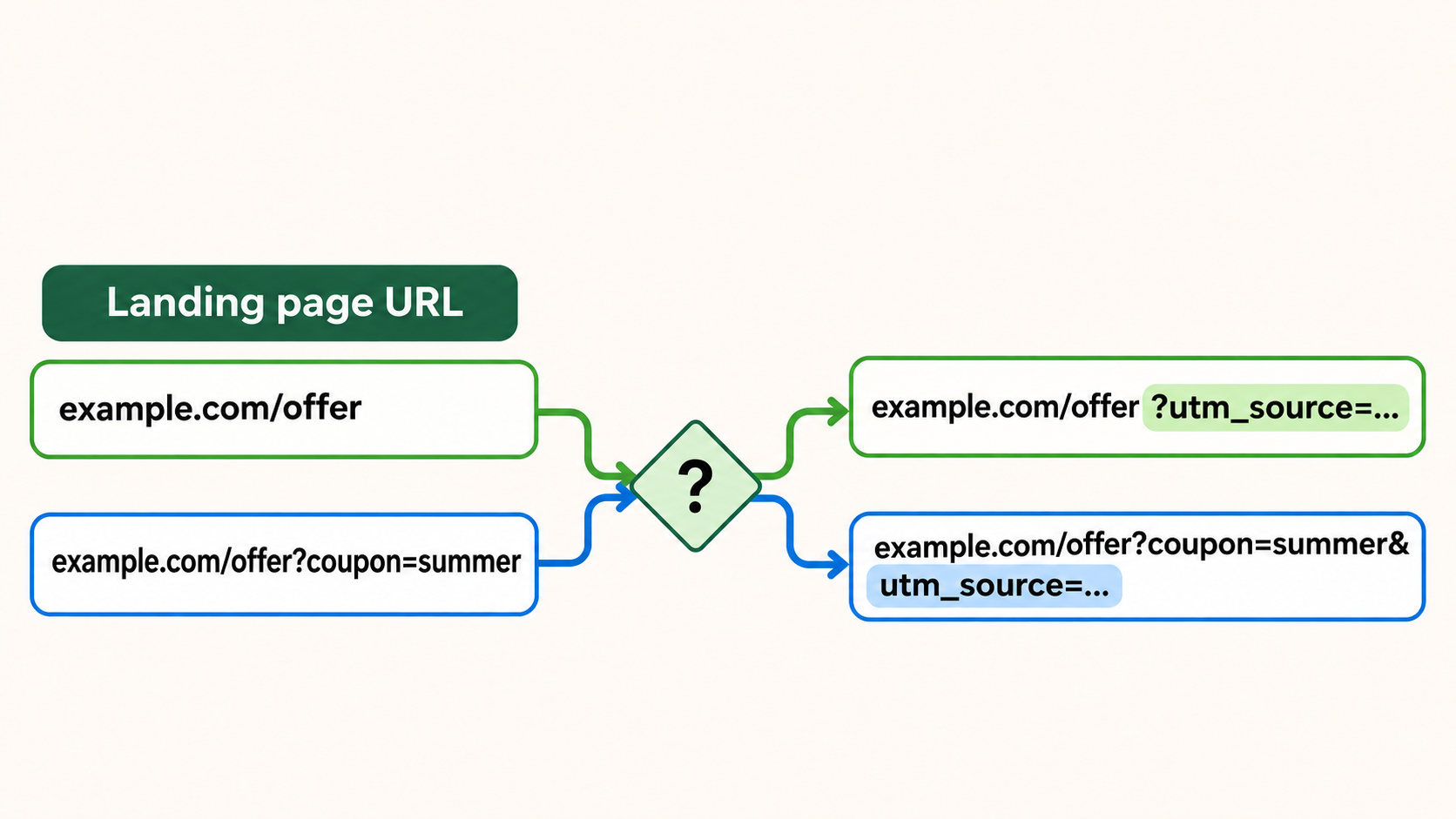
Add the URL and UTM fields
In the table that stores the form submissions, add these fields:
- Landing page URL as a URL field
- UTM source as a single-line text field
- UTM medium as a single-line text field
- UTM campaign as a single-line text field
The form can collect these values, or your team can add them directly to the table.
Build the tagged URL with a formula
Add a Formula field called Tagged URL. Use this formula:
IF(
  {Landing page URL} = "",
  "",
  IF(
    FIND("?", {Landing page URL}) > 0,
    {Landing page URL} & "&utm_source=" & ENCODE_URL_COMPONENT({UTM source}) &
    "&utm_medium=" & ENCODE_URL_COMPONENT({UTM medium}) &
    "&utm_campaign=" & ENCODE_URL_COMPONENT({UTM campaign}),
    {Landing page URL} & "?utm_source=" & ENCODE_URL_COMPONENT({UTM source}) &
    "&utm_medium=" & ENCODE_URL_COMPONENT({UTM medium}) &
    "&utm_campaign=" & ENCODE_URL_COMPONENT({UTM campaign})
  )
)
The formula checks the URL itself. If it already contains ?, it starts the new parameters with &. Otherwise, it starts them with ?. Adding another ? would not append the new parameters correctly.
ENCODE_URL_COMPONENT() converts spaces and other characters in the UTM values into a form that can be used safely in a URL. For example, Summer Sale becomes Summer%20Sale.
For example, if Landing page URL contains:
https://example.com/offer?coupon=summer
the formula keeps coupon=summer and adds the new UTM values after it.
The formula updates automatically when the landing page or campaign fields change. You do not need an automation just to calculate the final URL.
If you need to email the result or send it to another system, use the Tagged URL field in the next automation step. For dynamic links inside Airtable emails, see how to create dynamic hyperlinks in Airtable email automations.
Use a script for existing UTM values or fragments
The formula is for adding new UTM values. If a URL already contains the same UTM key, the formula adds another value instead of replacing the old one. Use an Airtable Run a script action when you need to replace an existing UTM value or place the parameters before a #fragment. The Run a script action is not available on Airtable's Free plan.
Set up the script
Create an automation that runs when the campaign record is ready. For example, use When record matches conditions with a Ready checkbox. Add a Run a script action and create these input variables from the triggering record:
landingPageUrlfrom Landing page URLutmSourcefrom UTM sourceutmMediumfrom UTM mediumutmCampaignfrom UTM campaign
Paste this code into the script action:
let {
  landingPageUrl,
  utmSource,
  utmMedium,
  utmCampaign,
} = input.config();

if (!landingPageUrl) {
  throw new Error("Landing page URL is empty");
}

let url = new URL(landingPageUrl);

if (utmSource) url.searchParams.set("utm_source", utmSource);
if (utmMedium) url.searchParams.set("utm_medium", utmMedium);
if (utmCampaign) url.searchParams.set("utm_campaign", utmCampaign);

output.set("taggedUrl", url.toString());
The script keeps the existing query parameters, replaces any UTM values with the new ones, and places the new query string before a #fragment. Add an Update record action after the script, select the triggering record's Record ID, and write the taggedUrl output into Tagged URL.
For help maintaining scripts used in Airtable automations, see how to update Airtable automation scripts without copy-pasting.