How to Create Dynamic Hyperlinks in Airtable Email Automations
When you send emails from an Airtable automation, you often want the link to point somewhere specific based on the record triggering the email. A client-specific portal link, a pre-filled form URL, a record detail view, an approval link.
Hardcoding URLs is not an option when the destination needs to change per record. Here is how to build dynamic links that update automatically based on your data.
The Basic Pattern: Markdown Hyperlinks in Email Bodies
Airtable's email action supports Markdown for formatting. A hyperlink in Markdown looks like this:
[link text](URL)
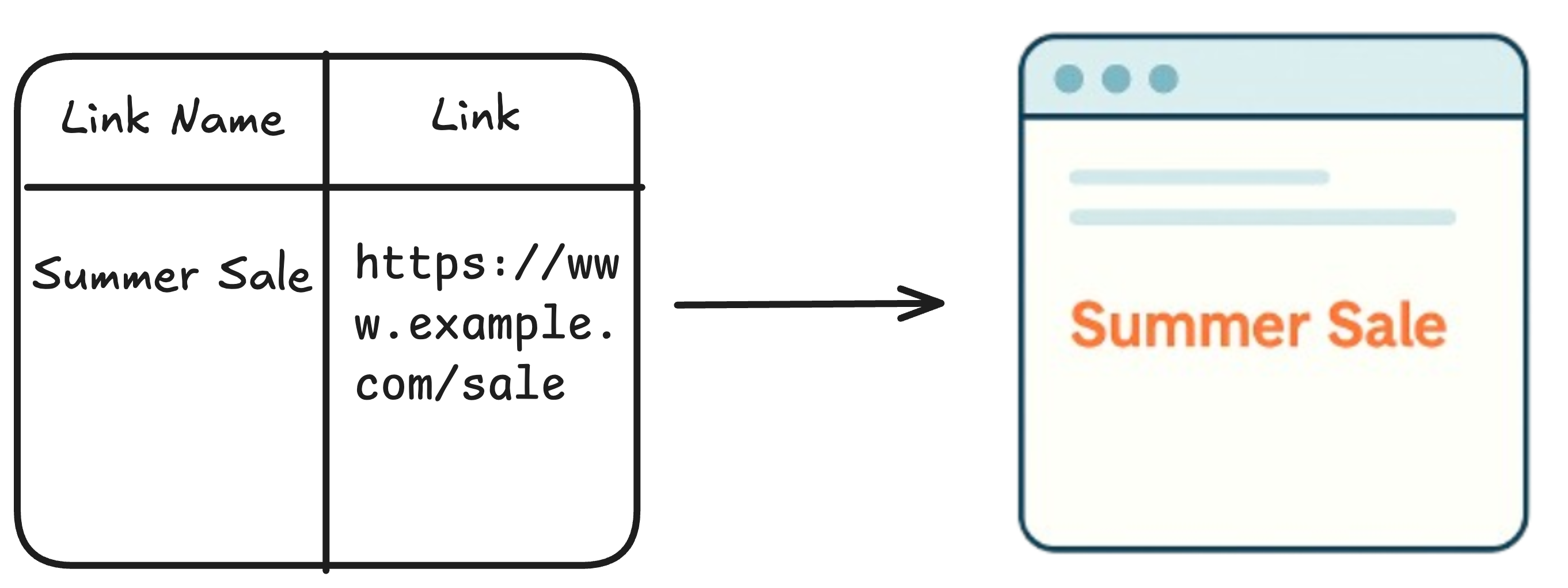
When you use this in the email body and toggle on rich text formatting, Airtable renders it as a clickable link. The link text is what the reader sees, and the URL is where they go when they click.
To make the link dynamic, replace the text or URL with a field token from the picker:
[View your project]({{Project URL}})
Where {{Project URL}} is a URL field in your table. When the automation runs, it inserts the actual URL from that field for the triggering record.
You can also make the link text dynamic:
[View {{Project Name}}]({{Project URL}})
This produces a link labelled "View Acme Redesign" (or whatever the project name is) that points to that project's specific URL.
Building the URL Dynamically With a Formula Field
When the URL you want to link to is not stored directly in the table but needs to be constructed from other field values, use a formula field to build it.
Example: linking to a pre-filled Airtable form
Airtable form URLs can accept pre-filled values via query parameters. If you want to send someone a form link that pre-fills their name and email:
"https://airtable.com/yourFormID?prefill_Name=" & ENCODE_URL_COMPONENT({Name}) & "&prefill_Email=" & ENCODE_URL_COMPONENT({Email})
ENCODE_URL_COMPONENT converts spaces and special characters in field values into URL-safe encoding. Without it, a name like "John Smith" would break the URL.
Store this formula in a field called something like "Pre-filled Form URL" and reference it in your email automation as shown above.
Example: linking to a specific record view in Airtable
Every record in Airtable has a direct URL. You can find it by expanding a record and copying the URL from your browser. The format is:
https://airtable.com/appXXXXX/tblXXXXX/viwXXXXX/recXXXXX
The last segment (recXXXXX) is the Record ID, which is available as a field via the Record ID formula (use RECORD_ID() in a formula field to return it).
You can build the direct record URL with a formula:
"https://airtable.com/appYOURAPPID/tblYOURTABLEID/viwYOURVIEWID/" & RECORD_ID()
Replace the app, table, and view IDs with your actual base's values (copy them from your browser URL). This creates a unique direct link for every record that you can insert into emails.
Creating Approval Links
A common pattern is sending an approval email with two links: one to approve and one to reject. The approach is to use a webhook URL or a custom form URL that accepts the record ID and an action parameter.
With Make, you can create a webhook that accepts a URL like:
https://hook.make.com/yourWebhookID?recordId={{Record ID}}&action=approve
Build this URL in a formula field, reference it in the email, and when the recipient clicks the link, Make receives the webhook, reads the record ID and action, and updates the Airtable record accordingly.
This gives you a zero-login approval workflow entirely through email links.
Sending a Link to the Airtable Interface
If the person receiving the email has an Airtable account with access to your base, you can link them directly to an Interface page that shows their records.
Get the Interface URL by opening the Interface, clicking Share, and copying the link. If the Interface has a current-user filter applied, it will automatically show that user's records when they open it.
Combine this with the email automation to send each collaborator a link to their personalised Interface view after a record is assigned to them.
Things to Check Before Enabling
Toggle on Markdown formatting. When composing the email body in the automation editor, look for a Markdown or rich text toggle. If Markdown is not enabled, the link syntax renders as plain text like View project instead of a clickable link.
Test with a real email. Use the Test button to send yourself a test email and click every link to verify the URLs are correct. A formula with a typo in the base ID will produce broken links that look fine in the preview but fail on click.
URL fields vs formula fields. If you are referencing a URL field directly, the link will work as expected. If you are using a formula to build the URL, make sure the formula outputs a clean URL with no extra spaces, line breaks, or encoding issues.
For more on building triggered email workflows from Airtable, see How to Send Automated Follow-Up Emails in Airtable and How to Send a Confirmation Email After an Airtable Form Submission.