Why Airtable's Find Records Action Only Shows 10 Records (And What the Real Limit Is)
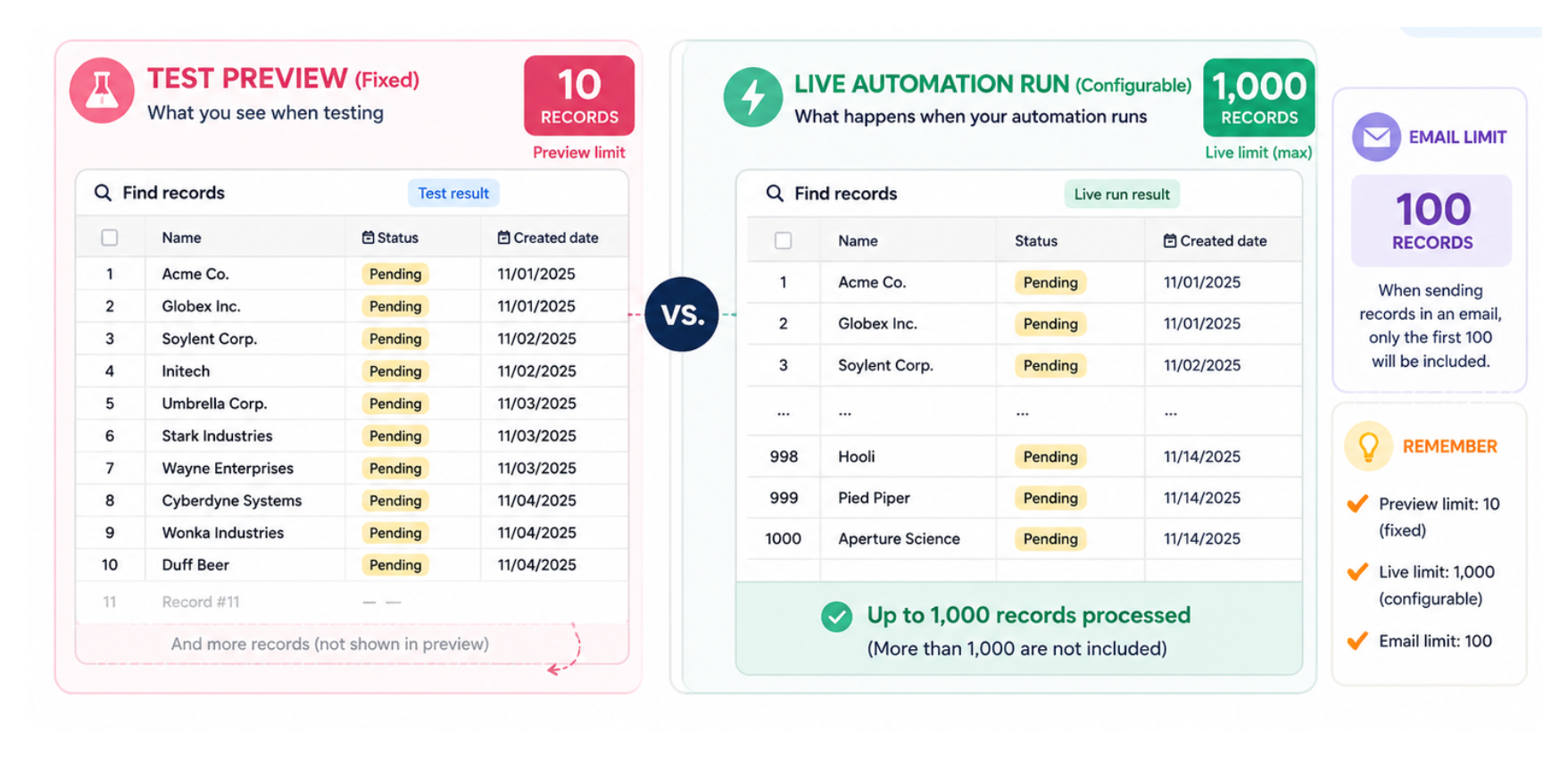
You set up a Find records action, test it, and see only 10 records even though more records match your conditions.
That is the test limit, not the live limit. Airtable shows up to 10 records in previews and tests, while a live automation can find up to 1,000 records per run by default.
This article explains what you can change, what happens when more than 1,000 records match, and how to choose the right next step.
The Testing Limit: 10 Records (Fixed, Cannot Be Changed)
When you click Generate a preview or Run a test on a Find records action, Airtable always returns a maximum of 10 records. This is a fixed limit for previews and tests only. You cannot change it.
This applies to:
- The preview you see in the action configuration panel
- The "View result" output after running a test
- Any downstream action that references the found records during a test run
The preview is intentionally limited to keep tests fast and to avoid consuming automation runs on large result sets during development.
This does not mean your automation will only process 10 records when it runs for real. Once you enable the automation and it triggers from a real event or scheduled time, it finds up to the configured live limit - which is 1,000 records by default.
The Live Limit: 1,000 Records (Configurable)
When an enabled automation runs and triggers the Find records action for real, the default maximum is 1,000 records.
You can lower this limit but not raise it above 1,000. To adjust it:
- Open the Find records action in your automation
- Look for the Maximum record limit section below the conditions
- Click the field and type a lower number
Setting a custom limit lower than 1,000 is useful when you want to process records in batches. For example, you might process 100 records per run and trigger the automation multiple times rather than processing all 1,000 at once.
What Happens When You Have More Than 1,000 Matching Records
If your conditions match more than 1,000 records, the Find records action only processes the first 1,000. The rest are silently skipped.
The official workaround is to use multiple Find records steps with different views or conditions that together cover all the records you need to process:
-
Find records step 1: View filtered to records where Status is "Pending" and Created date is this month
-
Find records step 2: View filtered to records where Status is "Pending" and Created date is last month
Each step handles a subset of the full result set.
This approach has limits of its own. It requires you to know in advance how to split your records across conditions, and it does not scale well if the number of matching records keeps growing.
For genuinely large result sets, a Run a script action gives you more control. A script can use the Airtable API to fetch records in pages of 100, loop through every page, and process all of them without any 1,000-record ceiling. The tradeoff is that scripts require JavaScript knowledge and are subject to the 30-second automation time limit. See How to Deal With Airtable's 30-Second Script Limit in Automations for the batching pattern.
If you prefer to run the workflow outside Airtable, Make is another option for larger record-processing workflows.
The Email Limit: 100 Records
If you use the output of a Find records action in a Send email action, such as listing the found records in the email body, there is a separate limit of 100 records in the email.
Even if Find records returns 1,000 records, the email body will be truncated at 100. This is to prevent email servers from rejecting large emails.
If you regularly need to email a list longer than 100 records, batch the records into groups of 100 and send multiple emails, or link to a shared Airtable view instead of embedding the records in the email body.
Two Other Things Worth Knowing
In the Find records action, do not choose a linked record field as a condition. Airtable may let you select it, but the condition will not work. Linked record fields can still be used in filters for views and interfaces.
Automations run in GMT. Time based conditions in Find records, such as “Created date is today” or “Last modified is this week,” are evaluated in GMT rather than your local timezone. If your team operates in a different timezone, you may need to adjust the conditions or use a formula field that accounts for the timezone offset.
For more on reducing unnecessary automation runs, see How to Limit Automation Runs in Airtable to Avoid Running Out of Quota. If you are running out of automation slots in a base, see Airtable automation limits and how to free up space.