Limiting Dropdown Choices in Airtable Based on Another Field
Showing the full list of options in a dropdown is a data entry problem. If someone selects a Country and then has to scroll through all 250 States in the world to find the right one, errors happen. The dropdown should filter to only show States that belong to the selected Country.
Airtable supports this for linked record fields. For single select fields, it does not, and you need a workaround.
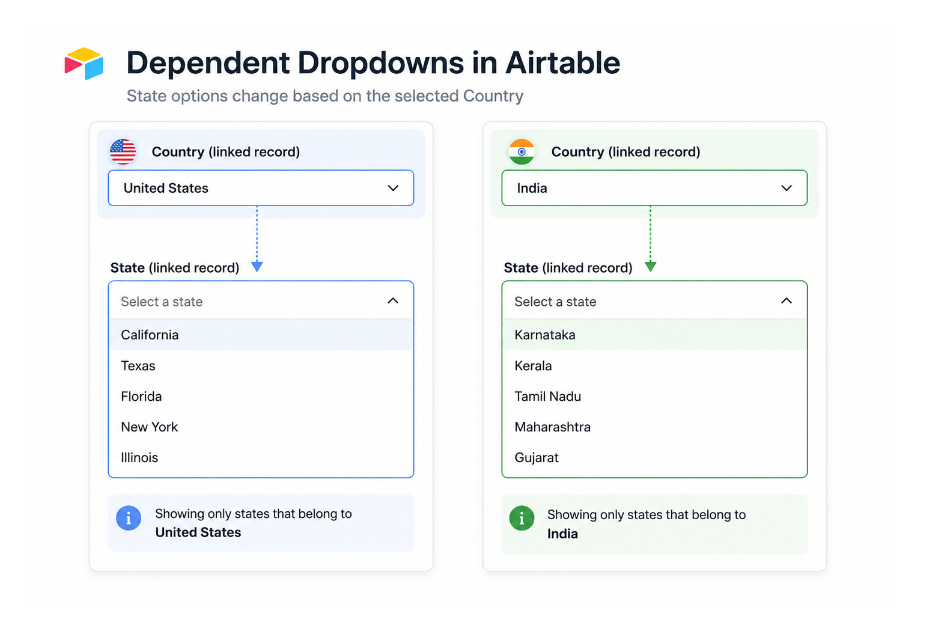
How It Works for Linked Record Fields
When a field is a linked record pointing to another table, Airtable lets you add filter conditions to that link. The filter can reference another field in the same record, which is how conditional filtering works.
Example setup: Countries table and States table. Each State record has a linked Country field showing which country it belongs to.
In your main table (say, Contacts), you have a Country field (linked to Countries) and a State field (linked to States).
To filter the State dropdown based on the selected Country:
- Click the arrow icon next to the State linked record field to open its settings
- Enable Filter record selection by a condition.
- Click Add condition.
- Then go to Settings > Dynamic conditions.
- Choose the field you want to filter by — select Country. Set the filter to "has any of" and select the Country field from your table.
Now when someone clicks the State dropdown on a Contact record, only States that belong to the already-selected Country appear.
This works in both the base grid view and in Interface forms. In forms specifically, you can configure this in the Interface editor by selecting the linked record field and editing its filter conditions in the settings panel.
For the cascade reset problem (when someone changes the parent Country, the child State should clear automatically), see how to reset a child field when a parent field changes in Airtable forms. Native Airtable does not reset the child automatically, but Fillout handles this natively.
Why This Does Not Work for Single Select Fields
Single select fields have a fixed list of options defined on the field itself. There is no way to filter a single select dropdown based on another field's value. The options list is the same for every record.
If you need dynamic filtering for what appears to be a simple list of text options, convert the field to a linked record field pointing to a reference table. This feels like more setup, but it is the only way to get conditional filtering.
The conversion:
- Create a new table for the options (for example, a States table with one record per state and a Country linked field on each)
- Change the State field on your Contacts table from Single select to Linked record (pointing to the States table)
- Set up the filter condition as described above
The dropdown now behaves the same from the user's perspective (they pick from a list) but the filtering works correctly.
Limiting Choices in Interface Forms Specifically
In an Interface form, linked record field filtering is configured in the Interface editor. Click the linked record field element, open its settings, and find the filter conditions. The same approach applies: set the condition to match a field elsewhere on the same form.
For forms where a user is making multiple dependent selections across several fields (Country, State, City, Neighbourhood), each linked record field can have its own filter condition pointing to the appropriate parent field. The filtering cascades through the chain.
If you need this kind of multi-level dependent filtering plus automatic clearing when a parent changes, Fillout handles the whole chain natively without the per-field configuration required in Airtable.