4 Ways to Create a Junction Table in Airtable (With Examples)
In Airtable, linking two tables together is usually enough to show that two items are related. But sometimes the relationship itself needs to carry extra data.
Consider an e-commerce setup with an Orders table and a Products table. An order can contain multiple products, and a product can appear in multiple orders. That is a many-to-many relationship. But you also need to store the quantity of each product in each order. A simple link between the two tables cannot hold that extra information.
That is where a junction table comes in. It is a third table that sits between the two, with linked record fields pointing to each parent table, plus any additional fields that describe the relationship, such as quantity, price at time of purchase, status, or whatever the use case requires.
There are four ways to create one in Airtable.
Method 1: Manual Setup (All Plans)
Manual setup is the right starting point for most use cases. It works on all plans, gives full control, and is straightforward to build.
Example: A training program with Students and Courses tables. Each student can enroll in multiple courses, and each course can have many students.
How to set it up:
- Create a new table called Enrollments
- Add a linked record field pointing to the Students table
- Add another linked record field pointing to the Courses table
- Add any additional fields needed: Enrollment Date, Status, Grade, Notes
Each row in Enrollments represents one student enrolled in one specific course. Grades, attendance, and completion status belong on that row, not on the Students table or the Courses table.
This approach works well when:
- Records are added deliberately rather than generated automatically
- The number of connections is manageable
- You are on the free plan (manual setup is the only method available there)
Method 2: Junction Table Script (Paid Plans)
When you need to create every possible combination between two tables automatically, the Junction Table Script from the Airtable Marketplace does this in seconds.
Example: A pricing matrix is a classic example. You might have a Pricing Tiers table with 10 tiers and a Services table with 50 services. The Pricing Matrix junction table then needs 500 rows, one for every combination. Creating these manually would take hours.
How to use it:
- Create your junction table first with linked record fields pointing to both parent tables
- Open the script from the Marketplace
- Select the first table, second table, and junction table
- Select the linked record fields that connect to each parent
- Run the script and it generates all combinations automatically.
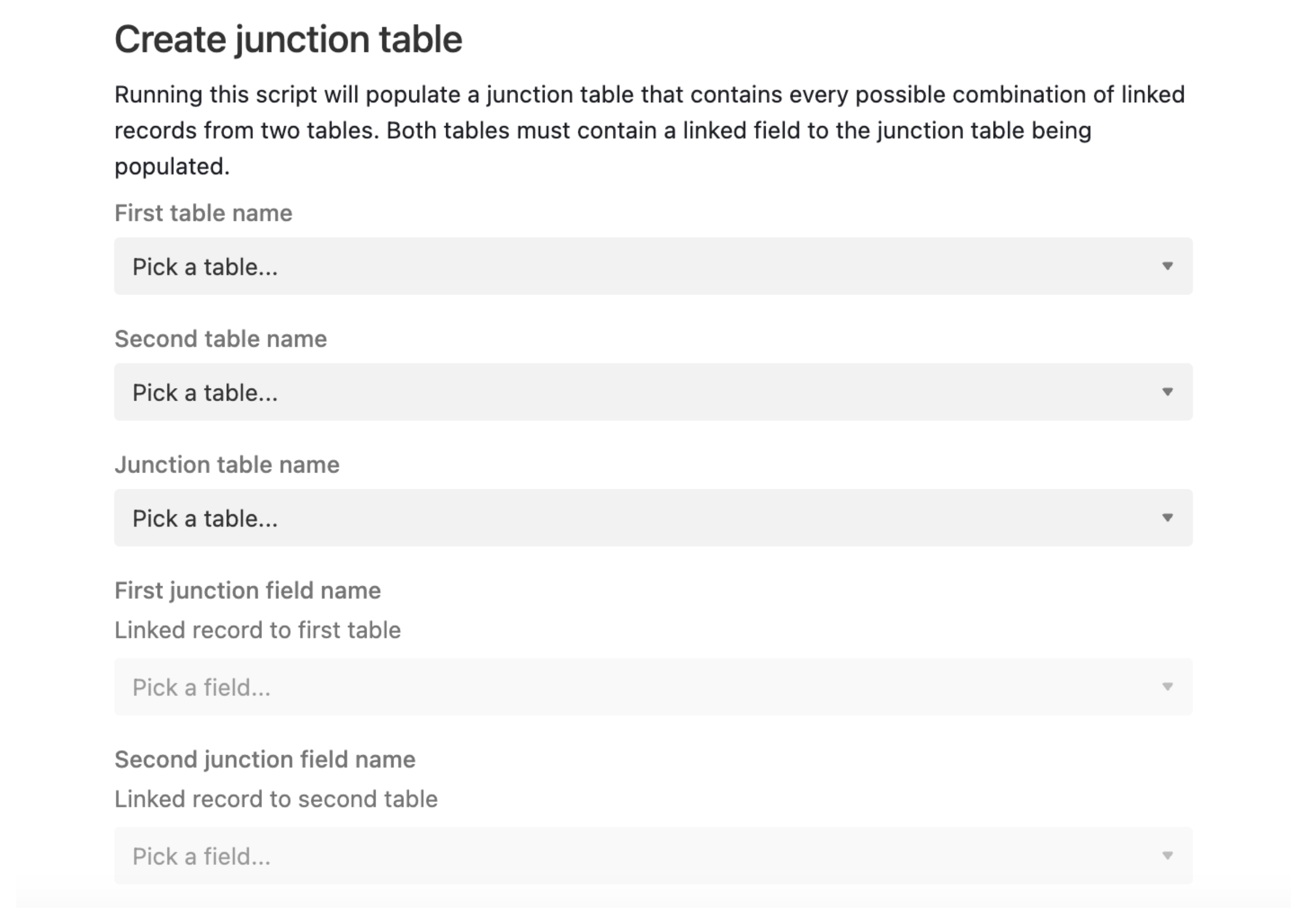
After generation, fill in any additional fields (price, discount, availability) for each combination.
This works well for pricing matrices, compatibility charts, or availability grids where every combination needs to exist upfront.
Method 3: Junction Assistant Extension (Paid Plans, $15/month)
The Junction Assistant is a Marketplace extension for selectively adding records to an existing junction table. It lets you pick specific connections as needed rather than generating every possible combination automatically.
Example: An interior design project tracker is a good example. You might have Projects and Products tables with a Catalogue junction table between them. The AKS Project needs a chair, a sink, and wallpaper assigned. The XYZ Project needs a bed and a table. Not every possible combination, only these specific assignments.
The Junction Assistant gives a picker interface: select a project, choose the products to assign from a list, click Create Records. It generates the junction records automatically and flags any that already exist to prevent duplicates.
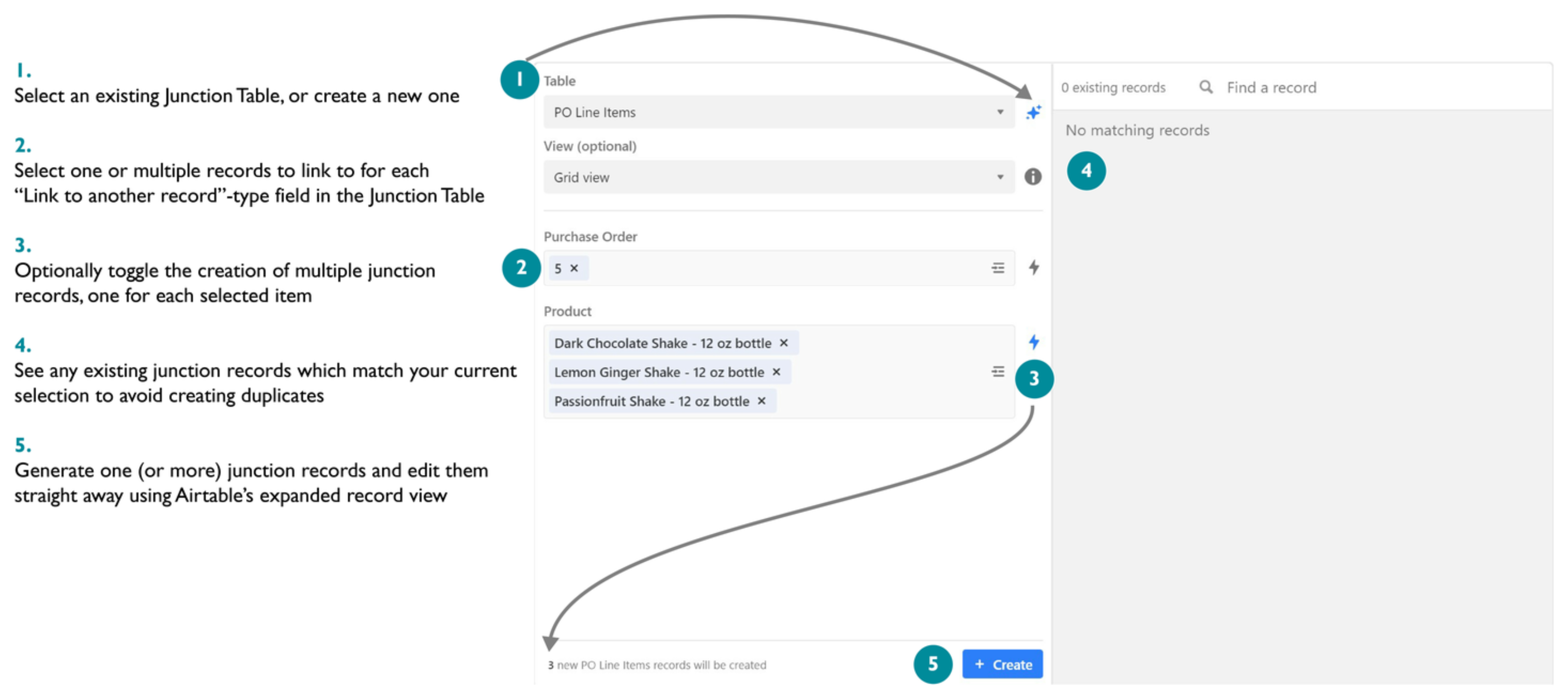
The extension costs $15 per month. Worth it when creating junction records frequently. For occasional use, manual setup is fine.
Method 4: Custom Script
A custom script in the Scripting Extension gives complete control over junction record creation.
Use cases where a custom script makes sense:
- Generate combinations based on specific filters rather than all records
- Add conditional logic to determine which connections to create
- Automatically populate metadata fields at creation time (timestamps, user IDs, calculated values)
- Handle business rules that no off-the-shelf tool accounts for
The tradeoff is that custom scripts require JavaScript knowledge and time to build. This method fits when you have a specific, non-standard requirement.
Which Method to Use
| Manual | Junction Script | Junction Assistant | Custom Script | |
|---|---|---|---|---|
| Plan required | Any | Paid | Paid | Paid |
| Cost | Free | Free | $15/month | Free |
| Use case | Selective, deliberate | All combinations | Selective, frequent | Custom logic |
| Good for ongoing use | Yes | No (one-off) | Yes | Yes |
Start with the manual method for most use cases. Use the Junction Table Script when you need every combination generated at once. Use the Junction Assistant when you are building junction records frequently and want a better workflow. Write a custom script when nothing else fits.
For more on how many-to-many relationships work across Airtable bases, see Can You Link Airtable Records Across Different Bases?. For pulling junction table data back into parent tables using lookups, see How to Populate a Linked Record Field Using a Lookup Field in Airtable.