How to Move an Airtable Interface to Another Base
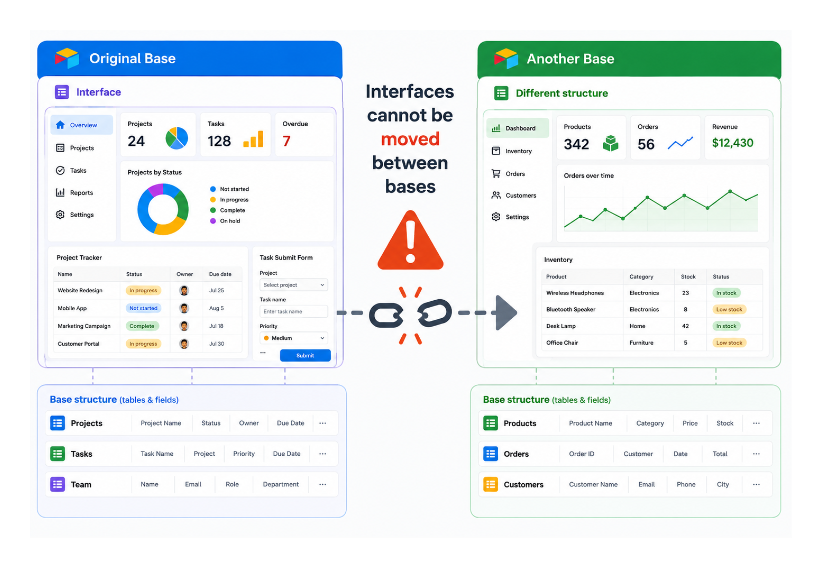
You have built an Interface that looks exactly right and want to use it in a different base. When you check the Interfaces menu, there is a Duplicate option, but it only duplicates within the same base. There is no Move or Export option.
This is a hard limitation in Airtable, not a missing feature that will appear in a different menu.
Why Interfaces Cannot Be Moved
An Interface is not a standalone design. Every element in it every grid, list, chart, form, filter, and record detail is connected to specific tables and fields in the base it was built on. The Interface references those tables and fields by their internal IDs.
If you moved the Interface to a different base, all of those connections would point to tables and fields that do not exist in the new base. Every element would break. Airtable prevents the move precisely because there is no clean way to transfer those connections automatically.
Workaround 1: Duplicate the Base and Delete What You Do Not Need
If your destination base does not yet have data and you are starting fresh, this is the cleanest approach.
- From the Airtable home screen, click the three dots next to your original base
- Select Duplicate base
- In the duplicate, delete the tables and records you do not need, keeping the ones the Interface relies on
- The Interface is now in the new base, connected to the preserved tables, and fully functional
This only works cleanly if you are okay with the new base inheriting the structure of the original. You cannot selectively bring just the Interface into an existing base with a completely different structure.
Workaround 2: Sync the Required Tables Into the Destination Base
If you have an existing destination base with its own data and you want the Interface there, the approach is to use Airtable Sync to bring the data from the original base into the destination base, then rebuild the Interface in the destination base referencing those synced tables.
- In the destination base, add a new synced table and connect it to the relevant table from the original base
- Once the data is synced, rebuild the Interface in the destination base using the synced table
This is more work than a simple move, but it lets you place an Interface-equivalent in a base that already has its own structure.
The limitation: synced tables are read-only. If your Interface includes elements that allow editing records, those will not work on synced table data. For read-only dashboards and reporting Interfaces, this approach works well. For editing Interfaces, you would need to work with the original base directly.
Workaround 3: Rebuild the Interface in the Destination Base
If neither workaround above fits your situation, the only remaining option is to rebuild the Interface from scratch in the destination base.
This is frustrating if the Interface is complex, but Airtable gives you no automated path to transfer Interface designs between bases. Once an Interface is built, it stays in the base it was created in.
To make rebuilding faster, document the Interface structure before you start: list each page, each element on the page, and the configuration of each element (which table it uses, which fields it shows, what filters are applied). Having this reference document open while rebuilding reduces the time significantly.
Preventing This Problem in the Future
If you regularly reuse Interface designs across different projects or clients, building a template base is worth the upfront effort. Create a base with the structure you commonly use and a polished Interface on top of it. When you start a new project, duplicate this template base. The Interface comes with it and immediately works on the new base's data.
For guidance on how base duplication works and what carries over, see how to transfer an Airtable base to another account without breaking anything. For syncing data between bases as part of the second workaround above, see how to copy data from one Airtable base to another.