How to Share an Airtable Base With Automations Intact
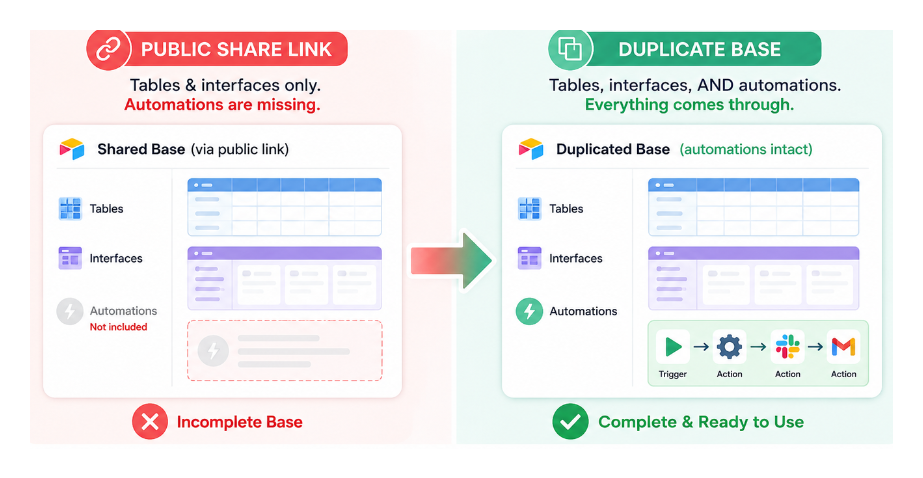
When you share an Airtable base via a public link, the person on the receiving end gets tables and interfaces. Automations do not come through. If your base relies on a set of automations to function correctly, the person you are sharing with ends up with an incomplete base they cannot use properly.
This is a known limitation of public share links. Here is what actually works.
Why Public Links Do Not Include Automations
Public share links are designed for sharing data views, not base configurations. When someone follows a public link to a base, they can see records and (if permitted) interface pages. The base configuration, including automations, API connections, and script actions, is not exposed through public links even if the recipient duplicates the base from that link.
Duplication from a public link creates a structural copy of tables and fields but leaves automations empty.
Approach 1: Share Base Access and Let Them Duplicate
When a person duplicates a base they have direct access to (not via a public link), the duplication includes automations.
The workflow:
- Invite the person to your base with at least read-only access
- Once they are in, they can go to the base's three-dot menu and select Duplicate base
- Choose Just this base and select their workspace as the destination
- The duplicate includes tables, interfaces, and automations
This is the most complete transfer method. All automation logic, trigger configurations, and action settings copy over. Automations that connect to external services (Gmail, Slack, etc.) will need their service connections re-authenticated, since the connection credentials belong to the original account. But the automation structure and logic is fully preserved.
The limitation Airtable has around this: when a person has base access, they can see the sharing list, meaning they can see other collaborators' email addresses. If you are sharing the same base template with multiple clients and do not want them to see each other, the per-client duplicate approach below solves this.
Approach 2: Create a Per-Client Duplicate and Share That
Rather than sharing the original base, duplicate it first and share the duplicate. Each client gets their own copy.
- Duplicate your template base: three-dot menu on the base, Duplicate base, choose your own workspace
- Name it with the client's name or project
- Invite only that client to the duplicate
Now the client's sharing list only shows you and them. They can duplicate the base to their own workspace if needed, and automations come with it.
For many clients, this creates multiple bases to maintain. If you update the template, you need to update each client copy separately. This scales reasonably to five or ten clients but becomes cumbersome beyond that.
Approach 3: Have the Client Invite You to Their Workspace
A cleaner option when the client already has their own Airtable workspace: have them invite you, then you duplicate the base directly into their workspace.
- Client invites you to their Airtable workspace with Creator or higher access
- You open your template base and duplicate it, selecting the client's workspace as the destination
- The duplicate lands directly in their workspace with all automations intact
- You re-authenticate any service connections if needed, then remove yourself from their workspace
The client never needs access to your workspace, and they get a fully functioning base from the start. This is the cleanest handoff for agencies and consultants delivering Airtable builds to clients.
What Carries Over on Duplication and What Does Not
When duplicating a base, Airtable copies:
- All tables, fields, views, and field configurations
- All automations including trigger settings and action configurations
- All Interface pages and their layouts
- Extensions and their settings
- Locked views and personal views owned by the duplicating user
What does not carry over:
- Service connections (Gmail, Slack, Google Calendar). The automation structure comes through but the connected accounts need to be re-authenticated in the new base.
- Records (you can choose whether to include records during duplication)
- Comments on records
- Revision history
For delivering a working base to a client, the re-authentication step for service connections is the main post-duplication task. For automations that use Airtable's built-in Send email action without a connected external account, no re-authentication is needed since Airtable handles the sending.
For more on how base moves and transfers work including what IDs are preserved, see how to transfer an Airtable base to another account without breaking anything. For managing which team members can modify automations in the shared base, see how to see and manage user permissions in Airtable.