If you're moving from ClickUp to Airtable, one thing you might immediately miss is an obvious bulk edit button.
You have 50 tasks and want to change all of them to In Progress.
You definitely don't need to open each Airtable record and change the status individually.
Airtable handles bulk editing more like a spreadsheet. Here are the methods I use.
Copy and paste a value into multiple records
One of the quickest options is copy and paste.
Enter the value you want into one cell and copy it.
Then select the other cells you want to update and paste.
For example, if 30 tasks need the same status, you can copy In Progress, select those 30 cells in the Status field, and paste.
Airtable applies the value to the entire selected range.
This works well when you're updating things like statuses, dates, assignees, categories, or other shared values.
Drag the fill handle
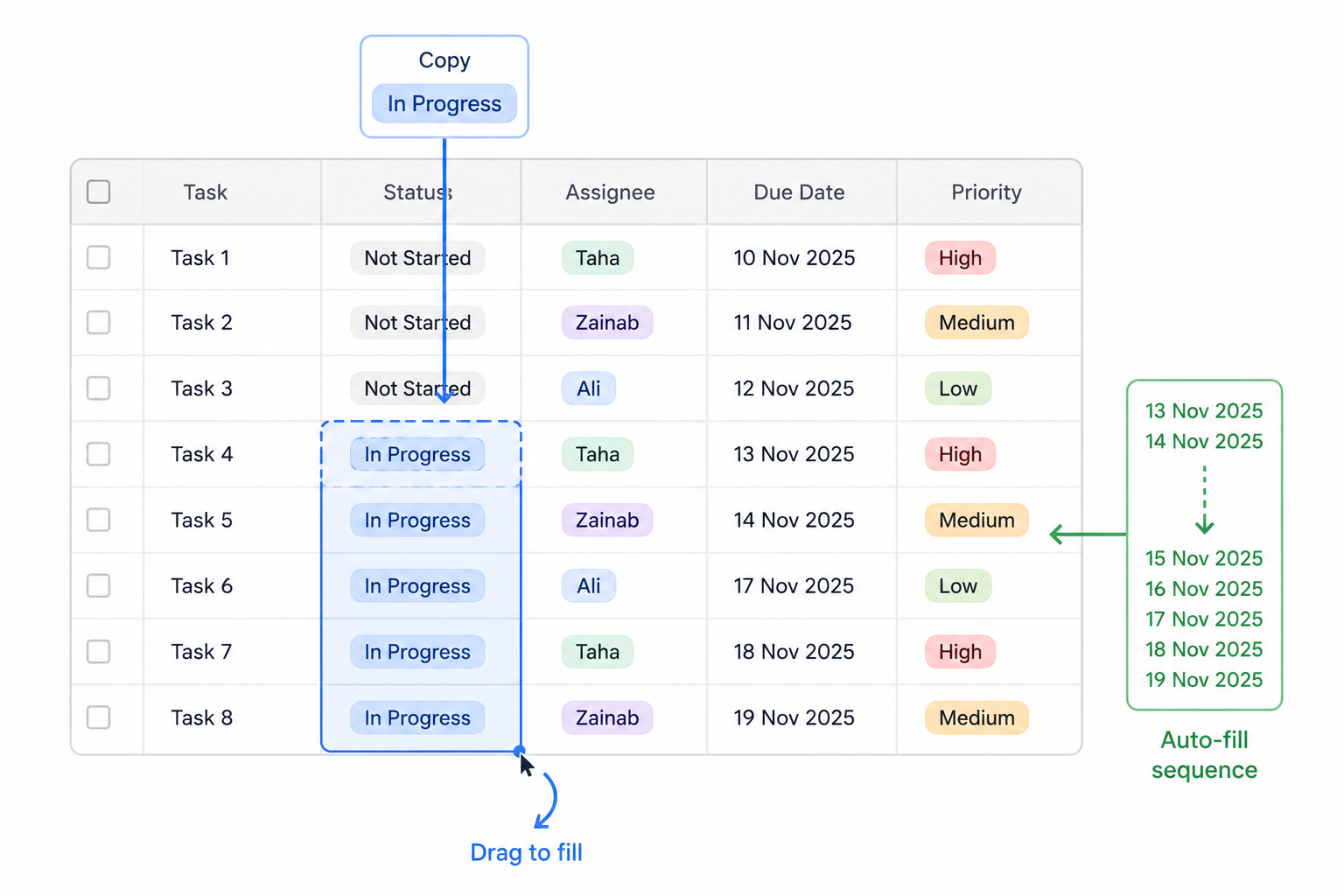
Another option is Airtable's fill handle.
Click a cell and you'll see a small handle in its bottom-right corner.
Drag that handle down across the records you want to update.
Airtable copies the value into those cells.
For example:
Status: In Progress
Drag it down another 20 records and all of those records get the same status.
This is probably the method I use most when the records I need to update are next to each other.
Continue a number or date sequence
The fill handle can also recognize sequences.
Suppose you enter:
1
2
Select both cells and drag the fill handle down.
Airtable continues:
3
4
5
The same thing works with dates.
For example, enter:
January 1
January 8
Select both and drag down.
Airtable recognizes the seven-day difference and continues the weekly sequence.
This is useful when you're creating task numbers, scheduling recurring work, or setting dates for a series of records.
Filter first when you only want to update certain records
You won't always want to update every record in the table.
For example, maybe you only want to change tasks where:
Assignee = Taha
Status = Not Started
Create or use a view filtered to those records first.
You can then use copy and paste or the fill handle on the records you actually want to change.
This makes bulk updates much easier to manage.
Airtable bulk editing feels different from ClickUp
ClickUp gives you a more obvious bulk-action workflow.
Airtable approaches the same problem more like a spreadsheet.
For most everyday bulk changes, I use three things:
- Copy and paste into a selected range
- Drag the fill handle to repeat a value
- Select two numbers or dates and drag to continue the sequence
Once you know those shortcuts, updating dozens of Airtable records doesn't require editing them one by one.