How to List All Fields in an Airtable Table
Have a table with dozens of fields? You do not need to scroll across the grid to understand it. Airtable’s Manage fields tool gives you one searchable list of the fields in that table.
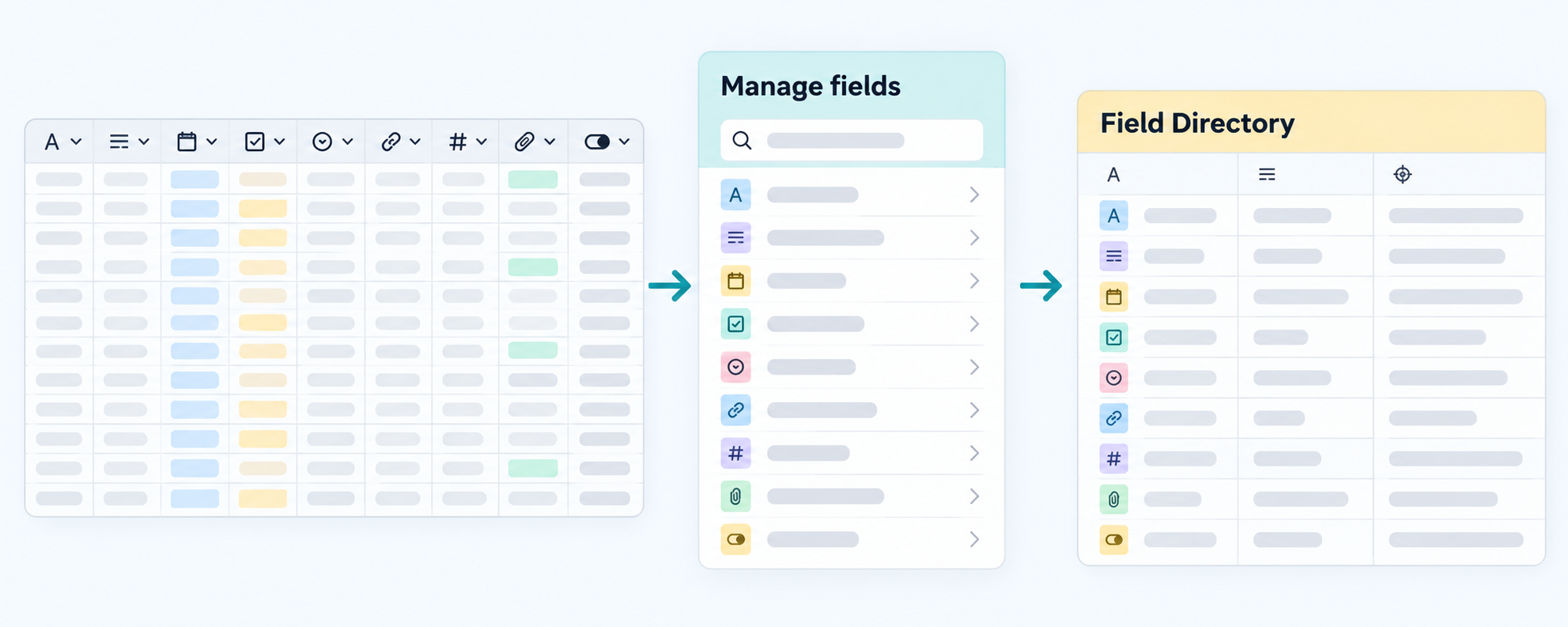
Start with Manage fields
Open the base and click the arrow next to the table name. Select Manage fields.
Search for a field by name, or filter the list by permissions and dependencies. The dependency view shows whether a field is used by an automation, interface, view, sync, or another field before you change or delete it.
If you only need to inspect the table, this is all you need. You do not need another table or an extension.
The Field Manager is available on paid plans for Owners and Creators. See Airtable’s Field Manager documentation for the current plan and permission details.
Save the field list in a separate table
Manage fields is useful while you are working in Airtable, but it does not give you a saved record for each field. Create a separate Field Directory table when you want to add notes, share the structure, or hand the base to someone else.
Add fields such as:
| Field | What to record |
|---|---|
| Table | The table containing the field |
| Field name | The field’s name |
| Field type | Text, date, formula, linked record, or another type |
| Purpose | What the field is used for |
| Used in | Views, automations, interfaces, or syncs that rely on it |
| Notes | Anything the next person maintaining the base should know |
For a small base, fill in the directory while you review each table. Someone taking over the base can then understand the structure without opening every table and field.
Fill the directory with a script
If the base has many tables, use Airtable’s Scripting extension to create the initial list. A script can read the fields in each table and write the table name, field name, field type, and options into Field Directory. Review the records afterward and add the notes that only your team knows, such as which automation or interface uses a field.
The Scripting extension is available on paid plans and requires Owner or Creator access to add or change the extension. See Airtable’s Scripting extension documentation before using a script that changes records.
Keep it useful
The directory should explain the fields, not copy every setting from Airtable. Add a short purpose note for fields that are difficult to understand, and update it when the workflow changes.
For day-to-day work, use views to hide fields that a team does not need. The directory helps you understand and maintain the base; it is not a replacement for a clean working view.
If you find fields that are no longer needed, check their dependencies before deleting them. See how to safely delete unused Airtable fields. If the problem is the order of the fields, see how to reorder fields in Airtable list and grid views.