How to Reset a Child Field When a Parent Field Changes in Airtable Forms
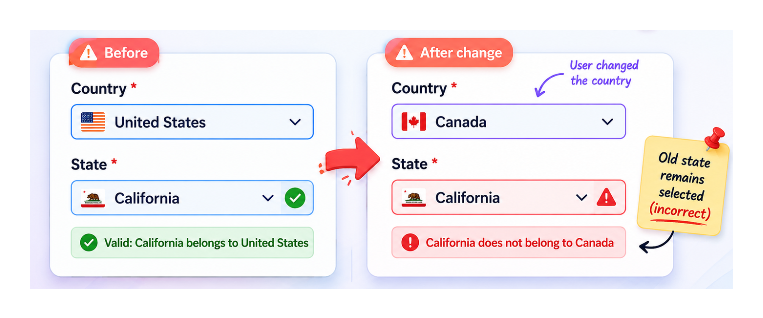
You are building a form with two linked fields: Country and State. The user picks a Country first, then a State from a filtered list. But if they go back and change the Country, the previously selected State stays selected even though it belongs to the old country. The form submits with a mismatched Country and State pair.
This is a cascade reset problem. When a parent field changes, dependent child fields should clear automatically. Native Airtable forms do not support this behaviour. Here is what does.
Why Native Airtable Forms Cannot Do This
Airtable's native Interface forms support limiting dropdown choices based on a previous selection, so you can filter the State list based on the selected Country. But the form does not track whether a previously selected child value becomes invalid when the parent changes.
When the user goes back and picks a different Country, the State field still shows the old selection. Airtable has no built-in mechanism to clear it.
Approach 1: Use Fillout for Cascade Reset
Fillout handles cascade resets natively. When you build a linked field relationship in a Fillout form (Country linked to State), changing the parent field automatically clears the child field.
The form connects directly to your Airtable base and writes responses to the same tables. Your base structure does not need to change. You get the filtered child dropdown behaviour plus the automatic reset when the parent changes.
Fillout also supports:
- Multi-step forms where the country/state selection appears on separate pages
- Prefilling the country field for known users to reduce friction
- Conditional logic that shows or hides the State field based on whether a country with regional subdivisions was selected
This is the most complete solution for forms where dependent field relationships need to behave correctly across edits and changes.
Approach 2: Post-Submission Cleanup via Automation
If you need to stay within native Airtable forms, a different approach is to accept that the form may collect mismatched data, and clean it up automatically after submission.
Set up an Airtable automation triggered when a new record is created from the form. The automation checks whether the selected State belongs to the selected Country. If not, it clears the State field (sets it to empty) and optionally sends a follow-up email asking the submitter to correct their selection.
This is a reactive fix rather than a preventative one. The user does not see the problem in the form itself. They only find out after submitting that their State field was cleared and they need to resubmit.
For workflows where data accuracy is critical and you cannot risk incorrect submissions, this approach is not ideal. It works better for internal forms where the submitter can be easily contacted to correct their entry.
Approach 3: Separate the Form Into Two Steps
A simpler workaround for the native form limitation is to split the form into two stages.
Stage 1: The user picks their Country and submits. Stage 2: An automation detects the new record and sends a follow-up link to a second form that is pre-filtered to show only States for the selected Country. The user fills in the State and other details.
This eliminates the cascade problem because the State form is generated after the Country is known. The downside is that it requires two separate submissions and depends on email delivery working reliably.
For most use cases where Country and State are part of a longer form, Fillout is the cleaner solution. For the native Airtable approach to building linked dropdown filtering without cascade reset, see how to update existing Airtable records with forms for related form techniques.