How to Reorder, Freeze, and Navigate Fields in Airtable Grid View
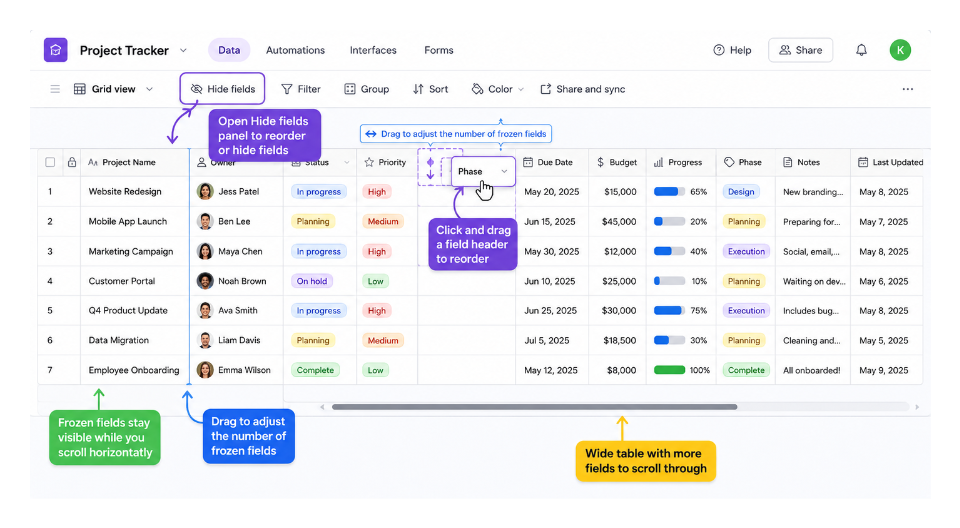
Three common frustrations when working with wide Airtable tables: you cannot figure out how to reorder columns, important fields scroll off screen as you move right, and the horizontal scrollbar at the bottom is tiny and hard to use.
All three have straightforward solutions.
How to Reorder Fields
Airtable supports drag and drop field reordering directly in grid view.
To move a field:
- Click and hold the field header
- Drag the field left or right
- Release it in the new position
If you want to reorder many fields more efficiently, use the Hide fields panel in the toolbar.
- Click Hide fields
- The panel shows all fields in the current view
- Use the drag handles beside each field name to reorder them
- The grid updates immediately
This is often easier than dragging fields individually across a very wide table.
The Hide fields panel is also where you hide fields from the current view without deleting them. This is useful for keeping a clean working view without removing fields that other views or automations depend on.
Field order is per-view. Reordering fields in one grid view does not affect other views. If you want a different field order in a new view, create a personal view and arrange fields there without affecting your teammates. For reordering fields in an Interface rather than the base grid, see how field order is controlled in the Interface element settings panel.
How to Freeze Columns
Freezing fields keeps important columns visible while you scroll horizontally across a wide table.
Airtable supports freezing up to three fields per view.
To freeze fields:
- Look near the left side of the grid header row
- Hover between the frozen and unfrozen field area
- A blue divider appears with the message: Drag to adjust the number of frozen fields
- Drag the divider to the right
- Release after the field(s) you want frozen
The fields to the left of the divider remain visible while scrolling horizontally through the rest of the table.
To unfreeze fields, drag the divider back to the left.
Frozen fields are per-view, like field order. Freezing in one view does not affect other views.
How to Scroll a Wide Table Without the Tiny Scrollbar
The horizontal scrollbar at the bottom of a wide Airtable table is narrow and hard to click precisely, especially on a trackpad. Three faster alternatives:
Shift and scroll: Hold Shift and use your mouse wheel or trackpad scroll gesture. This scrolls horizontally instead of vertically. On a Mac trackpad, you can also use a two finger swipe left or right directly.
Click in the row area and use arrow keys: Click on any cell in the grid, then use the left and right arrow keys to move between fields. Tab and Shift-Tab also move right and left between cells. This is the fastest way to navigate to a specific field when you know roughly where it is.
Use the Hide fields panel to reduce visible columns: If the table is wide because it has many fields you rarely use, hide those fields in the current view using the Hide fields panel. This reduces the horizontal scrolling distance significantly and makes the table easier to navigate. Hidden fields are not deleted and still appear in other views.
For managing record order (up and down) rather than field order (left and right), see how to reorder records in Airtable grid view for the drag handle approach and the number field method for persistent ordering.