How to Track Project Budgets and Expenses in Airtable
For each project, you want to see how much you planned to spend, what it has cost so far, and how much money you have received and paid. In Airtable, you can keep those figures beside the project status and pending tasks on one dashboard.
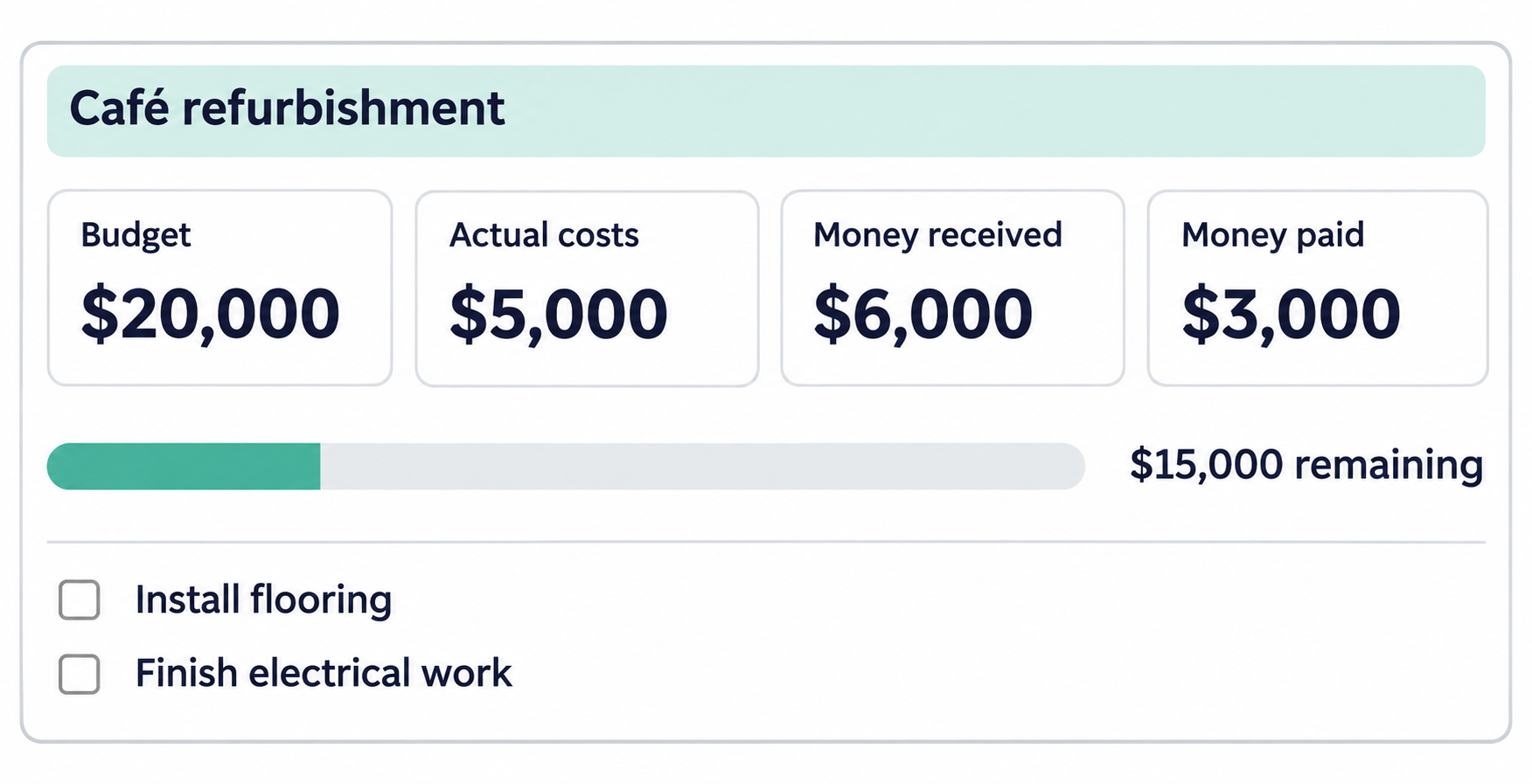
Let's take a café refurbishment with a $20,000 budget. The renovation company needs to record materials and contractor bills, track customer payments, and assign the remaining work. We'll use that example to build the tracker below.
Create a record for each project
Create a Projects table and name its primary field Project. Add Café refurbishment as the first record.
Add a Status single select field with Planned, In progress, and Complete as the options. Set this project to In progress.
Next, add a Cost budget currency field and enter 20000. This is the amount the company plans to spend doing the work.
Use the same currency throughout this setup so the totals can be added directly.
Record costs against the project
Create a Costs table. Each record represents a bill or expense, such as a materials purchase or a contractor's invoice.
Name the primary field Cost, then add these fields:
| Field | Type | What to enter |
|---|---|---|
| Project | Link to another record | Link to Projects and select the project the cost belongs to |
| Amount | Currency | The full cost of the bill or expense |
| Category | Single select | Materials, Labour, or another cost category |
| Supplier | Single line text | The business or person charging you |
| Due date | Date | When the bill needs to be paid |
Add Flooring materials for $3,000 and Electrical work for $2,000. Link both records to Café refurbishment.
Enter a bill when it becomes a cost the project owes, even if you will pay it later. That keeps unpaid bills in the budget comparison.
Calculate actual costs and the budget remaining
Return to Projects. Airtable has added a linked field containing the project's Costs records.
Add a Rollup field called Actual cost. Choose that linked field, select Amount, and enter:
SUM(values)
The café project now shows $5,000 in actual costs. Airtable's rollup documentation explains how these totals use linked records.
Add a Formula field called Budget remaining:
{Cost budget} - {Actual cost}
Set its formatting to currency. With a $20,000 budget and $5,000 in costs, the project has $15,000 remaining. A negative result shows how far spending has gone over budget.
To see which categories account for the spending, group the Costs table by Category and sum Amount. See how to view category totals in Airtable for the grouped totals setup.
Record money received and paid
The $5,000 cost total does not tell you how much has left the bank. Create a Payments table to record each payment when it happens, including deposits and part payments.
Name its primary field Payment, then add:
| Field | Type | What to enter |
|---|---|---|
| Project | Link to another record | The project receiving or paying the money |
| Direction | Single select | Money in or Money out |
| Amount | Currency | The payment amount as a positive number |
| Payment date | Date | The date the money was received or paid |
For the café project, record a $6,000 customer deposit as Money in. Record the $3,000 flooring payment as Money out. The electrical bill stays in Costs until it is paid; add its payment to Payments when the money leaves the account.
Back in Projects, add two rollup fields through the new Payments link. Both summarize Amount using SUM(values):
- Money received: enable conditions and include only payments where Direction is Money in.
- Money paid: enable conditions and include only payments where Direction is Money out.
Add a formula field called Net cash received:
{Money received} - {Money paid}
The result is $3,000. That is the project's receipts minus its payments so far. The unpaid electrical bill is still a cost the company needs to pay.
For balances across bank accounts and cash accounts, see how to build a simple general ledger in Airtable.
Add the remaining work
Create a Tasks table with the task name as its primary field. Add a Project linked record field pointing to Projects, an Assigned to user field, a Due date date field, and a Complete checkbox.
Add Install flooring and Finish electrical work, link them to the café project, and assign each task to the responsible person.
In Projects, add a Count field called Open tasks. Select the linked Tasks field and enable a condition that includes only records where Complete is unchecked.
The project now has its spending, payments, and unfinished work ready for the dashboard.
Show the project finances on one dashboard
Open Interfaces, create a page, and choose the Dashboard layout. Set its first group's source to Projects.
Add a list showing Project, Status, Cost budget, Actual cost, Budget remaining, and Open tasks. Each row gives you the financial and work status of one project.
Above the list, add Number elements. Choose Summary, select the relevant field, and use Sum for each total:
- Cost budget
- Actual cost
- Money received
- Money paid
To keep unfinished work on the same page, click Add group and choose Tasks as its source. Add a list filtered to unchecked Complete records, showing the task, project, assignee, and due date. Sort it by due date so the next tasks appear first.
Each dashboard group has its own source and filters. For a café-only dashboard, filter the Projects group to Café refurbishment and the Tasks group to tasks linked to that project.
Publish the page. As the team adds costs, records payments, and completes tasks, the dashboard reflects those changes. Airtable's dashboard settings cover the available numbers, lists, and group filters.